
You can see a report of activities on Android and Apple iOS devices that are used in your organization. For example, you can see if a user's device is compliant with the policies you set on the device. You review the various device activities in a log in the Google Admin console. What you see depends on the device and user account.
Before you begin
To view events on Android and iOS devices:
- The devices need to be managed using advanced mobile management. For details, see Set up advanced mobile device management.
- Devices need to sync data using Android sync or iOS Sync for Google Workspace.
View device activity (devices audit log)
-
In the Google Admin console, go to Menu


 Directory
Users.
Directory
Users.Requires having the appropriate User management privilege. Without the correct privilege, you won't see all the controls needed to complete these steps.
- In the Users list, find the user. If you need help, see Find a user account.
- Click the user's name to open their account page.
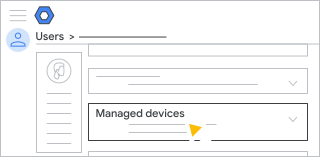
Click Managed devices to see a list of the user's devices.
Hover over the Device ID and click More
 Show Audit Info.
The audit log for the selected device opens. For details, see Devices audit log.
Google, Google Workspace, and related marks and logos are trademarks of Google LLC. All other company and product names are trademarks of the companies with which they are associated.