
Supported editions for this feature: Frontline Standard and Frontline Plus; Enterprise Standard and Enterprise Plus; Education Standard and Education Plus; Enterprise Essentials Plus; Cloud Identity Premium. Compare your edition
With configuration groups, you can apply Context-Aware Access levels to groups of users rather than organizational units. Configuration groups can include users from any organizational unit in your business. For example, let a team of contractors access Gmail only on your corporate network.
How configuration groups work
- Configuration groups can contain any users in your organization. Also, you can create a configuration group that acts as a container for access levels, and then add your user groups (nested groups).
- A user can belong to multiple configuration groups, unlike organizational units. You set the priority of the configuration groups, and the user gets the setting of the highest priority group they belong to.
- A user's group access level for an app always overrides their organizational unit's access level.
- If a configuration group doesn't specify an access level for an app, then the app uses the access level set by the user's organizational unit.
Design configuration groups for Context-Aware Access
Configuration groups work a little differently for Context-Aware Access compared to other Google Workspace settings. As you design your groups and policies, follow this information and the tips:
Options for configuration groups
You usually define access levels for organizational units, and then determine custom access levels for configuration groups. For example, you might have configuration groups for "Open access" or "Lockdown access" so you can quickly grant or limit specific users' access.
Typically, you'll use a combination of configuration groups:
Use your existing user groups
You set the access level for each app (Gmail or Google Drive, for example) in the user group. If a user belongs to multiple groups, you set which group determines the user's settings (described later in the Priority section).
Applying access levels directly to user groups is a good option for:
- Testing Context-Aware Access.
- Managing access for specific groups of users, such as IT staff or a team on remote assignment.
- Managing access for organizations with fewer than 50 users or a small number of access levels. You don't need to create more groups and you can finely tune settings for each user group.
Create configuration groups based on access levels
Alternately, you can assign access levels to groups. You create a configuration group and assign access levels for an app or apps. Then you add user groups as members of the configuration group.
Larger organizations might find this approach useful for managing access group policies and priorities (described below).
How priority works with access levels
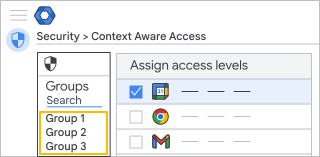
When a user belongs to multiple configuration groups, you set which configuration group has priority in determining the user's app access.
In the Google Admin console, you must first select an application in order to display its corresponding group priority list. Groups are listed from highest to lowest priority. A new configuration group always has the lowest priority and is added to the bottom of a configuration group list.
Priority for Context-Aware Access
A user gets the app settings of the highest priority group they belong to. If the group has no access level for a particular app, then the access level of the user's next highest priority group is used, and so on.
In the Admin console, you can check which group or organizational unit determined a user's app access level. In the example below, the group "Drive Security" set the user's Drive access.
| User's apps | Access levels | Inherited from |
|---|---|---|
 Google Calendar Google Calendar |
Company network | Organizational unit: Sales |
 Drive Drive |
Company network, Device security | Group: Drive Security |
 Gmail Gmail |
Device security | Organizational unit: Sales |
 Google Vault Google Vault |
<none> | <none> |
For fine-grained control, you can use groups to customize access levels for each app. For example:
| User's apps | Access levels | Inherited from |
|---|---|---|
| Calendar |
Company network | Organizational unit: Sales |
| Drive |
Company network, Device security | Group: Drive Security |
| Gmail |
Device security, Geo Canada | Group: North America |
| Vault |
Device restricted, Company network | Group: Vault Investigator |
Apply priority to configuration groups
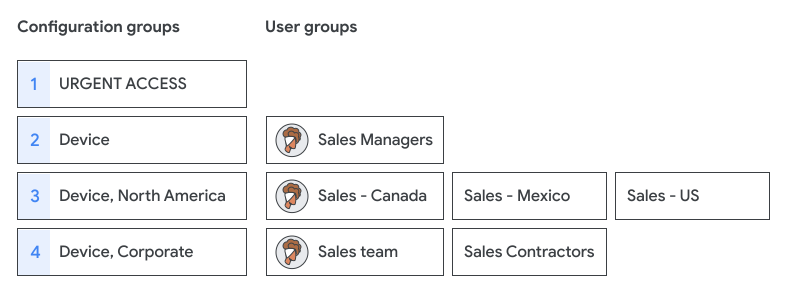
- Consider placing critical or sensitive configuration groups at high priority. For example, your top priority group might be an "Urgent Access" group that overrides any groups limiting access.
-
Access levels aren't added across a user's groups. In this example, a user belongs to 3 user groups, but only their highest priority configuration group, "Device" sets their access level.
Planning and designing configuration groups
Planning your configuration group structure is likely the step that takes the most time and review.
Naming and searching for groups
Set a group naming standard for easier searching, prioritizing, and auditing. For example, add a prefix such as "caa" to indicate context-aware configuration groups. Also, use a decimal place to avoid editing your existing group names when you add a configuration group.
 |
|
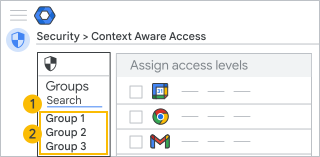
 Search by group address
 View list of groups
- Search for a group: You might want to set up a naming standard that includes the setting name and priority number, for example:
caa_p0.0_unrestricted_access@example.com
caa_p1.0_lockdown_access@example.com
caa_p3.0_Gmail_IP_Device@example.com
caa_p3.1_Gmail_IP@example.com
- View the groups: The Groups panel displays the group name (maximum of 37 characters) in the priority order. Pointing to a group shows the full name. For example:
CAA p0.0 - Unrestricted access all apps
CAA p1.0 - Lockdown access
CAA p3.0 - Gmail IP corp & device security
CAA p3.1 - Gmail IP corp
Ordering groups
To keep track of priority and settings:
- You might place groups that apply to the fewest users or define critical policies (such as "Lockdown access" or "All access") at the highest priority.
- Consider priority in your group structure and watch for deeply nested groups, which might be challenging to trace to settings.
Creating groups
You must use groups created in the Admin console, Directory API, or Google Cloud Directory Sync. Groups created in Google Groups can't be used as configuration groups. (The Admin console doesn't show whether a group was created in Google Groups.)
You can manage the configuration group in any tool. You might set strict permissions to add or delete users, turn off posting to the group, or prevent users from leaving the group (available only in the Groups API).
Set up configuration groups
Before you start: Define the Context-Aware Access levels and create your configuration groups (preferably containing 1 or 2 test accounts).
Step 1. Apply a configuration group
You need admin privileges for Groups, Organizational Units (top-level), and Data Security Access level management and Rule management.
-
In the Google Admin console, go to Menu


 Security
Access and data control
Context-Aware Access.
Security
Access and data control
Context-Aware Access.Requires the Data security access level and rule management privileges and the Admin API groups and users read privileges.
- Click Assign access levels to view the list of apps.
- In the Context-Aware Access section, click Groups.
- Choose an option:
- Click an app. Any existing configuration groups that have an access level assigned for your app are listed in order of priority.
- Click Search for a group to review a list of all groups, not only configuration groups. You can enter text to filter the results.
- Click the group. The application table lists all applications with their access level assignments.
- If you don't find your group, it may have been created in Google Groups. You must create configuration groups in the Admin console, Directory API, or Google Cloud Directory Sync.
- Start by adding your configuration groups from the highest to the lowest priority. When you add a new group policy for an app, it's placed at the lowest priority.
- Click one or more apps, and then Assign.
- Select the access levels for the app in the group and click Save. By default, a new group has no assigned access levels.
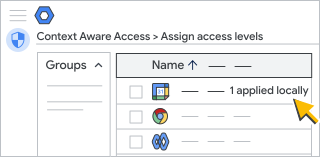
For organizations with multiple types of Google Workspace licenses: The group access levels apply only to users assigned a Google Workspace edition that includes Context-Aware Access control.
Step 2. Check the access levels for a user
You need admin privileges for Groups, Organizational Units (top-level), and Data Security Access level management and Rule management.
-
In the Google Admin console, go to Menu
Security
Access and data control
Context-Aware Access.Requires the Data security access level and rule management privileges and the Admin API groups and users read privileges.
- In the Admin console, go to the settings page for the app.
- In the top left, click Users.
- Click Select a user and enter the user's address (not name).
- Select the user to view their app settings. The Inherited from column shows the configuration group or organizational unit that determined the user's settings.
- Point to an app and click View for details about the user's access levels.
Note: When you view an organizational unit, the Inherited levels are based only on an organizational unit's setting, not on configuration groups.
Remove a configuration group
You need admin privileges for Groups, Organizational Units (top-level), and Data Security Access level management and Rule management.
-
In the Google Admin console, go to Menu
Security
Access and data control
Context-Aware Access.Requires the Data security access level and rule management privileges and the Admin API groups and users read privileges.
- Click Assign access levels to view the list of apps.
- On the left, click Groups.
- Click the group to remove.
- First, you unassign all access levels from all apps in the group. In the Apps panel, check each application one at a time to ensure that all access levels are unassigned.
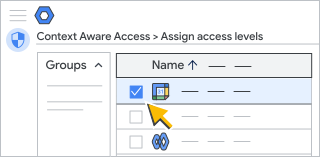
- Click Assign.
- Click Uncheck All
- Click Save.
Edit a configuration group
You need admin privileges for Groups, Organizational Units (top-level), and Data Security Access level management and Rule management.
-
In the Google Admin console, go to Menu
Security
Access and data control
Context-Aware Access.Requires the Data security access level and rule management privileges and the Admin API groups and users read privileges.
- Click Assign access levels to view the list of apps.
- On the left, click Groups.
- Search the group to edit.
- On the right, select apps to edit, add, or remove.
- Click Assign.
- Update the level assignments for the group.
- Click Save.
Troubleshooting
I don't see the configuration group in the Groups list
- The group may have been created in Google Groups. Try creating a group in the Admin console.
- Search for the group's email address rather than the group's name.
- Try refreshing the setting page. Changes can take up to 24 hours but typically happen more quickly. Learn more
- Check that you have admin privileges for Groups.
A user doesn't have the correct access level
- Check a user's group membership. Changes can take up to 24 hours but typically happen more quickly. Learn more
- Find the configuration group that's determining the user's settings. If the user belongs to multiple configuration groups, you might need to change the group priority or user's group membership.
- The user may not have the product license for the feature. Context-Aware Access is available with specific editions of Google Workspace.
- If the user can't access an app, the app might be assigned a deleted access level. Check remove a deleted access level.
Review changes in the Audit log
Review these events in the Admin Audit log for changes to configuration group settings:
EVENT: Context Aware access level App-specific Assignments Change
|
Logs when you apply or remove a configuration group. The event uses the group name, so you might use a similar naming standard for both your group name and address. The data included in a group event:
For example, you apply the configuration group CAA.02 local access to an app:
When you remove the configuration group from an app:
|
Understand organizational units and group inheritance and configuration groups
If you make any local access level changes in a child organizational unit or group, it has only the locally applied access levels and doesn't inherit any access levels from the parent organization.
If you remove all locally assigned access levels to restore the originally inherited access levels, the child organizational unit has only the inherited access levels.
For example, for organizational units, if there are 3 access levels assigned to an app in the top-level organizational unit, those same access levels are assigned through inheritance to the app in a child organizational unit if the child organizational unit doesn't have local assignment. If you then add an access level only in the child organizational unit, that's the only access level applied to the child organizational unit.
Override inherited access level assignments with a null policy
Let's say that you don't want to block any user access in a child organizational unit—no access level assignments. You can create an access level with the advanced expression: true. For details, go to Define access levels—Advanced mode.
Override access level assignments with configuration groups
You can use configuration groups to assign access levels to groups of users rather than organizational units. A user's group access level always overrides the user's organizational unit access level. The groups can include users from any organizational unit in your account.
For example, a user belongs to an organizational unit and Group1. The organizational unit is ParentOU, which has access level X assigned for both Gmail and Calendar. There is no access level assignment for Group1 for Gmail. There is an access level Y assigned for Group1 for Calendar. In this case, the user has access level X assigned to Gmail (through inheritance) and Y assigned to Calendar (by overriding the local policy).