
As an administrator for your organization's Google Workspace or Cloud Identity account, you can see a list of all the admin roles and privileges assigned to a user or group. You can also see a list of all the direct assignments for a given role. This information can help you to quickly determine a user's or group's level of administrative access to your organization's Google Workspace account and services.
You must be signed in as a super administrator for this task.View a user's roles & privileges
On a user's page, you can see roles directly assigned to a user and roles a user indirectly receives as a member of a group that was assigned the role.
-
In the Google Admin console, go to Menu


 Directory
Users.
Directory
Users.Requires having the appropriate User management privilege. Without the correct privilege, you won't see all the controls needed to complete these steps.
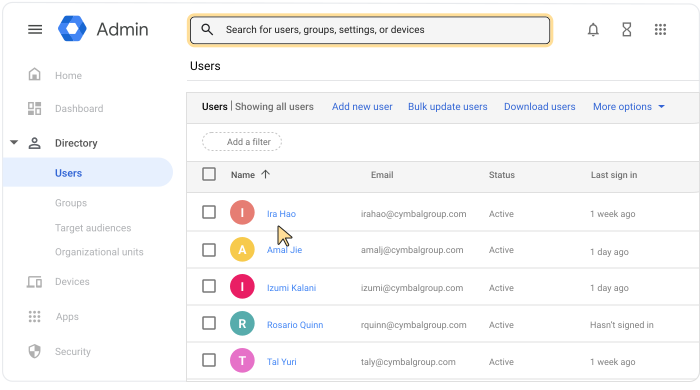
- Open the user's account page: Click the user's name. Or, at the top, in the search box, enter the user's name and open their account page. For more options, go to Find a user account.
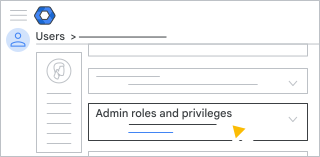
- Scroll down and click Admin roles and privileges.
- In the Roles list, in the Assigned status column, review the roles assigned to the user.
- Scroll to Privileges to review all the user's privileges. For each privilege, you can see the role it was inherited from and which organizational units it applies to.
- (Optional) To return to the user's account page, for Admin roles and
privileges, click the Up arrow
 .
.
View a group's roles & privileges
On a group's page, you can see roles directly assigned to a group and roles a group indirectly receives as a member of another group that was assigned the role.
-
In the Google Admin console, go to Menu
Directory
Groups.Requires having the Groups administrator privilege.
- Find the group in the list.
- Click the group's name to open its account page.
- Click Admin roles and privileges.
- In the Roles list, in the Assigned status column, review the roles assigned to the group.
- Scroll to Privileges to review all the group's privileges. For each privilege, you can see the role it was inherited from and which organizational units it applies to.
- (Optional) To return to the group's account page, for Admin roles and
privileges, click the Up arrow .
View direct assignments for a role
On the Roles page, you can see all users and groups that have a role directly assigned to them. You can't see the roles that are indirectly assigned to users or groups that are members of a group receiving the role.
-
In the Google Admin console, go to Menu
 Account
Admin roles.
Account
Admin roles.You must be signed in as a super administrator for this task.
- Click the role that you want to review Admins.
Change a role assignment
For information about changing a user's or group's role assignment, go to Assign specific admin roles.