
Supported editions for this feature: Frontline Standard and Frontline Plus; Enterprise Standard and Enterprise Plus; Education Standard and Education Plus; Enterprise Essentials Plus; Cloud Identity Premium. Compare your edition
If you do not already use Context-Aware Access, you can apply predefined policies that are tailored to your organization. If we detect gaps in your organization's security, we give you insights and recommendations that prevent risky devices from accessing sensitive data. For example, we might recommend that you set up a policy to block outdated Android devices. Super administrators get an email every 90 days with access policy recommendations for securing access to your organization's data.
Note: Context conditions were previously referred to as access levels in the Google Admin console.
Before you begin
Desktop devices that don't have endpoint verification installed might not be recognized by Google Workspace. Make sure that desktop users install endpoint verification to avoid being inadvertently blocked. For details, go to Set up endpoint verification.
Step 1: Try recommended policies
You can try access policies in Monitor mode first to check the effects of enforcing a policy without blocking user access.
-
In the Google Admin console, go to Menu


 Security
Access and data control
Context-Aware Access.
Requires the Data security access level and rule management privileges and the Admin API groups and users read privileges.
Verify that Context-Aware Access is on. If it's off, click Turn On.
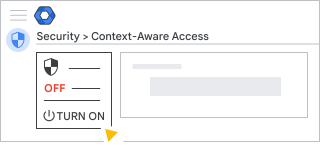
Click View recommendations.
Find a recommendation to address and click Review recommendation.
Review the policy details. If you want to make changes, click Edit, make your changes, and click Save.
Click Create policy.
The policy is assigned to the organizational unit and Google Workspace apps that were specified in the policy details.
Step 2: Review policy assignments in Monitor mode
- You can review logs that specify users who will lose access if the recommended policy is assigned in Active mode. Learn more
- If necessary, you can make changes to the policy or its context conditions. Learn more
Step 3: Activate recommended access policies
Recommended policies are set to Monitor mode by default. This ensures that you don't inadvertently block users when you create a policy. To enforce a policy, change its status to Active.
-
In the Google Admin console, go to Menu
Security
Access and data control
Context-Aware Access.Requires the Data security access level and rule management privileges and the Admin API groups and users read privileges.
- For Policies, click View all policies.
- Find your policy in the list, point to its row, and click Edit policy.
- Change the status from Monitor to Active.
- Click Save.