
This feature is included with Frontline Plus and Enterprise Plus. It's also included with the Gemini Enterprise–Legacy, Google AI Pro for Education, and AI Security add-ons.
Google Drive data classification labels act as descriptive metadata for files, which you can use for various functions such as data protection, audit investigation, and retention. AI classification for Google Drive automates the task of labeling files, without the need for programming.
There are 2 AI classification methods:
- Custom models—Build a specialized machine-learning model unique to your organization based on a set of organizational training data. As an administrator, you control the data your models train on. Your model is unique to your organization.
- Use Gemini (Beta)—Use Gemini large language models (LLMs) to inspect file content and automatically apply labels based on customizable, plain-language instructions you define. This method doesn't require upfront data collection or model training.
You can create a total of 5 custom models and Gemini instructions, which includes up to one Gemini instruction.
Note: To be labeled by AI classification, files must be in shared drives or owned by users with licenses that support classification labels.
Using AI classification
Here are the basic steps you'll follow to set up AI classification to automatically label new and existing files in Drive.

1. Create a custom model or Gemini instructions: Choose or create a classification label that you want to apply automatically to files.
Note: If you're creating a custom model, you also create the training label. This is used to mark example files the model uses to learn how to classify data.
2. (Custom model only) Train the model: After you create your labels, designated labelers classify Drive files with the training label to create your training dataset. Your model then uses the dataset to learn how to classify sensitive files.
3. Turn on AI classification: Once the model is trained or Gemini instructions are set up, you can set up automatic file labeling, called auto-apply. During setup, you select which label options to turn on and which users own the files on which you want AI classification to apply labels. Your model or instructions then start to label sensitive files.
4. Monitor your model: You can use the Drive events log to monitor how many files were classified, as well as how many users accepted or modified an auto-applied label (if they have permissions).
Before you begin
- Understand how classification labels work and how to create them. For details, go to Get started as a classification labels admin.
- Choose your designated labelers—a group of users at your organization who can correctly apply the training label manually to sensitive files.
- Create a configuration group just for your designated labelers. For instructions, go to Customize service settings with configuration groups.
- Enable the following privileges in the administrator account: Manage Classification Labels, Manage DLP rule, and View DLP rule.
Create a model
To create a model, you first need to select an existing classification label or create a new one. Next, you need to create a matching training label—either automatically (recommended) or manually using label manager—which your designated labelers will use.
Choose or create a classification label
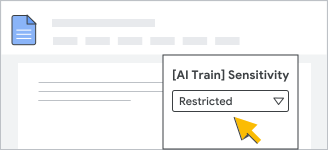
Your classification must be enabled for Drive and Docs. After training, the AI model automatically applies your classification label to sensitive Drive files. The model is trained on only one field per label, which must be either a badge list or an options list.
We recommend a badged sensitivity label, since it shows prominently on documents.
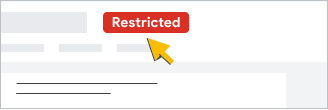
When you use an options list or a badge list field for a classification label, it must:
- Have at least 2 and no more than 7 options
- Be published
If you have an existing label that meets these requirements, you can use it as a classification label. Otherwise, use label manager to create a label, either before or when setting up the model (later on this page). For details, go to Create classification labels for your organization.
Create a training label
Your training label is nearly identical to the classification label and is used only for training purposes by designated labelers. When creating your model (later on this page), you can automatically create the training label so you can be sure it matches the classification label.
You can also choose to create your own training label manually using label manager, either before or when setting up the model. For details, see How do I manually create a training labels? later on the page.
Create the model
-
In the Google Admin console, go to Menu


 Security
Access and data control
Data classification.
Security
Access and data control
Data classification.Requires having the View DLP rule and Manage DLP rule administrator privileges.
- In the AI classification section, click Create model.
- In the Classification label list, select an existing classification label and field to train a model for, or click Create label to create one using label manager.
If you created a label in label manager, return to the Create model page. You might need to refresh the page to see your new label in the list.
- For your classification label, select the eligible field you want to use in Field name list.
- Click Continue.
- (Optional) Automatically create and publish a training label that matches your classification label:
- Click Create training label.
- Click Update label permissions in the message that appears. The label opens in Edit mode in label manager in a separate tab.
- Click Permissions Edit, then grant the Can apply labels and set values permission to the configuration group that contains your labelers.
- Click Save and close the label manager tab.
Note: You can also set label permissions later. But it's important that only your labelers have access to the training label.
- (Optional) If you already created a training label, select it in the Training label list.
- (Optional) Create your own training label now by clicking Go to label manager.
Important: Make sure your label meets the training label criteria and you set label permissions so only your labelers can access it. For details, go to training label guidelines later on the page.
Return to the Create model page. You might need to refresh the page to see your new training label in the list.
- On the Create model page, click Continue.
- Enter a descriptive name for the model.
- Click Create model.
After you create your model, the Model details page shows your selected training label and classification label.
Train the model

To train the AI model, you need to create a training dataset and then start its initial training run. During a training run, the model learns from the examples in the dataset.
Retraining is automatic: After the initial training run, your model retrains every 2 weeks to help improve or keep its level of accuracy. You can retrain your model manually at any time. After each training run, a new model is released, and the automatic 2-week retraining schedule is reset.
Create a training dataset
To create a training dataset, your designated labelers need to apply the training label at least 100 files per label option. For example, if your label has 3 options—say "Need to Know", "Confidential" and "Public"—you need at least 300 training files. However, it's best to have more than 100 files per label option, because it's likely that some files won't be eligible for the training dataset. Learn about labeling high-quality examples for training.
Note: Your training dataset can have a maximum of 1 million files.
After you create the model, it automatically checks to see how many files have been labeled for training in about 24 hours. After that, it checks continuously throughout the day.
To check how many files have been labeled:
-
In the Google Admin console, go to Menu
Security
Access and data control
Data classification.Requires having the View DLP rule and Manage DLP rule administrator privileges.
- In the AI classification section, click View saved models.
- Under Actions for the model, select View details.
- In the panel at the top of the page, under Training files for active model, view the number of labeled files.
If your model has enough files for training, Ready for training
Start a training run
A training run typically takes 4 to 6 hours, but can take longer for larger datasets. Your model will likely need multiple training runs to learn how to label your files accurately.
During a training run, the model compares the classification it selects for a file to the training label applied to the file to generate scores. For details, go to How are scores calculated.
After a training run, you can check the accuracy of the model.
To start a training run:
-
In the Google Admin console, go to Menu
Security
Access and data control
Data classification.Requires having the View DLP rule and Manage DLP rule administrator privileges.
- In the AI classification section, click View saved models.
- On the Model details page, under Actions for the model, select View details.
- In the training panel at the top of the page, click Start a training run.
Note: This button is available only if your labelers have labeled the minimum number of training files.
After training: Check model scores
After a training run, your model is released with percentage scores for each label option. Each score, called a recall score, is the percentage of training examples the model classified correctly after testing itself:
- Below 50%—Low accuracy. The model needs better data and isn't ready yet.
- From 50-80%—Medium accuracy. The model may be ready on a limited basis.
- Above 80%—High accuracy. The model is ready to classify files for your organization.
To check the accuracy of your model after a training run:
On the Model details page, you can view model scores:
- In the training results panel at the top of the page, under Current files used and scores
- In the Current training dataset panel
Create Gemini instructions
To create a set of Gemini instructions, you first need to select a predefined label that contains instructions, or choose an existing classification label. Before you start, ensure your existing label meets the necessary setup criteria. For details, go to Choose or create a classification label on this page.
-
In the Google Admin console, go to Menu
Security
Access and data control
Data classification.Requires having the View DLP rule and Manage DLP rule administrator privileges.
- In the AI classification section, click Use Gemini.
- On the Select label for Gemini to apply page, choose an option:
- Select Apply a predefined label to use a predefined label with template instructions that you can edit.
- Select Apply your own label to use one of your organization's existing labels.
- If you need a new label, click Create label to open label manager in a
new browser tab.
- Note: After you create and publish a new label in the label manager tab, return to the Use Gemini to apply labels tab. Refresh the page to update your available choices.
- If you choose to Apply your own label, select the Classification label drop-down and select a label.
- Click Field name select a field.
- Click Continue.
On the Review the instruction details for Gemini page, enter clear, comprehensive instructions for every label option to help Gemini classify your organization's data. Include the following details for each option:
- What the option represents, such as a category, type, or characteristic
- How Gemini should identify the option, such as clues or keywords
- How Gemini should handle exceptions, such as situations where the option shouldn't apply
Click Continue.
On the Select label options to be eligible for auto-apply page, check the boxes for the specific label options that Gemini should apply automatically.
- Note: Gemini won't apply unchecked options to files in Drive.
Click Continue.
On the Review and name the instructions page, enter a descriptive name for the instructions in Name*. Review and verify the details to ensure accuracy.
Click Save or Save and set up auto-apply.
Turn on AI classification
After Gemini instructions are set up or the custom model is trained to achieve a minimum level of accuracy of at least 50%, you can choose label options and turn on automatic file labeling, or auto-apply. To achieve the best results with a custom model, it's recommended to wait for your model scores for all label options to reach at least 80%.
To turn on auto-apply
-
In the Google Admin console, go to Menu
Security
Access and data control
Data classification.Requires having the View DLP rule and Manage DLP rule administrator privileges.
- In the AI classification section, click View saved models.
- On the Model details page, under Actions for the model, select View details.
- In the training panel, click Set up auto-apply.
Note: This button is available only if at least 1 label option has reached 50% accuracy.
Or, if you've previously set up auto-apply, under AI-labeled files, click Edit auto-apply.
- Check the boxes for the label options you want to allow the AI model to auto-apply.
- Click Save and continue to select which organizational units or groups own the files on which the model should auto-apply labels. The default setting is your top-level parent organization.
Or click Save to select users later.
- If you chose to select users, at the side, select an organizational unit or configuration group.
Group settings override organizational units. Learn more
- Click On - Label is auto-applied with one of the options below.
- Click Save.
On the Model details page, Current auto-apply status for the rule is On.
Note: You can monitor AI classification using the Drive events log. For details, see Monitor AI classification label events later on this page.
When AI classification scans files
After auto-apply is turned on for files owned by users and shared drives, AI classification scans their files (at rest) at least once within 1 to 2 weeks. AI classification also scans files whenever they're uploaded or modified, and might change the applied label if the file's content changes.
Note: Inactive file scanning must be turned on manually when using AI classification with Gemini instructions. To activate this feature, click Apply label to inactive files on the Instructions page.
How auto-apply conflicts are handled
Data protection rules
Label values set by data protection rules take priority over AI classification, and both take priority over default classification.
Multiple custom models or Gemini instructions
When 2 or more AI classification sources try to apply different label options of the same label field to the same file, the option that's higher in the label's options list is applied. For example, you might have a label with a field that has 3 options in the label manager:
- Confidential
- Internal
- Public
If AI classification source one tries to set the label as Confidential, and source 2 tries to set the label as Public for the same file, Confidential is applied as it's higher in the label's options list. Make sure that a label's field options are listed in your preferred order of priority before setting up rules.
User-applied labels
Labels that users apply to files take priority over AI-applied labels—that is, AI classification doesn't modify a label that a user previously set.
Note: When a user accepts or modifies an AI-labeled file, the label is then considered "user-applied," and AI classification will no longer modify its value.
Monitor your model

Get details on how AI classification is labeling files in the Drive events log. For each label option, the log shows many files were classified using auto-apply and how many users accepted the auto-applied label or modified it. Users need permissions to take actions on auto-applied labels.
Permissions users need to interact with auto-applied labels
Users need file and label permissions to interact with auto-applied labels. You can set permissions for your classification label in label manager. For details, see Create classification labels for your organization.
- To view auto-applied labels, users need the Can view this label permission for your classification label.
- To accept and modify auto-applied labels, users need the Can apply labels and set values permission for your classification label and must be an Editor or Owner on the file.
View AI classification events in the Drive events log
-
In the Google Admin console, go to Menu
Security
Access and data control
Data classification.Requires having the View DLP rule and Manage DLP rule administrator privileges.
- In the AI classification section, click View saved models.
- On the Model details page, under AI-labeled files, select View files for the label option you want to view events for.
The Security Investigation Tool opens in a new tab, showing search results for the Drive events log for two AI classification-related events: Label applied and Label field value changed.
- Click the event Description to get additional details, such as:
- Name and type of the document that was labeled
- Label field value assigned to the document (for example, Confidential or Restricted)
View your user acceptance rate for Gemini instructions
On the Model details page for AI classification, the User acceptance chart displays performance data for your instructions derived from user feedback over the preceding 180 days.
Metrics include:
- User reviewed—The total count of users who interacted with the automated label banner to either accept or modify a label option applied with Gemini.
- User accepted—The total count of users who opted to keep the specific label suggested by Gemini.
Manage your model
Turn off auto-apply for a classification label
To turn off auto-apply for all or just specific label options:
-
In the Google Admin console, go to Menu
Security
Access and data control
Data classification.Requires having the View DLP rule and Manage DLP rule administrator privileges.
- In the AI classification section, click View saved models.
- On the Model details page, under Actions for the model, select View details.
- Under AI-labeled files, click Edit auto-apply.
- Clear the boxes for the label options for which you want to turn off auto-apply.
Or, to completely pause auto-apply, clear all options.
To turn off auto-apply completely for specific organizational units or groups:
You can turn off auto-apply completely for content owned by users in specific organizational units or groups.
-
In the Google Admin console, go to Menu
Security
Access and data control
Data classification.Requires having the View DLP rule and Manage DLP rule administrator privileges.
- In the AI classification section, click View saved models.
- On the Model details page, under Actions for the model, select View details.
- In More actions at the top of the page, click Manage auto-apply Update enabled OUs/Groups.
- Click an organizational unit or group on the left to select it.
- Select Off - Label is not auto-applied.
- Click Save.
Delete a custom model or Gemini instructions
You may need to delete a custom model or Gemini instructions if, for example, its accuracy isn't acceptable. If you delete a custom model or Gemini instructions, all its AI classification settings are permanently removed. Note:
- Labels used in the model or Gemini instructions are unlinked from AI classification settings, and the history of the model or Gemini instructions are deleted. However, the labels themselves are not deleted and can still be managed in the label manager.
- (Custom model only) Training labels remain on the files. After deleting the model, you can choose to configure a new custom model to use the same training label. Models will perform similarly if you retrain your existing training label and training files.
- Auto-apply labeling turned on for the model stops immediately. You can choose to remove or keep labels previously auto-applied to files that have not been accepted or modified by a user.
- If you recreate a new model or Gemini instructions using the same classification label, the AI classification feature overwrites the results of previous classifications. This lets you reprocess your organization's Drive files, which can be useful if your model's or instructions' quality has significantly improved since you began using it.
To delete a model or instructions:
-
In the Google Admin console, go to Menu
Security
Access and data control
Data classification.Requires having the View DLP rule and Manage DLP rule administrator privileges.
- In the AI classification section, click View saved models.
- On the Model list page, click Actions next to the model or instructions, select Delete model or Delete instructions. The dialog lists the effects of the deletion and lets you decide whether to retain or discard previously applied labels:
- Keep applied labels—Labels previously applied by any version of these instructions will remain on files.
- Remove applied labels—Labels previously applied by any version of these instructions will be removed from files. It can take up to 2 weeks for labels to be removed. Labels won't be removed if they were modified by a user, rules, or another AI model or Gemini instructions.
- Check the box to acknowledge: By continuing, you acknowledge that this can't be undone.
- To continue, click Delete model or Delete instructions.
FAQ
Training and classification labels
What are the requirements for the training and classification labels?
Both the classification label and the training label must meet the following criteria:
- Must contain a minimum of 2, and a maximum of 7 options.
- Must have their options in the same order.
- Must be published.
- Have labels with different access permissions. The training label should be available only to designated labelers who can train the model. The classification label can have broader access.
How do I manually create a training label?
- Make sure the label meets the required label criteria.
- Identify the training label with the word "train" or "training" to make it easier for your designated labelers to recognize the label and apply it when creating your training dataset.
- Add a description field to the training label to further help designated labelers understand its purpose.
- Be sure to set the label permissions to only your designated labelers—that is, those who will identify files for model training—using the configuration group you created for labelers.
Can I use the classification label as the training label?
Do Gemini instructions let Google use my private data to train global models?
Training datasets
What are good files for the model to train on?
For best results in training the model, have your designated labelers follow these guidelines:
- Ensure each file has a minimum of 500 characters.
- Select files that represent content users create, share, and use in your organization.
- Label roughly the same number of files per label option, with a minimum of 100 files for each option. This helps the model to gain a comprehensive understanding of your data and improve scores.
- Include a representative variety of files for each option type. For example, don't label 100 resumes as your total set of example files for Top Secret if contracts are also a common Top Secret file type in your organization.
- Apply the training label only to files owned by your organization, either owned directly by users or stored in shared drives. AI classification doesn't process files that external users own or are located in external shared drives.
Can the model be trained on previously labeled files?
Can the model train on multiple languages?
How are scores calculated during training?
Once I train a model, can I "freeze" it to stop retraining automatically?
Can users change or fix labels and field values?
Auto-apply
Can AI classification evaluate images, video, and audio files?
Does AI classification work for labeling only sensitive content?
Does AI classification work when Client-side encryption (CSE) is turned on?
How and when does AI classification revise the auto-applied labels?
After auto-apply is turned on, AI classification scans and classifies all files at rest for which it can extract enough text. These files are scanned at least once.
AI classification reprocesses files periodically as content is modified. Content changes may result in a different prediction for a file. When AI classification has both an old and a new predicted option for a file, it will prefer the option that is higher in the option list. For example, if a field has three options listed in the label manager:
- Confidential
- Internal
- Public
Suppose AI classification classifies a file as Internal, and the content changes so that the AI classification model predicts Confidential. In this case, the classification on the file is changed to Confidential. However, if the AI classification model predicts Public, the classification on the file remains as Internal.
AI classification doesn't revise auto-applied labels and field values that have been reviewed or modified by users.
If the model changes, does the model automatically reevaluate existing files?
Your files are processed by the latest model when they are created or modified. Existing files aren't automatically reprocessed when a new model version is released. However, the model may periodically reprocess all your files with the latest version, independent of specific model updates or retraining.
Does AI classification take priority over other classification methods when several are active?
- DLP rule without user overwrite
- Manual classification
- DLP rule with user overwrite
- AI classification
- Default classification
What types of files can AI classification apply labels to?
- AI classification uses the same indexable text processing as Drive DLP. For details, see the list of file types scanned by DLP. Audio and video files aren't supported.
- A file must have a minimum amount of text for AI classification to apply a label. As a result, some files, such as very short documents and images with small amounts of text, might not get classified.
What happens when an option is disabled for auto-apply?
Files that AI classification has previously labeled retain the applied label and option values even after the option is disabled.