
Supported editions for this feature: Frontline Standard and Frontline Plus; Enterprise Standard and Enterprise Plus; Education Fundamentals, Education Standard, and Education Plus. Compare your edition
DLP for Chat gives you control over the sharing of sensitive data in Chat conversations. Using data loss prevention (DLP) for Google Chat, you can create data protection rules to prevent data leaks from Google Chat and attachments (for example, uploaded files and images).
How does DLP for Chat work?
When the user sends a Chat message, DLP scans that message for sensitive content using the rules that you create. If a message or attachment violates a rule, the rule's action (such as warn or block) is applied when the message is sent.
You can create data protection rules specifically for Chat, or for Chat and other Google apps (such as Google Drive or Gmail).
DLP for Chat flow

- You create data protection rules to protect your sensitive content, including what actions to take if a rule is violated. You can apply these rules to both messages and attachments.
- When a user sends a Chat message. DLP scans the message using your rules. Attachments are scanned on upload.
- If the message or attachment violates a rule, DLP triggers the action you configured when you created the rule.
What's scanned?
- Sent messages
- Attachments, including files and images. You can also create rules to specifically evaluate file names, extensions, and attachment file types.
- Messages in 1:1 chats, group chats, and spaces are scanned, even if Chat history is turned off. For details, go to Turn history on or off in Google Chat.
- DLP for Chat incidents are logged in the Rule audit
log. In some cases, message
content is included in the log. How long the message content is visible
in the log depends on your Chat history settings and your configured
message retention period
for Chat.
- When Chat history is turned on, admins can view the message for the retention period that you configured.
- When Chat history is turned off, admins can view the message for 24 hours.
What's not scanned?
- Incoming messages
- Linked content
- Contents of password-protected files
Scanned file types
In addition to scanning file content, DLP evaluates file metadata, such as the file name and file extension.
File types scanned for content include:
- Document file types: .txt, .doc, .docx, .rtf, .html, .xhtml, .xml, .pdf, .ppt., .pptx, .odp, .ods, .odt, .xls, .xlsx, .ps, .css, .csv, .json, .sh
Image file types: .eps
Note: If optical character recognition (OCR) is turned on, .bmp, .gif, .jpeg, and .png files, as well as images within PDF files, are also scanned. OCR works on a best-effort basis and might miss images.
Compressed file types: .zip
Custom file types: .hwp, .kml, .kmz, .sdc, .sdd, .sdw, .sxc, .sxi, .sxw, .wml, .xps
Content limits
For details, go to Google Chat DLP content limits.
Known limitations
Drive files subject to Drive rules
Files shared through Drive are subject to Drive data protection rules. For details, go to About DLP for Drive.
Chat and latency
Chat is a latency-sensitive application, and Chat is designed not to degrade the end user experience.
- For messages, DLP is given a fixed amount of time to perform scans. Depending on the complexity and number of detectors, some detectors might not complete in time and won't be enforced. DLP scan status for messages sent and uploaded attachments is included in the Google Chat audit log.
- The following predefined detectors might require more time to scan.
Using these detectors in Chat data protection rules increases the risk of scan timeouts:
- Date of birth
- Person name
- Attachments are given more time for scans.
Tabular data in .csv files treated as plain text
Comma-separated values (.csv) files are treated as plain text. As a result, DLP might not find violations in columns that are apparent when you review the file data.
Users need latest versions of Gmail and Chat
Ensure that your users' Gmail and Google Chat applications are up to date. On older versions of Gmail and Chat, content that should only trigger a warning is blocked.
Understand triggers
Before defining what content your rule should look for, you specify the trigger that starts the DLP scanning process:
- Message sent—A user sends a message using Google Chat.
- File uploaded—A user uploads a file using Google Chat.
Understand DLP actions
When sensitive content is found, your rule enforces an action. You can choose from the actions listed in the following table.
If you have similar rules with different response actions, the stricter action takes precedence. For example, if one rule warns users when a Social Security number (SSN) is found, and another rule blocks the user from using SSNs, the block rule is enforced, and the user can't send the message.
| Action | Description |
|---|---|
| Block message |
Blocks the delivery of Chat messages and attachments, and sends the user a notification. Optionally, you can add a custom message. The event is logged. |
| Warn users |
Allows the user to proceed after a warning message. Optionally, you can add a custom warning message. The user's choice is logged. |
| Audit only |
Allows the user to proceed without interruption and logs the event. |
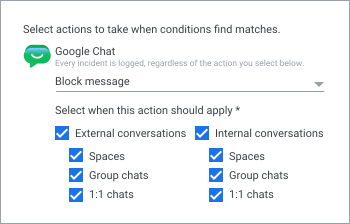
After choosing a data protection rule action, you can select the conversation type you want to cover (for example, an externally owned space or a conversation with guest access turned on). You can also choose whether to apply the rule to spaces, group chats, and 1:1 chats:
Understand DLP conditions
You can create a data protection rule with no conditions. In this case, the rule applies to all sent messages, all uploaded files, or both (depending on the trigger that you select).
Or, you can specify conditions in the data protection rule that define what content or activity to scan for. You can use predefined data types or create your own custom content detectors. You can also combine multiple conditions using AND, OR, or NOT operators.
For details, go to How to use predefined content detectors, Create a custom detector, and Data protection rules with nested condition operators.
You can define data sensitivity using proximity matching to detect content only when it occurs within a specific distance of other keywords or patterns.
| Content type to scan | What to scan for | Details & use |
|---|---|---|
| All content |
Matches predefined data type Contains text string Matches regular expression Matches words from word list |
Scans all content and takes action if sensitive information is found that matches one of the following:
|
| File name |
Contains text string Contains word |
Scans the literal file name of Chat attachments. This condition does not scan the Chat message. |
| File extension |
Equals any text string |
Scans the file extension of Chat attachments. Do not include a period (enter pdf, not .pdf). |
| File type |
Matches common MIME type Matches custom MIME type Matches system file category |
Scans the structural file type (MIME type) of Chat attachments to identify specific media formats or system file classes, regardless of what the extension text says. This condition does not scan the Chat message. |
Create a rule
After you decide what you want your rule to do, you create the rule. For details, go to Create data protection rules.
Common use cases
The following table provides examples of how to combine a trigger (what the user does), conditions (what is checked), and a specific action (the enforcement) to define your DLP policy. To use this table, you must:
- Select a trigger.
- Map condition values to the corresponding options.
- Select an action.
| Use case | Trigger | Condition | Action |
|---|---|---|---|
| Block Chat messages when sharing a U.S. Social Security Number | Google Chat and Google Chat |
Content type: All content Match: Matches predefined data type Data Type: United States - Social Security Number Likelihood Threshold: High Minimum unique matches: 1 Minimum match count: 1 |
Block message |
| Block Drive external sharing and Chat message attachments that contain a passport number | Google Chat and Google Chat |
Content type: All content Match: Matches predefined data type Data Type: Global - Passport Number Likelihood Threshold: High Minimum unique matches: 1 Minimum match count: 1 |
Google Drive: Block external sharing Google Chat: Block message |
| Log the mention of a project codename or acronym in Chat messages | Google Chat File uploaded File uploaded |
Condition 1: Match: Contains text string Value: SpiderWeb
Condition 2: Match: Contains text string Value: SpdW |
Audit only |
Tell your users what to expect
Before you implement DLP for Chat rules, tell your end users what to expect. Tell them to review your organization's policies about what types of information can be shared in Chat messages. Explain that messages that violate these policies are either blocked or result in a warning message. This way, they won't be surprised if a message is blocked or they get a warning.
User experience for blocked messages
These are the default alerts users will get when a Chat message or attachment is blocked:
- Your message couldn't be sent
- Your message couldn't be updated
Your message may contain sensitive content (like credit card numbers) that shouldn't be shared based on your organization's policies. Edit as needed, or check with your admin if this doesn't seem right.
When a message is blocked, the user can dismiss the dialog, edit the message text, or remove the violating attachment.
User experience for messages that trigger a warning
When a Chat message or attachment triggers a warning, users get the following default alert:
- Check your message
Your message may contain sensitive content (like credit card numbers) that shouldn't be shared based on your organization's policies. Edit as needed, or check with your admin if this doesn't seem right.
After getting a warning, the user can edit the message text, send the text as is, or dismiss the dialog.
Investigate Chat DLP violations
After you've set up Chat data protection rules, rule violations are logged in the Rule log. You can use the security investigation tool to search the Rule log and get specific information on the violating Chat message or attachment, including:
- Name of the data protection rule that was triggered
- Message sender
- Date the message was sent
- Type of conversation (for example, 1:1 chat, or space).
- Message content (depending on your message retention settings).
For complete steps, go to Investigate Chat messages to moderate content & protect your data.
Investigation tool limitations
You can't review the violating message or attachment if:
- It was not sent (it was blocked). Only content that is sent and violates an audit-only rule can be viewed.
- It was sent in a conversation owned by another organization.
- The message is past the retention period.