
If your users signed up for an unmanaged work account using their work email address, go instead to Transfer unmanaged work accounts.
Not sure what type of accounts your users have? Go to What type of unmanaged accounts do my users have?
It's possible that some of your employees are using unmanaged personal accounts that access Google services. Unmanaged personal accounts are users who independently created a Google account using their work email address. Some unmanaged personal accounts result in conflicting account names. Attempting to create a managed account with the same email address as an unmanaged personal account triggers such a conflict.
As a Google Workspace super administrator, you can specify how to handle conflict accounts during user provisioning. You can invite unmanaged users to convert their accounts to managed accounts within your domain, unilaterally replace conflicting accounts with managed ones, or manually manage conflicting accounts. You choose a default option for handling unmanaged accounts using the Conflicting accounts management setting, as described in Set the option for handling unmanaged personal user accounts (later on this page).
The Transfer tool for unmanaged personal accounts lets you review what unmanaged personal accounts exist, and then invite those unmanaged users to convert their accounts to managed accounts within your domain. Once the user accepts this request, their account and data can be managed within the Admin console.
Note: The Transfer tool for unmanaged personal accounts and the Conflicting accounts management setting only support handling conflicts on an account's primary email address. User invitations aren't supported for conflicts on an alternate or alias email address.
Set the option for handling unmanaged personal accounts
Note: The selected option applies to personal accounts created using the
Admin SDK Directory
API
that specify the resolveConflictAccount=true parameter. If you're using Google
Cloud Directory Sync (GCDS) or GAM this
parameter is set to true by default. However, for third-party connectors, this
won't be set unless they've integrated this feature.
-
In the Google Admin console, go to Menu


 Account
 settings
Conflicting accounts management.
Account
Account settings
Conflicting accounts management.You must be signed in as a super administrator for this task.
- Choose an option:
- Automatically invite users to transfer conflicting unmanaged accounts to managed ones—Continue with step 3.
- Replace conflicting user accounts with managed one—After their work email address becomes managed, the user will be forced to set up a Gmail account the next time they sign in, and the user’s data will remain in that account.
- Preserve conflicting managed accounts—You must manually manage these accounts using the transfer tool.
- If you chose Automatically invite users to transfer conflicting unmanaged
accounts to managed ones:
- Set a daily follow-up email duration. We will send a daily email to the user for the specified time period asking whether they want to accept the request to transfer their account to a managed state. If they agree, the entire account is transferred to a managed state, including any data associated with the account
- Choose an option if users don't accept the invitations within the selected
follow-up period:
- Replace conflicting user accounts with managed one—After their work email address becomes managed, the user will be forced to set up a Gmail account the next time they sign in, and the user’s data will remain in that account.
- Preserve conflicting managed accounts—You must manually manage these accounts using the transfer tool.
- Click Save.
Migrate unmanaged personal accounts
For instructions about how to check the status of unmanaged personal accounts or manually migrate them, see the following articles:
- Before using the transfer tool
- Use the transfer tool to migrate unmanaged personal accounts
- Use CSV to migrate unmanaged personal accounts
Note: You can't transfer users with unmanaged personal accounts to a managed Google Workspace account if those users are members of a family group.
Managed & unmanaged accounts & conflicting account names
Managed user account
A managed user account is an account belonging to a domain-verified customer. A managed user account is under the full control of a Google Workspace or Cloud Identity administrator, and it can be managed in the Google Admin console.
Unmanaged personal account
An unmanaged personal account is fully owned and managed by the individual who created it. Unmanaged personal accounts don't belong to domain-verified customers, and they're not controlled by Google Workspace or Cloud Identity administrators. Your organization has no control over the configuration, security, and life cycle of these accounts.
Unmanaged personal accounts are sometimes referred to as consumer accounts, because the individual signed up for Google consumer services using their company domain in their email address.
Conflicting account
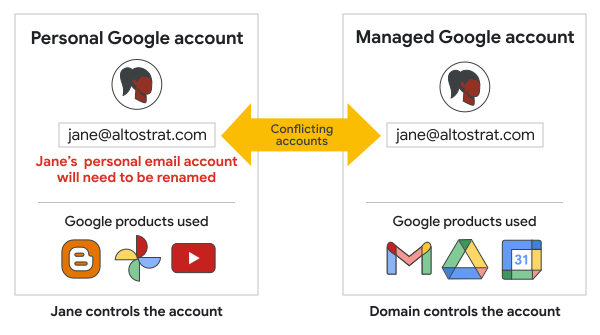
If an admin creates a managed Google Account using the same email address as an existing unmanaged personal account, this results in a conflicting account. If there's a conflict like this, super administrators can resolve such conflicting accounts by using the Transfer tool for unmanaged personal accounts.
Why you need to transfer unmanaged accounts
If your employees use unmanaged personal accounts, then the premise of having a single place to manage user identities is compromised. Unmanaged personal accounts aren't managed by Google Workspace or Cloud Identity. Therefore, you can use the transfer tool to identify unmanaged personal accounts that you want to convert to managed accounts, and migrate the unmanaged personal accounts to managed accounts.
An unmanaged personal account that's used for business and that uses a corporate email address can pose multiple risks to your business, including the following:
- You can't control the life cycle of an unmanaged personal account. An employee who leaves the company might continue to use the unmanaged personal account to access corporate resources or to generate corporate expenses.
- Even if you revoke access to all resources, the unmanaged personal account might still pose a social engineering risk. Because the account uses a seemingly trustworthy identity with your company's domain name, the former employee might be able to convince current employees or business partners to grant access to resources again—for example, a sensitive Drive file.
- A former employee with an unmanaged personal account might use the account to perform activities that aren't in line with your organization's policies, which could put your company's reputation at risk.
- You can't enforce security policies like 2-step verification or password complexity rules.
- If your organization has a data location policy, you can't restrict which geographic location Docs and Drive data is stored in, which might be a compliance risk.
- You can't restrict which Google services can be accessed by an unmanaged personal account.