
Supported editions for this feature: Business Starter, Business Standard, and Business Plus. Compare your edition

As a Google Workspace administrator, you can create a mailbox and grant access to it for users in your organization. For example, you can add users as delegates to sales@example.com to create a shared inbox for the sales department. Once a shared inbox is set up, a delegate can read, send, and delete messages. They can also view and add contacts to the shared inbox.
On this page
- Create a new shared inbox & add delegates
- Convert an existing email account to a shared inbox
- Track email from a shared inbox
- Manage delegates or change settings
Create a new shared inbox & add delegates
-
Sign in with an administrator account to the Google Admin console.
If you aren't using an administrator account, you can't access the Google Admin console.
- From the Home page Users section, click Set up a shared email address.
- Enter the email address for the shared inbox, for example, sales@example.com.
- Click Add new users and add details for each new user. You can add a secondary email (alternate email or alias) for a user.
- Click Continue. Sign-in instructions are automatically sent to all primary user email accounts.
- (Optional) To send sign-in instructions to secondary email addresses (if specified), click Send sign in instructions.
Click Next.
If you don't click Next, users are added to the email account but won't have access to the shared inbox.
Review the list of newly added users and click Next.
Click Done.
Convert an existing email account to a shared inbox
You can convert an any existing email account (including delegated accounts) in your organization to a shared inbox and assign delegates.
-
Sign in with an administrator account to the Google Admin console.
If you aren't using an administrator account, you can't access the Google Admin console.
- From the Home page Users section, click Set up a shared email address.
- Enter the email address that you want to convert, for example, alex@example.com.
- (Optional) To change the name that appears in front of the email address, click Edit.
- Click Next.
- Click Search by name or email address.
- From the list of users, select the users that you want to add as delegates.
Review the list of newly added users and click Next.
If you don't click Next, users are added to the email account but won't have access to the shared inbox.
Click Done.
Track email from a shared inbox
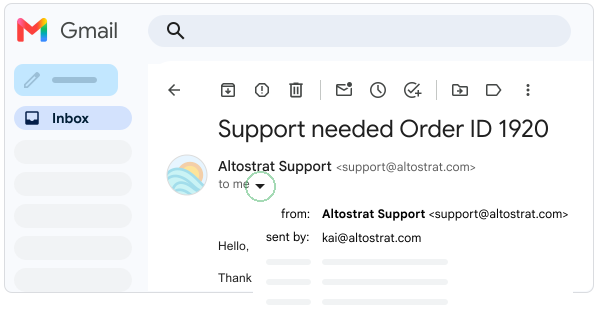
In each email sent from a shared inbox, you can review the shared inbox address (From) and the delegate who sent the email (Sent by). The sender and receiver can also access this information unless you hide the (Sent by) information. For details, go to Manage delegates or change settings.
Manage delegates or change settings
All users who can access the shared inbox can add and delete delegates or update options.
- Sign into Gmail with the shared inbox account.
- Click Settings

 See all
settings.
See all
settings. - At the top, click Accounts and go to Grant access to your account.
- If you want to delete a delegate, next to the delegate's name, click Delete.
- If you want to add a delegate, click Add another account and complete the steps.
- For Mark as read and Sender information, choose options for the shared inbox.