
Supported editions for this feature: Education Plus. Compare your edition
As an administrator, you can give designated users, such as school administrators or support staff, temporary access to visit classes in Classroom without being added as a permanent teacher or student to the class.
Temporary access to classes is useful to support educators, view student profiles, post announcements, and more.
Set up temporary access
Create an admin role with the Manage classes privilege and assign it to designated users or security groups. Also, you can restrict access to classes by organizational unit.
Step 1: Create a custom admin role
-
In the Google Admin console, go to Menu


 Account
Admin roles.
Account
Admin roles.You must be signed in as a super administrator for this task.
- Click Create new role.
- Enter a name and, optionally, a description for the role and click Continue.
- For Admin Privileges, in the Privilege Name list, scroll to Classroom and check the Manage Classes box.
- Click Continue.
Click Create role.
Note: You can add other privileges to this role. For example, if you have the same users assigned the View analytics data for users and their classes privilege, you can add both privileges to one custom admin role.
Continue to Step 2 to assign the custom admin role to users or security groups.
Step 2: (Optional) Require multi-party approval
You must be signed in as a super administrator for this task.You can require more than one admin to review and approve changes to your organization's role assignments by turning on Multi-party approval for role management. For more information, go to Multi-party approval for sensitive actions.
-
In the Google Admin console, go to Menu
 Security
Authentication
Multi-party approval settings.
Security
Authentication
Multi-party approval settings.You must be signed in as a super administrator for this task.
- Click the Multi-party approval settings section.
- Check the Require multi-party approval for sensitive actions box.
- Click Save.
- To require more than one admin to review and approve changes to role
assignments in the Admin console:
- Click Multi-party approval for role management (Admin console).
- Check the Role assignment and update role privilege in Admin console UI box.
- Click Save.
- (Optional) To require more than one admin to review and approve changes to
role assignments using an API:
- Click Multi-party approval for role management (API).
- Check the Role assignment and update role privilege in API box.
- Click Save.
Step 3: Assign the custom role to a user or security group
-
In the Google Admin console, go to Menu
Account
Admin roles.You must be signed in as a super administrator for this task.
- Click the custom admin role you created Admins
Assign members.
- Enter the first few letters of the email address of the user or the security group, and select the address from the list.
(Optional) To limit access to an organizational unit, click Edit
 , select an organizational unit, and click Done.
(Optional) To grant access to more than one organizational unit, follow the steps in Assign or unassign the role for multiple organizational units on this page.
Click Assign role.
If Multi-party approval for role management (Admin Console) is on, you get a message that another admin must approve your update. To send your request to another admin, enter a message (optional) and click Send request. Your request expires after 3 days. For details, go to Multi-party approval for sensitive actions.
Note: When you restrict access to an organizational unit, the user or group can access only classes whose primary teacher is in that organizational unit.
After you assign the custom admin role to a user or a security group, they can visit a class as an education leader or staff.
Assign or unassign the role for multiple organizational units
Repeat Step 2 above and select a different organizational unit each time to grant a user or security group access to more than one organizational unit.
In the Admins list, the user or security group name appears separately for each organizational unit they can access.
Or, you can follow these steps:
To complete these steps, you need the appropriate User management privilege. Without the correct privilege, you won't see all the controls needed to complete these steps.-
In the Google Admin console, go to Menu
 Directory
Users.
Directory
Users.Requires having the appropriate User management privilege. Without the correct privilege, you won't see all the controls needed to complete these steps.
To open the user's account page, click the user's name. Or, at the top, in the search box, enter the user's name and open their account page. For more options, go to Find a user account.
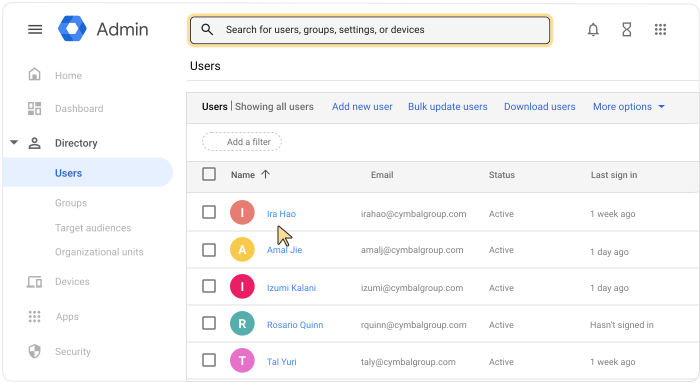
Scroll down and click Admin roles and privileges.
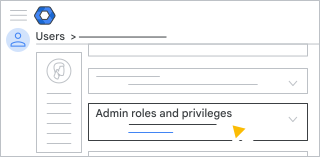
At the custom admin role you created, for Scope of role, click Edit
.Do one of the following:
- To select an organizational unit, check the box for the organizational unit.
- To unselect an organizational unit, uncheck the organizational unit box.
Click Done.
Click Save.
If Multi-party approval for role management (Admin Console) is on, you get a message that another admin must approve your update. To send your request to another admin, enter a message (optional) and click Send request. Your request expires after 3 days. For details, go to Multi-party approval for sensitive actions.
Manage the custom admin role using APIs
Instead of assigning the custom admin role to users and security groups manually in the Admin Console, you can designate temporary class access using APIs. To do so, review the developer guide on automating the process: Developer Guide - Provide Temporary Access.
If Multi-party approval for role management (API) is on, the API request will fail. The failure message includes details about multi-party approval and indicates that another super admin must approve the update. Your request expires after 3 days. For details, go to Multi-party approval for sensitive actions. For details, go to Multi-party approval for sensitive actions.
Manage sensitive information
You can control access to sensitive information and resources using security groups. You can create a new security group or update an existing group by adding the security setting. For details, go to Control access to sensitive data with security groups.
Remove temporary class access permissions
To complete these steps, you need the appropriate User management privilege. Without the correct privilege, you won't see all the controls needed to complete these steps.-
In the Google Admin console, go to Menu
Directory
Users.Requires having the appropriate User management privilege. Without the correct privilege, you won't see all the controls needed to complete these steps.
- Click the user's name Admin roles and privileges.
- At the custom admin role you created, for Assigned state, click
Assigned
 .
. - Click Save.
- If Multi-party approval for role management (Admin Console) is on, you get a message that another admin must approve your update. To send your request to another admin, enter a message (optional) and click Send request. Your request expires after 3 days. For details, go to Multi-party approval for sensitive actions.
Note: If the role was assigned to a security group, removing users from the security group also removes their access permissions.