
If you have multiple subscriptions for the same Google service—for example, multiple Google Workspace editions—you can change a user's license option by assigning a license to a different subscription of the service. The user's previous license is freed up.
Note:
- In some cases, if you change a user's license, it might take up to 24 hours before you can assign the previous license to a different user.
- If you want to reassign a license from one user to another, remove the license from the first user and then assign it to the second user. Go to Assign, remove, and reassign licenses.
Change one user's license
-
In the Google Admin console, go to Menu


 Directory
Users.
Directory
Users.Requires having the appropriate User management privilege. Without the correct privilege, you won't see all the controls needed to complete these steps.
- Open the user's account page: Click the user's name. Or, at the top, in the search box, enter the user's name and open their account page. For more options, go to Find a user account.
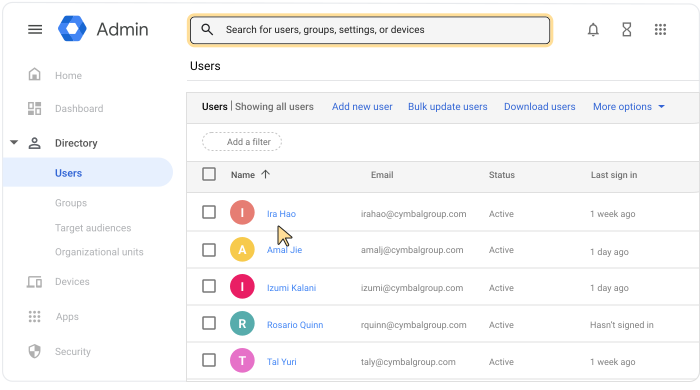
- Scroll down and click Licenses.
- Click the service name. If an arrow appears, this indicates that multiple subscriptions are available for that service.
- Click the Down arrow
 to display the
available subscriptions.
to display the
available subscriptions. - Click the subscription you want. This replaces the users' currently assigned license type with the new one.
- Repeat steps 4–6 to change the subscription for another service.
- Click Save.
Change several users' licenses
-
In the Google Admin console, go to Menu
Directory
Users.Requires having the appropriate User management privilege. Without the correct privilege, you won't see all the controls needed to complete these steps.
- Next to each user's name, check the box.
- At the top, click More Assign Licenses.
- For any service that has multiple subscriptions available, an arrow appears
next to the service name. Click the Down arrow
to expand the list of subscriptions.
- Click the license for the subscription of the service you want to assign.
- Repeat steps 4 and 5 to change the subscription for another service.
- Click Assign. This replaces the users' currently assigned license type with the new license type.