
As a reseller, you can manage all of your customer's billing accounts for Google Workspace and Google Cloud from the Billing page in your Partner Sales Console. The Billing page lists all the billing accounts and their associated currency.
View the Billing page
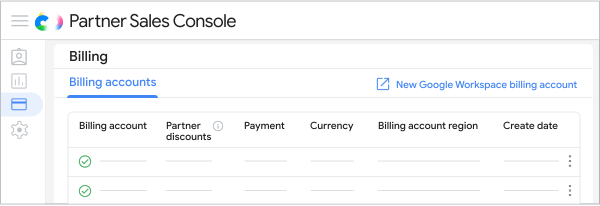
- Sign in to the Partner Sales Console.
- Go to the Billing page.
- Check the status of the account listed below the name of the billing account. Accounts can have the following status:
- Active—Ready to use
- Pending—Not activated. Before you can use the account, accept product agreements and terms of service
- Probation—Has an issue that needs to be fixed
- Closed—Has been terminated and can't be used for payments
- (Optional) To reorder the billing accounts, point to Billing account, Currency, Billing account region, or Create date and click Reorder
 .
Request a new Google Workspace billing account
If you want to sell Google Workspace services in a new currency, you can request a new reseller billing account for that currency and add the new account to your existing Partner Sales Console. After you set up a Google Workspace billing account, you can't change the billing country or currency.
For details on using a single Partner Sales Console, go to Benefits of multiple currencies in one Partner Sales Console.
Request a billing account
Before you begin: You need to already have already set up a Partner Sales Console and have at least one billing account.
- Sign in to the Partner Sales Console.
- Go to the Billing page.
Click New Google Workspace billing account.
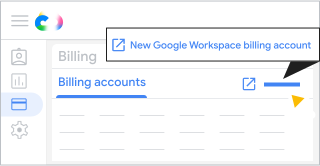
Complete the request form and submit.
What happens next?
After you submit your request, you get a confirmation email that your request has been received. Google will be in touch if we require more information.
After we create the new billing account, you get a confirmation email, and the account appears on your Billing page. If the new billing account's currency is not already covered by your terms of service, the account will show a Pending status. To activate the billing account, click Sign under the billing account name to accept product agreements and terms of service.
Rename a billing account
A new billing account is created with a default name. The format of the default name is: billing_account_product_external_billing_account_id_currency_code_region_code (for example, Google_Workspace_1-01234-56789_USD_US).
You can change the default name of a billing account to make it easier to identify when you're selecting a billing account for purchases, transfers, and other transactions:
- Sign in to the Partner Sales Console.
- Go to the Billing page.
Next to the billing account you want to change, click More

 Edit billing account name.
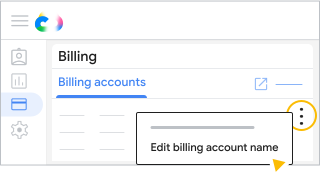
Enter the new name for the billing account and click Save changes.
Understand rebilling
Rebilling is a way to manage billing operations for your Google Cloud customers. The rebilling system assigns Google Cloud product costs to a customer or channel partner and applies a repricing configuration to adjust the final cost. Rebilling also lets you export your customer data to a BigQuery dataset. For more information, go to Rebilling overview.
Google Cloud project transfer limits
Google Cloud projects have rolling daily, monthly, and quarterly project transfer limits that restrict how many times you or your customers can move a project between billing accounts or billing subaccounts. Every move between billing accounts counts toward the project's transfer limit. For example, if you move a project from one billing account to another and then move it back, that counts as two transfers.
What happens when you reach a transfer limit
When a project reaches a transfer limit, the Google Cloud console and API block additional transfers for that project and show a message indicating whether the project reached the daily, monthly, or quarterly transfer limit. You can't transfer the project again until the rolling time window resets.
If you try to turn off billing (unlink a project from its billing account) after reaching a transfer limit, the Google Cloud console shows a warning and asks you to confirm before proceeding. Because you can't link the project to another billing account until the transfer limit resets, turning off billing causes service disruption and can result in data loss.
Request a transfer limit increase
If you or your customer need to transfer projects beyond the default transfer limits, contact Google Cloud Partner Support to request an increase.
Change payment methods
If you pay by monthly invoice, you can switch to automatic payments.