

Nu är det dags att överföra dina kunders G Suite Basic- och G Suite Business-prenumerationer till Google Workspace. Från och med den 1 februari 2023 överför Google automatiskt dina kunder när de är kvalificerade.
I den här artikeln:
- Kontrollera aviseringar till dina kunder
- Använd Partner Sales Console för att övergå till G Suite-prenumerationer
- Använd Reseller API för att övergå till G Suite-prenumerationer
- Vanliga frågor om övergångar
- Välj en Google Workspace-utgåva
Kontrollera aviseringar till dina kunder
Dina kunder får e-postmeddelanden och aviseringar i Googles administratörskonsol före och efter att Google automatiskt överför dem till Google Workspace. Om du inte vill att dina kunder ska få dessa aviseringar:
- Logga in på partnerförsäljningskonsolen .
- Klicka på Meny högst upp

 Inställningar
  .
. - På sidan Kontoinformation avmarkerar du rutan Tillåt Google att meddela kunder om deras automatiska övergång från G Suite till Google Workspace .
- Klicka på Uppdatera .
Använd Partner Sales Console för att övergå till G Suite-prenumerationer
För att överföra en kund kan du byta deras G Suite-prenumeration till en Google Workspace-prenumeration i Partner Sales Console.
Vad du behöver veta om övergångar
- Din kunds G Suite Basic- och G Suite Business-prenumerationer måste ha 300 eller färre licenser för att kunna övergå till en Google Workspace Business-utgåva. Om kunden har fler än 300 användare måste de uppgradera till en Google Workspace Enterprise-utgåva.
- Alla användare i kundens konto får samma prenumeration. Du kan till exempel inte överföra vissa användare till Business Plus medan andra behåller Business Standard-utgåvan. Om en kund har flera utgåvor av G Suite (delvis domänlicensiering) kontaktar du Google Partner Sales för hjälp.
- Eventuella rabatter på G Suite som du för närvarande får gäller inte efter att kunden har övergått till en Google Workspace-prenumeration.
- Dina kunder med G Suite Archived User-prenumerationer måste byta till den Archived User-prenumeration som motsvarar deras Google Workspace-prenumeration när de övergår. Läs mer om hur du byter din Archived User-utgåva .
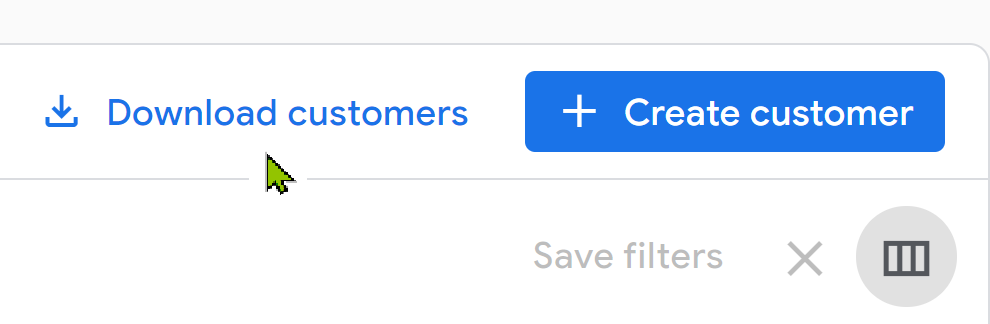
Tips : För en lista över dina G Suite-kunder, gå till Partner Sales Console. På sidan Kunder klickar du på Ladda ner kunder. för en CSV-fil med alla kunder och deras prenumerationer. Filtrera sedan efter aktiva G Suite Basic- och G Suite Business-prenumerationer.
Så här överför du en enskild G Suite-prenumeration i Partner Sales Console
Överföra en G Suite-prenumeration
- Logga in på partnerförsäljningskonsolen .
- Klicka på kundens namn på sidan Kunder.
- Välj G Suite Basic- eller G Suite Business-prenumerationen.
- Klicka på Nedgradera (visas endast för G Suite Business-prenumerationer) eller Uppgradera .
Obs ! Välj inte Ändra abonnemang . Rabatter gäller endast nya Google Workspace-beställningar.
- Välj en Google Workspace Business- eller Enterprise-utgåva.
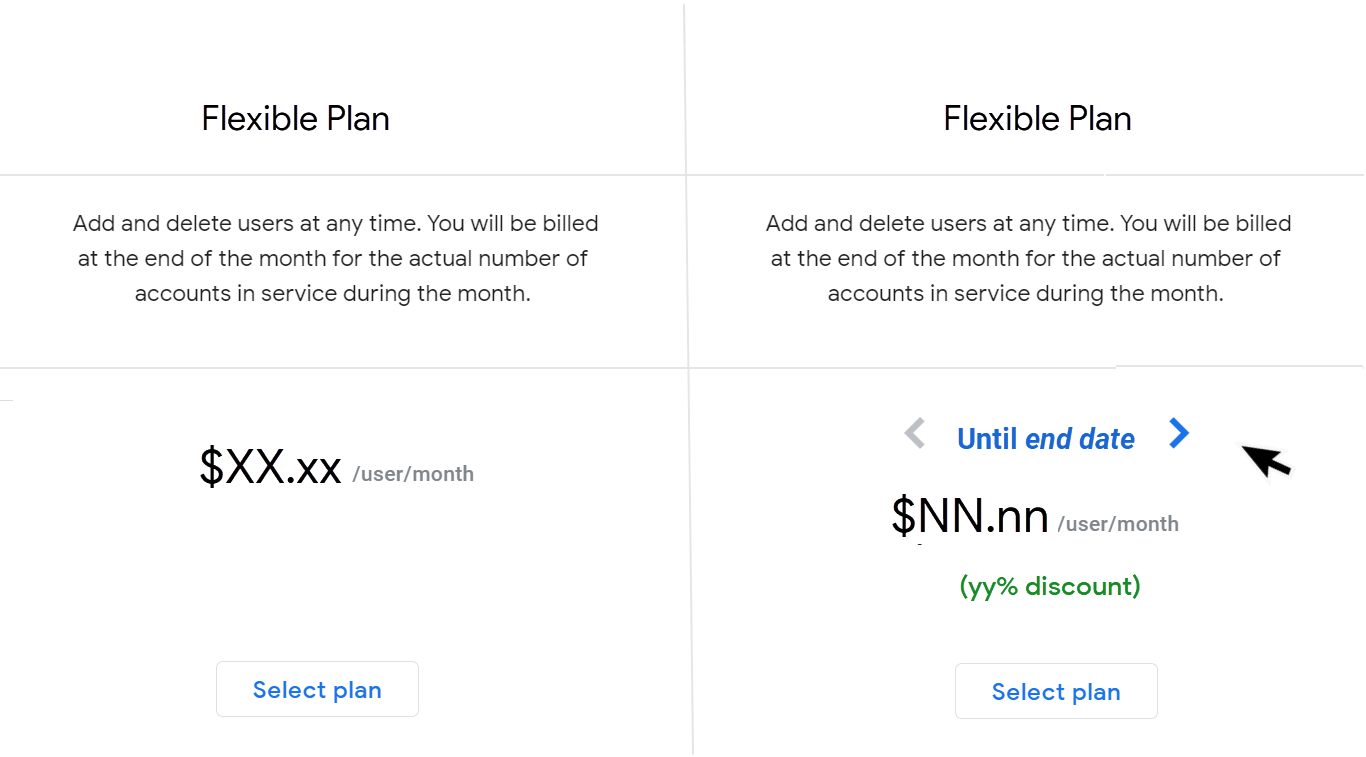
- Granska planerna och klicka på Välj plan .
För att se priserna efter rabattperioden klickar du på slutdatumet.
Hur man överför flera G Suite-prenumerationer i grupp i Partner Sales Console
Vad du bör veta om massövergångar
- Du kan inte massöverföra kunder med följande typer av prenumerationer:
- Offlineprenumerationer – kontakta Googles säljteam för att överföra dessa prenumerationer.
- Årsplan (årlig betalning) prenumerationer
- Arkiverade användarprenumerationer
- G Suite Lite-prenumerationer
- Flera G Suite- eller Google Workspace-prenumerationer
- Du kan överföra upp till 300 prenumerationer åt gången.
- Om en kunds G Suite-prenumeration har en licensgräns på mer än 300, men antalet tilldelade licenser är färre än 300, justerar vi licensgränsen till 300 när prenumerationen övergår till den rekommenderade Google Workspace Business-utgåvan.
- Du är berättigad till övergångsrabatter om du uppgraderar kunder till högre versioner när du initierar massövergångar. Google tillämpar automatiskt dessa rabatter åt dig.
Massöverför G Suite-prenumerationer
- Logga in på partnerförsäljningskonsolen .
- Klicka på Övergång till G Suite i den vänstra panelen.
Du får en lista över G Suite Basic- och G Suite Business-prenumerationer som för närvarande är berättigade till massöverföring.
- Välj de prenumerationer du vill överföra.
Genom att välja att övergå i bulk godkänner du att kunden övergår till Googles rekommenderade prenumeration och betalningsplan. Om du inte godkänner dessa rekommendationer klickar du på knappen Anpassad övergång och övergår prenumerationen individuellt.
- Klicka på Markerad övergång längst upp till höger.
- Klicka på Starta övergång .
Anteckningar:
- Det kan ta lite tid innan massöverföringsprocessen är slutförd. När processen har startat kan den inte avbrytas förrän alla övergångar har bearbetats.
- Under den här tiden kan du inte initiera några ytterligare massövergångar.
- Du kan visa en logg över framgångar och misslyckanden efter att övergångsprocessen är klar.
- Prenumerationer som inte har övergått visas fortfarande i listan över G Suite-prenumerationer. Du kan försöka göra om övergångarna.
Använd Reseller API för att övergå till G Suite-prenumerationer
Obs ! Channel Services API stöder inte erbjudandekoder. För att överföra G Suite-prenumerationer, använd antingen Reseller API eller välj lämpligt erbjudande med Channel Services API.
När du uppgraderar en kunds G Suite-prenumeration till en Google Workspace-prenumeration:
- Alla användare i kundens konto får samma prenumeration. Du kan till exempel inte överföra vissa användare till Business Plus medan andra behåller Business Standard-utgåvan.
- Eventuella G Suite-prisrabatter som du för närvarande får gäller inte efter att kunden byter prenumeration.
- Prenumerationer på arkiverade G Suite-användare övergår till prenumerationer på arkiverade Google Workspace-användare (samma funktionalitet). Ingen åtgärd krävs.
För information om rabatter för återförsäljarövergång, besök Partner Advantage-portalen.
Så här överför du en G Suite-prenumeration med Reseller API
Reseller API:et använder en erbjudandekod för att tillämpa en rabatt på G Suite-prenumerationer som övergår till Google Workspace.
För mer information om erbjudandekoder, logga in på Google Cloud Partner Portal för att se Google Workspace-webbinariet "Övergång från G Suite till Google Workspace".
Med erbjudandekoden ( dealCode ) kan du låsa upp specialerbjudandet genom att skicka erbjudandekodssträngen tillsammans med subscriptions.insert call .
Till exempel, för att överföra en kunds prenumeration till Google Workspace Enterprise Standard:
prenumeration = Prenumerationer.Insert(
kund-ID = 'nnnnnn',
kropp={
kund-ID: 'nnnnn',
sku-ID: '1010020026',
Plan: {
plannamn: 'FLEXIBEL',
},
platser: {
maximalt antal platser: 10,
}
erbjudandekod: 'XXXXXXXXXXXX '
})
Google Workspace-produkt-ID:n
| Produkt-ID | Produkt |
| 1010020028 | Google Workspace Business Standard |
| 1010020025 | Google Workspace Business Plus |
| 1010020026 | Google Workspace Enterprise-standarden |
| 1010020020 | Google Workspace Enterprise Plus |
Felsökning
Om du får ett felmeddelande som svar på ditt anrop `subscriptions.insert` , bekräfta att du använder erbjudandekoden på rätt övergångsväg.
Övergångserbjudandena är endast tillgängliga vid övergång till en SKU på högre nivå. Rabatten gäller till exempel inte för G Suite Basic-prenumerationer som flyttas till Google Workspace Business Starter.
Vanliga frågor om övergångar
Hur påverkar övergången nuvarande G Suite-prenumerationer?
Nuvarande G Suite-prenumerationer och relaterade tjänster kommer att fortsätta fungera som de gör idag fram till övergången.
Vi rekommenderar att du övergår till ett Google Workspace-erbjudande som uppfyller kundens behov. Eller, om du föredrar det, kan vi automatiskt överföra dina kunders prenumerationer när de blir berättigade. Vi meddelar dig minst 30 dagar innan det är deras tur att övergå automatiskt.
Kunder med ett års-/tidsbegränsat abonnemang är berättigade till automatisk övergång på förnyelsedatumet.
När ska jag överföra mina kunder till Google Workspace?
För de kunder som du inte redan har överflyttat, påbörja överflyttningen så snart som möjligt. Från och med den 1 februari 2023 överför Google automatiskt dina kunder när de är kvalificerade.
Påminnelser :
- Rabatter vid självövergång är 5 % högre än rabatter vid automatisk övergång. Dessa rabatter gäller endast kunder som byter till en SKU på högre nivå (till exempel G Suite Basic till Google Workspace Business Plus).
- Du kan använda verktyget för massöverföringar i Partner Sales Console för att överföra upp till 300 kunder åt gången.
Hur fungerar automatiska övergångar?
Om du väljer att inte överföra en kund överför Google automatiskt dina kunders prenumerationer när kunden är berättigad. Behörigheten till automatisk övergång sker löpande från och med den 1 februari 2023.
- Vi kommer att meddela dig och din kund minst 30 dagar innan det är din kunds tur att automatiskt övergå. Du kommer att få ett e-postmeddelande med en CSV-fil som innehåller en lista över kunder som är schemalagda för automatisk övergång.
- Fram till den dag vi automatiskt överför dina kunder kan du överföra dem, antingen direkt i konsolen, via API:et eller genom att använda verktyget för massöverföring.
- På dagen för de automatiska övergångarna överförs berättigade kunder under en 24–48-timmarsperiod.
- Du får en CSV-fil var 24:e timme som visar en lista över kunder som har genomfört automatisk övergång under den föregående 24-timmarsperioden.
- Du kan inte begära något av följande i förväg:
- Det specifika datumet då automatiska övergångar ska påbörjas.
- En lista över kunder som ska inkluderas eller inte inkluderas i automatiska övergångar.
- Anpassade övergångsvägar för dina kunder. Vi kommer att överföra kunder baserat på de funktioner de använder för närvarande.
För de flesta kunder ändrar inte övergången prissättningen. I vissa fall kan dock prissättningen variera beroende på specifik produktanvändning. För information om rabatter som tillämpas på prenumerationer som automatiskt överförs, gå till Partner Advantage-portalen (kräver ett Partner Advantage-konto).
När övergår kunder med års-/tidsbegränsade abonnemang automatiskt?
Kunder med års-/tidsbegränsade abonnemang är berättigade till automatisk övergång på förnyelsedatumet. För kunder som säljer vidare och har ett årsabonnemang med årlig betalning rekommenderar vi att du övergår till ett flexibelt abonnemang. Om du inte vidtar några åtgärder övergår kunden automatiskt på förnyelsedatumet för sitt årsabonnemang.
Om destinations-SKU:n är högre och dyrare än käll-SKU:n övergår kunden automatiskt till en flexibel prenumeration. Annars övergår kunderna automatiskt till en årsplan med årsbetalning. Som en påminnelse kan du inte uppgradera eller nedgradera en prenumeration på en årsplan med årsbetalning förrän den förnyas.
Vilka kunder ingår i den tillhandahållna CSV-filen?
G Suite-prenumerationer som var schemalagda för automatisk övergång från och med den 1 februari 2023 skickades via e-post i en bifogad CSV-fil i november 2022. Vi skickar ett e-postmeddelande för att meddela dig och dina kunder (enligt dina aviseringsinställningar) minst 30 dagar innan det är din kunds tur att automatiskt övergå.
Varför listas inte alla mina kunder med en G Suite-prenumeration i CSV-filen?
En kund kanske inte listas i en CSV-bilaga eftersom de kanske inte är schemalagda för övergång ännu, eller kanske inte är schemalagda för övergång om 30 dagar. Vissa kunder övergår på separata datum. Till exempel kan prenumerationer med tillägg övergå vid ett något senare datum.
Varför har min kund övergått till en annan prenumeration än den som föreslogs i CSV-filen?
Din kund kan automatiskt flyttas till en annan prenumeration än den som föreslås i CSV-filen om de använder en funktion som ändrar den rekommenderade SKU:n. Vi flyttar kunden till en Google Workspace-utgåva som passar deras behov, baserat på de funktioner de använder för närvarande.
Annars är det möjligt att kunden kan bli överflyttad av sin partner mellan meddelandedatumet och det automatiska överflyttningsdatumet.
Kommer alla mina G Suite-kunder att överföras automatiskt?
Majoriteten av G Suite-kunderna kommer att överföras automatiskt när de är berättigade. Kunder med följande typer av prenumerationer kommer inte att överföras automatiskt samma datum:
- Offline-prenumerationer
- G Suite Lite-prenumerationer
- G Suite-prenumerationer med partiell domänlicensering
Kontakta Google Sales för att överföra dessa prenumerationer.
Vilken utgåva kommer kunden automatiskt att övergå till?
Vi övergår kunden till en Google Workspace-utgåva som passar deras behov, baserat på de funktioner de använder för närvarande.
Om till exempel en G Suite Business-kund använder Google Vault, överför vi kunden till Google Workspace Business Plus så att de kan fortsätta använda den funktionen.
Obs! Det kan ta några dagar innan funktionsändringar registreras i våra system. Om kunden slutar använda en funktion strax innan deras konto är kvalificerat för automatisk övergång, kanske vi inte vet om ändringen innan vi överför kunden.
Om en kund har en G Suite Archived User-prenumeration med en flexibel prenumeration, kommer vi automatiskt att överföra dem till en Archived User-prenumeration som motsvarar deras nya Google Workspace-prenumeration. För en kund med en G Suite Archived User-prenumeration med en års-/tidsbegränsad prenumeration, samarbeta med kunden för att överföra deras prenumerationer.
Vad händer med en kunds tilläggsprenumerationer vid övergång?
Vissa Google Workspace-utgåvor inkluderar samma funktioner som finns tillgängliga med tilläggsprenumerationer. Till exempel ingår Vault i Business Plus. Om en kund har automatisk licensiering aktiverad och automatiskt övergår till en Google Workspace-utgåva som inkluderar samma funktioner som deras tilläggsprenumeration, avbryter vi tilläggsprenumerationen när vi överför dem till Google Workspace.
Om automatisk licensiering är inaktiverad för kunden, avbryter vi inte tilläggsprenumerationer för att undvika dataförlust. För dessa kunder, om ni inte vill ha en separat tilläggsprenumeration, tilldelar ni tilläggsanvändarlicenserna till er kärnprenumeration på Google Workspace och avbryter sedan tilläggsprenumerationen 24 timmar efter att ni har tilldelat licenserna på nytt.
Överförs prenumerationer på arkiverade G Suite-användare automatiskt?
Om en kund har en G Suite Archived User-prenumeration med en flexibel prenumeration, överför vi dem automatiskt till en Archived User-prenumeration som motsvarar deras nya Google Workspace-prenumeration. För en kund med en G Suite Archived User-prenumeration med en års-/tidsbegränsad prenumeration, samarbeta med kunden för att manuellt överföra deras prenumerationer.
Kan kunder nedgradera eller uppgradera sin prenumeration efter en automatisk övergång?
Ja. Vi övergår kunden till en Google Workspace-utgåva som har de funktioner kunden använder för närvarande och behåller sin data. Om en kund med en årsavgift (månadsbetalning) vill byta till en annan Google Workspace-utgåva kan du byta deras prenumeration upp till 180 dagar efter övergången. Kunder med flexibla avtal kan byta utgåva när som helst.
Kunder med fler än 300 användare kan bara byta till en Google Workspace Enterprise-utgåva.
Vad händer om en kund automatiskt övergår till en Google Workspace-utgåva som jag inte säljer?
Vi övergår kunden till en Google Workspace-utgåva som passar deras behov, baserat på den funktion de använder för närvarande. Om du för närvarande inte säljer destinationsprenumerationen kan du antingen:
- Överför kunden före den 1 februari 2023 till önskad destinationsversion.
- Ändra kundens prenumeration efter den automatiska övergången. Du kan ändra en kunds årsabonnemang (månadsbetalning) upp till 180 dagar efter övergången och en kunds flexibla abonnemang när som helst.
Välj en Google Workspace-utgåva
Jämför Google Workspace-funktioner
När du väljer Google Workspace-utgåvan att övergå till rekommenderar vi att du överväger följande:
- Antal användare – Din kunds G Suite Basic- och G Suite Business-prenumerationer måste ha 300 eller färre licenser för att övergå till en Google Workspace Business-utgåva. Om kunden har fler än 300 användare måste de uppgradera till en Google Workspace Enterprise-utgåva.
- Funktioner som kunden använder för närvarande – Se till att du väljer en version som inkluderar de funktioner som din kund förlitar sig på idag.
- Funktioner som kunden skulle vilja använda i framtiden – Finns det funktioner som kunden vill ha eller behöver, men som den för närvarande inte har?
Kontrollera vilka funktioner som används
Om du har åtkomst till din kunds Google-administratörskonsol kan du kontrollera vilka funktioner som används.
Steg 1: Öppna administratörskonsolen.
- Öppna ett nytt inkognitofönster i webbläsaren och logga in på Partner Sales Console.
- Gå till sidan Kunder och klicka på kundens namn.
- Klicka på Administratörskonsolen under Snabblänkar .
Steg 2: Kontrollera om en funktion används.
- I tabellerna ovan går du till kolumnen Använder? för den funktion du är intresserad av.
- Klicka på länken Verifiera för att öppna hjälpartikeln.
- Följ stegen i hjälpartikeln för att kontrollera en funktion. Kontrollera till exempel mängden lagringsutrymme som används eller om livestreaming är aktiverat (endast tillgängligt med Enterprise-utgåvor).
Nu är det dags att överföra dina kunders G Suite Basic- och G Suite Business-prenumerationer till Google Workspace. Från och med den 1 februari 2023 överför Google automatiskt dina kunder när de är kvalificerade.
I den här artikeln:
- Kontrollera aviseringar till dina kunder
- Använd Partner Sales Console för att övergå till G Suite-prenumerationer
- Använd Reseller API för att övergå till G Suite-prenumerationer
- Vanliga frågor om övergångar
- Välj en Google Workspace-utgåva
Kontrollera aviseringar till dina kunder
Dina kunder får e-postmeddelanden och aviseringar i Googles administratörskonsol före och efter att Google automatiskt överför dem till Google Workspace. Om du inte vill att dina kunder ska få dessa aviseringar:
- Logga in på partnerförsäljningskonsolen .
- Klicka på Meny högst upp Inställningar .
- På sidan Kontoinformation avmarkerar du rutan Tillåt Google att meddela kunder om deras automatiska övergång från G Suite till Google Workspace .
- Klicka på Uppdatera .
Använd Partner Sales Console för att övergå till G Suite-prenumerationer
För att överföra en kund kan du byta deras G Suite-prenumeration till en Google Workspace-prenumeration i Partner Sales Console.
Vad du behöver veta om övergångar
- Din kunds G Suite Basic- och G Suite Business-prenumerationer måste ha 300 eller färre licenser för att kunna övergå till en Google Workspace Business-utgåva. Om kunden har fler än 300 användare måste de uppgradera till en Google Workspace Enterprise-utgåva.
- Alla användare i kundens konto får samma prenumeration. Du kan till exempel inte överföra vissa användare till Business Plus medan andra behåller Business Standard-utgåvan. Om en kund har flera utgåvor av G Suite (delvis domänlicensiering) kontaktar du Google Partner Sales för hjälp.
- Eventuella rabatter på G Suite som du för närvarande får gäller inte efter att kunden har övergått till en Google Workspace-prenumeration.
- Dina kunder med G Suite Archived User-prenumerationer måste byta till den Archived User-prenumeration som motsvarar deras Google Workspace-prenumeration när de övergår. Läs mer om hur du byter din Archived User-utgåva .
Tips : För en lista över dina G Suite-kunder, gå till Partner Sales Console. På sidan Kunder klickar du på Ladda ner kunder. för en CSV-fil med alla kunder och deras prenumerationer. Filtrera sedan efter aktiva G Suite Basic- och G Suite Business-prenumerationer.
Så här överför du en enskild G Suite-prenumeration i Partner Sales Console
Överföra en G Suite-prenumeration
- Logga in på partnerförsäljningskonsolen .
- Klicka på kundens namn på sidan Kunder.
- Välj G Suite Basic- eller G Suite Business-prenumerationen.
- Klicka på Nedgradera (visas endast för G Suite Business-prenumerationer) eller Uppgradera .
Obs ! Välj inte Ändra abonnemang . Rabatter gäller endast nya Google Workspace-beställningar.
- Välj en Google Workspace Business- eller Enterprise-utgåva.
- Granska planerna och klicka på Välj plan .
För att se priserna efter rabattperioden klickar du på slutdatumet.
Hur man överför flera G Suite-prenumerationer i grupp i Partner Sales Console
Vad du bör veta om massövergångar
- Du kan inte massöverföra kunder med följande typer av prenumerationer:
- Offlineprenumerationer – kontakta Googles säljteam för att överföra dessa prenumerationer.
- Årsplan (årlig betalning) prenumerationer
- Arkiverade användarprenumerationer
- G Suite Lite-prenumerationer
- Flera G Suite- eller Google Workspace-prenumerationer
- Du kan överföra upp till 300 prenumerationer åt gången.
- Om en kunds G Suite-prenumeration har en licensgräns på mer än 300, men antalet tilldelade licenser är färre än 300, justerar vi licensgränsen till 300 när prenumerationen övergår till den rekommenderade Google Workspace Business-utgåvan.
- Du är berättigad till övergångsrabatter om du uppgraderar kunder till högre versioner när du initierar massövergångar. Google tillämpar automatiskt dessa rabatter åt dig.
Massöverför G Suite-prenumerationer
- Logga in på partnerförsäljningskonsolen .
- Klicka på Övergång till G Suite i den vänstra panelen.
Du får en lista över G Suite Basic- och G Suite Business-prenumerationer som för närvarande är berättigade till massöverföring.
- Välj de prenumerationer du vill överföra.
Genom att välja att övergå i bulk godkänner du att kunden övergår till Googles rekommenderade prenumeration och betalningsplan. Om du inte godkänner dessa rekommendationer klickar du på knappen Anpassad övergång och övergår prenumerationen individuellt.
- Klicka på Markerad övergång längst upp till höger.
- Klicka på Starta övergång .
Anteckningar:
- Det kan ta lite tid innan massöverföringsprocessen är slutförd. När processen har startat kan den inte avbrytas förrän alla övergångar har bearbetats.
- Under den här tiden kan du inte initiera några ytterligare massövergångar.
- Du kan visa en logg över framgångar och misslyckanden efter att övergångsprocessen är klar.
- Prenumerationer som inte har övergått visas fortfarande i listan över G Suite-prenumerationer. Du kan försöka göra om övergångarna.
Använd Reseller API för att övergå till G Suite-prenumerationer
Obs ! Channel Services API stöder inte erbjudandekoder. För att överföra G Suite-prenumerationer, använd antingen Reseller API eller välj lämpligt erbjudande med Channel Services API.
När du uppgraderar en kunds G Suite-prenumeration till en Google Workspace-prenumeration:
- Alla användare i kundens konto får samma prenumeration. Du kan till exempel inte överföra vissa användare till Business Plus medan andra behåller Business Standard-utgåvan.
- Eventuella G Suite-prisrabatter som du för närvarande får gäller inte efter att kunden byter prenumeration.
- Prenumerationer på arkiverade G Suite-användare övergår till prenumerationer på arkiverade Google Workspace-användare (samma funktionalitet). Ingen åtgärd krävs.
För information om rabatter för återförsäljarövergång, besök Partner Advantage-portalen.
Så här överför du en G Suite-prenumeration med Reseller API
Reseller API:et använder en erbjudandekod för att tillämpa en rabatt på G Suite-prenumerationer som övergår till Google Workspace.
För mer information om erbjudandekoder, logga in på Google Cloud Partner Portal för att se Google Workspace-webbinariet "Övergång från G Suite till Google Workspace".
Med erbjudandekoden ( dealCode ) kan du låsa upp specialerbjudandet genom att skicka erbjudandekodssträngen tillsammans med subscriptions.insert call .
Till exempel, för att överföra en kunds prenumeration till Google Workspace Enterprise Standard:
prenumeration = Prenumerationer.Insert(
kund-ID = 'nnnnnn',
kropp={
kund-ID: 'nnnnn',
sku-ID: '1010020026',
Plan: {
plannamn: 'FLEXIBEL',
},
platser: {
maximalt antal platser: 10,
}
erbjudandekod: 'XXXXXXXXXXXX '
})
Google Workspace-produkt-ID:n
| Produkt-ID | Produkt |
| 1010020028 | Google Workspace Business Standard |
| 1010020025 | Google Workspace Business Plus |
| 1010020026 | Google Workspace Enterprise-standarden |
| 1010020020 | Google Workspace Enterprise Plus |
Felsökning
Om du får ett felmeddelande som svar på ditt anrop `subscriptions.insert` , bekräfta att du använder erbjudandekoden på rätt övergångsväg.
Övergångserbjudandena är endast tillgängliga vid övergång till en SKU på högre nivå. Rabatten gäller till exempel inte för G Suite Basic-prenumerationer som flyttas till Google Workspace Business Starter.
Vanliga frågor om övergångar
Hur påverkar övergången nuvarande G Suite-prenumerationer?
Nuvarande G Suite-prenumerationer och relaterade tjänster kommer att fortsätta fungera som de gör idag fram till övergången.
Vi rekommenderar att du övergår till ett Google Workspace-erbjudande som uppfyller kundens behov. Eller, om du föredrar det, kan vi automatiskt överföra dina kunders prenumerationer när de blir berättigade. Vi meddelar dig minst 30 dagar innan det är deras tur att övergå automatiskt.
Kunder med ett års-/tidsbegränsat abonnemang är berättigade till automatisk övergång på förnyelsedatumet.
När ska jag överföra mina kunder till Google Workspace?
För de kunder som du inte redan har överflyttat, påbörja överflyttningen så snart som möjligt. Från och med den 1 februari 2023 överför Google automatiskt dina kunder när de är kvalificerade.
Påminnelser :
- Rabatter vid självövergång är 5 % högre än rabatter vid automatisk övergång. Dessa rabatter gäller endast kunder som byter till en SKU på högre nivå (till exempel G Suite Basic till Google Workspace Business Plus).
- Du kan använda verktyget för massöverföringar i Partner Sales Console för att överföra upp till 300 kunder åt gången.
Hur fungerar automatiska övergångar?
Om du väljer att inte överföra en kund överför Google automatiskt dina kunders prenumerationer när kunden är berättigad. Behörigheten till automatisk övergång sker löpande från och med den 1 februari 2023.
- Vi kommer att meddela dig och din kund minst 30 dagar innan det är din kunds tur att automatiskt övergå. Du kommer att få ett e-postmeddelande med en CSV-fil som innehåller en lista över kunder som är schemalagda för automatisk övergång.
- Fram till den dag vi automatiskt överför dina kunder kan du överföra dem, antingen direkt i konsolen, via API:et eller genom att använda verktyget för massöverföring.
- På dagen för de automatiska övergångarna överförs berättigade kunder under en 24–48-timmarsperiod.
- Du får en CSV-fil var 24:e timme som visar en lista över kunder som har genomfört automatisk övergång under den föregående 24-timmarsperioden.
- Du kan inte begära något av följande i förväg:
- Det specifika datumet då automatiska övergångar ska påbörjas.
- En lista över kunder som ska inkluderas eller inte inkluderas i automatiska övergångar.
- Anpassade övergångsvägar för dina kunder. Vi kommer att överföra kunder baserat på de funktioner de använder för närvarande.
För de flesta kunder ändrar inte övergången prissättningen. I vissa fall kan dock prissättningen variera beroende på specifik produktanvändning. För information om rabatter som tillämpas på prenumerationer som automatiskt överförs, gå till Partner Advantage-portalen (kräver ett Partner Advantage-konto).
När övergår kunder med års-/tidsbegränsade abonnemang automatiskt?
Kunder med års-/tidsbegränsade abonnemang är berättigade till automatisk övergång på förnyelsedatumet. För kunder som säljer vidare och har ett årsabonnemang med årlig betalning rekommenderar vi att du övergår till ett flexibelt abonnemang. Om du inte vidtar några åtgärder övergår kunden automatiskt på förnyelsedatumet för sitt årsabonnemang.
Om destinations-SKU:n är högre och dyrare än käll-SKU:n övergår kunden automatiskt till en flexibel prenumeration. Annars övergår kunderna automatiskt till en årsplan med årsbetalning. Som en påminnelse kan du inte uppgradera eller nedgradera en prenumeration på en årsplan med årsbetalning förrän den förnyas.
Vilka kunder ingår i den tillhandahållna CSV-filen?
G Suite-prenumerationer som var schemalagda för automatisk övergång från och med den 1 februari 2023 skickades via e-post i en bifogad CSV-fil i november 2022. Vi skickar ett e-postmeddelande för att meddela dig och dina kunder (enligt dina aviseringsinställningar) minst 30 dagar innan det är din kunds tur att automatiskt övergå.
Varför listas inte alla mina kunder med en G Suite-prenumeration i CSV-filen?
En kund kanske inte listas i en CSV-bilaga eftersom de kanske inte är schemalagda för övergång ännu, eller kanske inte är schemalagda för övergång om 30 dagar. Vissa kunder övergår på separata datum. Till exempel kan prenumerationer med tillägg övergå vid ett något senare datum.
Varför har min kund övergått till en annan prenumeration än den som föreslogs i CSV-filen?
Din kund kan automatiskt flyttas till en annan prenumeration än den som föreslås i CSV-filen om de använder en funktion som ändrar den rekommenderade SKU:n. Vi flyttar kunden till en Google Workspace-utgåva som passar deras behov, baserat på de funktioner de använder för närvarande.
Annars är det möjligt att kunden kan bli överflyttad av sin partner mellan meddelandedatumet och det automatiska överflyttningsdatumet.
Kommer alla mina G Suite-kunder att överföras automatiskt?
Majoriteten av G Suite-kunderna kommer att överföras automatiskt när de är berättigade. Kunder med följande typer av prenumerationer kommer inte att överföras automatiskt samma datum:
- Offline-prenumerationer
- G Suite Lite-prenumerationer
- G Suite-prenumerationer med partiell domänlicensering
Kontakta Google Sales för att överföra dessa prenumerationer.
Vilken utgåva kommer kunden automatiskt att övergå till?
Vi övergår kunden till en Google Workspace-utgåva som passar deras behov, baserat på de funktioner de använder för närvarande.
Om till exempel en G Suite Business-kund använder Google Vault, överför vi kunden till Google Workspace Business Plus så att de kan fortsätta använda den funktionen.
Obs! Det kan ta några dagar innan funktionsändringar registreras i våra system. Om kunden slutar använda en funktion strax innan deras konto är kvalificerat för automatisk övergång, kanske vi inte vet om ändringen innan vi överför kunden.
Om en kund har en G Suite Archived User-prenumeration med en flexibel prenumeration, kommer vi automatiskt att överföra dem till en Archived User-prenumeration som motsvarar deras nya Google Workspace-prenumeration. För en kund med en G Suite Archived User-prenumeration med en års-/tidsbegränsad prenumeration, samarbeta med kunden för att överföra deras prenumerationer.
Vad händer med en kunds tilläggsprenumerationer vid övergång?
Vissa Google Workspace-utgåvor inkluderar samma funktioner som finns tillgängliga med tilläggsprenumerationer. Till exempel ingår Vault i Business Plus. Om en kund har automatisk licensiering aktiverad och automatiskt övergår till en Google Workspace-utgåva som inkluderar samma funktioner som deras tilläggsprenumeration, avbryter vi tilläggsprenumerationen när vi överför dem till Google Workspace.
Om automatisk licensiering är inaktiverad för kunden, avbryter vi inte tilläggsprenumerationer för att undvika dataförlust. För dessa kunder, om ni inte vill ha en separat tilläggsprenumeration, tilldelar ni tilläggsanvändarlicenserna till er kärnprenumeration på Google Workspace och avbryter sedan tilläggsprenumerationen 24 timmar efter att ni har tilldelat licenserna på nytt.
Överförs prenumerationer på arkiverade G Suite-användare automatiskt?
If a customer has a G Suite Archived User subscription on a Flexible plan, we automatically transition them to an Archived User subscription that corresponds to their new Google Workspace subscription. For a customer with a G Suite Archived User subscription on an Annual/Fixed-Term plan, work with your customer to manually transition their subscriptions.
After an automatic transition, can customers downgrade or upgrade their subscription?
Yes. We transition the customer to a Google Workspace edition that has the features the customer currently uses and keeps their data. If a customer on an Annual Plan (Monthly Payment) wants to switch to a different Google Workspace edition, you can switch their subscription up to 180 days after the transition. Customers on Flexible Plans can switch editions at any time.
Customers with more than 300 users can only switch to a Google Workspace Enterprise edition.
What if a customer automatically transitions to a Google Workspace edition I don't sell?
We transition the customer to a Google Workspace edition that suits their needs, based on the feature they're currently using. If you do not currently sell the destination subscription, you can either:
- Transition the customer before February 1, 2023 to the desired destination edition.
- Change the customer's subscription after the automatic transition. You can change a customer's Annual Plan (Monthly Payment) subscription up to 180 days after the transition and a customer's Flexible Plan subscription at any time.
Choose a Google Workspace edition
Compare Google Workspace features
When you select the Google Workspace edition to transition to, we recommend you consider:
- Number of users —Your customer's G Suite Basic and G Suite Business subscriptions must have 300 or fewer licenses to transition to a Google Workspace Business edition. If the customer has more than 300 users, they need to upgrade to a Google Workspace Enterprise edition.
- Features the customer currently uses —Make sure you choose an edition that includes the features your customer relies on today.
- Features the customer would like to use in the future —Are there features that the customer wants or needs, but currently doesn't have?
Check which features are in use
If you have access to your customer's Google Admin console, you can check which features are in use.
Step 1: Open the Admin console.
- Open a new Incognito browser window and sign in to the Partner Sales Console.
- Go to the Customers page, and click the customer name.
- Below Quick links , click Admin console .
Step 2: Check whether a feature is in use.
- In the tables above, go to the Using? column for the feature you're interested in.
- Click the Verify link to open the help article.
- Follow the steps in the help article to check a feature. For example, check the amount of storage used or or whether live streaming is turned on (available only with Enterprise editions).
Now is the time to transition your customers' G Suite Basic and G Suite Business subscriptions to Google Workspace. Beginning February 1, 2023, Google automatically transitions your customers once they are eligible.
I den här artikeln:
- Control notifications to your customers
- Use the Partner Sales Console to transition G Suite subscriptions
- Use the Reseller API to transition G Suite subscriptions
- Review transition FAQs
- Choose a Google Workspace edition
Control notifications to your customers
Your customers receive email and Google Admin console notifications before and after Google automatically transitions them to Google Workspace. If you don't want your customers to get these notifications:
- Logga in på partnerförsäljningskonsolen .
- At the top, click Menu Inställningar .
- On the Account information page, uncheck the Allow Google to notify customers about their G Suite to Google Workspace auto transition box.
- Click Update .
Use the Partner Sales Console to transition G Suite subscriptions
To transition a customer, you can switch their G Suite subscription to a Google Workspace subscription in the Partner Sales Console.
What you need to know about transitions
- Your customer's G Suite Basic and G Suite Business subscriptions must have 300 or fewer licenses to transition to a Google Workspace Business edition. If the customer has more than 300 users, they need to upgrade to a Google Workspace Enterprise edition.
- All users in the customer's account get the same subscription. For example, you can't transition some users to Business Plus while keeping others on Business Standard edition. If a customer has multiple editions of G Suite (Partial Domain Licensing), contact Google Partner Sales for assistance.
- Any G Suite pricing discounts you currently receive are not applicable after the customer transitions to a Google Workspace subscription.
- Your customers with G Suite Archived User subscriptions need to switch to the Archived User subscription that corresponds to their Google Workspace subscription when they transition. Learn how to Switch your Archived User edition .
Tip : For a list of your G Suite customers, go to the Partner Sales Console. On the Customers page, click Download customers for a CSV file of all customers and their subscriptions. Then, filter for active G Suite Basic and G Suite Business subscriptions.
How to transition an individual G Suite subscription in the Partner Sales Console
Transition a G Suite subscription
- Logga in på partnerförsäljningskonsolen .
- Klicka på kundens namn på sidan Kunder.
- Select the G Suite Basic or G Suite Business subscription.
- Click Downgrade (only shown for G Suite Business subscriptions) or Upgrade .
Note : Do not select Change plan . Discounts apply only to new Google Workspace orders.
- Select a Google Workspace Business or Enterprise edition.
- Granska planerna och klicka på Välj plan .
To view the pricing after the discount period, click the end date.
How to bulk transition multiple G Suite subscriptions in the Partner Sales Console
What to know about bulk transitions
- You can't bulk transition customers with the following types of subscriptions:
- Offline subscriptions—Contact Google Sales team to transition these subscriptions.
- Annual Plan (Yearly Payment) subscriptions
- Archived User subscriptions
- G Suite Lite subscriptions
- Multiple G Suite or Google Workspace subscriptions
- You can transition up to 300 subscriptions at a time.
- If a customer's G Suite subscription has a license cap of more than 300, but the number of assigned licenses is fewer than 300, we adjust the license cap to 300 when transitioning the subscription to the recommended Google Workspace Business edition.
- You're eligible to receive transition discounts if you upgrade customers to higher-tier editions when you initiate bulk transitions. Google automatically applies these discounts on your behalf.
Bulk transition G Suite subscriptions
- Logga in på partnerförsäljningskonsolen .
- In the left panel, click Transition G Suite .
You get a list of G Suite Basic and G Suite Business subscriptions that are currently eligible for bulk transition.
- Select the subscriptions you want to transition.
By choosing to transition in bulk, you agree to transition the customer to Google's recommended subscription and payment plan. If you don't agree with these recommendations, click the Custom Transition button and transition the subscription individually.
- In the top right, click Transition selected .
- Click Start transition .
Anteckningar:
- It might take some time for the bulk transition process to complete. After the process has started, it can't be interrupted until all the transitions are processed.
- During this time you can't initiate any additional bulk transitions.
- You can view a log of successes and failures after the transition process is complete.
- Subscriptions that didn't transition continue to appear in the list of G Suite subscriptions. You're able to retry these transitions again.
Use the Reseller API to transition G Suite subscriptions
Note : The Channel Services API doesn't support deal codes. To transition G Suite subscriptions, either use the Reseller API or select the appropriate offer using the Channel Services API.
When you upgrade a customer's G Suite subscription to a Google Workspace subscription:
- All users in the customer's account get the same subscription. For example, you can't transition some users to Business Plus while keeping others on Business Standard edition.
- Any G Suite pricing discounts you currently receive are not applicable after the customer switches subscriptions.
- G Suite Archived User subscriptions transition to Google Workspace Archived User subscriptions (same functionality). No action required.
For information on Reseller transition discounts, visit the Partner Advantage portal.
How to transition a G Suite subscription with the Reseller API
The Reseller API uses a deal code to apply a discount to G Suite subscriptions transitioning to Google Workspace.
For more information about deal codes, sign in to the Google Cloud Partner Portal to view the Google Workspace webinar, "Transitioning from G Suite to Google Workspace."
The deal code ( dealCode ) allows you to unlock the special offer by passing the deal code string along with the subscriptions.insert call .
For example, to transition a customer's subscription to Google Workspace Enterprise Standard:
subscription = Subscriptions.Insert(
customerId='nnnnnn',
body={
customerId: 'nnnnnn',
skuId: '1010020026',
Plan: {
planName: 'FLEXIBLE',
},
seats: {
maximumNumberOfSeats: 10,
}
dealCode: 'XXXXXXXXXX '
})
Google Workspace product IDs
| Product ID | Produkt |
| 1010020028 | Google Workspace Business Standard |
| 1010020025 | Google Workspace Business Plus |
| 1010020026 | Google Workspace Enterprise Standard |
| 1010020020 | Google Workspace Enterprise Plus |
Felsökning
If you receive an error in response to your subscriptions.insert call, confirm that you are applying the deal code to the correct transition path
The transition offers are only available when moving to a higher-tier SKU. For example, the discount won't apply to G Suite Basic subscriptions moving to Google Workspace Business Starter.
Review transition FAQs
How does the transition affect current G Suite subscriptions?
Current G Suite subscriptions and related services will continue to function as they do today until the transition.
We recommend transitioning to a Google Workspace offering that meets the customer's needs. Or, if you prefer, we can automatically transition your customers' subscriptions when they become eligible. We'll notify you at least 30 days before it's their turn to automatically transition.
Customers on an Annual/Fixed-Term Plan are eligible to automatically transition on their renewal date.
When should I transition my customers to Google Workspace?
For the customers that you have not already transitioned, start the transition at your earliest convenience. Beginning February 1, 2023, Google automatically transitions your customers once they are eligible.
Reminders :
- Self-transition discounts are 5% higher than autotransition discounts. These discounts apply only to customers moving to a higher-tier SKU (for example, G Suite Basic to Google Workspace Business Plus).
- You can use the bulk transitions tool in the Partner Sales Console to transition up to 300 customers at a time.
How do automatic transitions work?
If you choose not to transition a customer, Google automatically transitions your customers' subscriptions when the customer is eligible. Eligibility to automatically transition is on a rolling basis, starting February 1, 2023.
- We will notify you and your customer at least 30 days before it's your customer's turn to automatically transition. You'll receive an email with a CSV file containing the list of customers scheduled to autotransition.
- Up until the day we automatically transition your customers, you can transition them, either directly in the console, through the API, or by using the bulk transition tool.
- On the day of the automatic transitions, eligible customers are transitioned over a 24-48 hour period.
- You'll receive a CSV file every 24 hours that shows the list of customers that were successfully autotransitioned over the previous 24-hour period.
- You are not able to request any of the following in advance:
- The specific date to begin autotransitions.
- A list of customers to include or not include in autotransitions.
- Customized transition paths for your customers. We will transition customers based on the features they're currently using.
For most customers, the transition does not change pricing. However in some cases, pricing may vary based on specific product use. For information about discounts applied to subscriptions that are automatically transitioned, go to the Partner Advantage portal (requires a Partner Advantage account).
When do customers on Annual/Fixed-Term Plans automatically transition?
Customers on Annual/Fixed-Term Plans are eligible for automatic transition on their renewal date. For resold customers on an Annual Plan with Yearly Payment, we recommend you transition these customers to a Flexible Plan. If you take no action, the customer is automatically transitioned on the renewal date of their Annual Plan.
If the destination SKU is higher and more expensive than the source SKU, the customer automatically transitions to a Flexible Plan. Otherwise, customers automatically transition to an Annual Plan with Yearly Payment. As a reminder, you can't upgrade or downgrade a subscription on an Annual Plan with Yearly Payment until renewal.
What customers are included in the CSV file provided?
G Suite subscriptions that were scheduled for autotransition starting February 1, 2023 were sent by email in an attached CSV file in November 2022. We'll send an email to notify you and your customers (according to your notification settings) at least 30 days before it's your customer's turn to automatically transition.
Why aren't all my customers with a G Suite subscription listed in the CSV file?
A customer might not be listed in a CSV attachment because they might not be scheduled to transition yet, or might not be scheduled to transition in 30 days. Some customers transition on separate dates. For example, subscriptions with add-ons might transition at a slightly later date.
Why was my customer transitioned to a different subscription than the one suggested in the CSV file?
Your customer might be automatically transitioned to a different subscription than the one suggested in the CSV file if they use a feature that changes the recommended SKU. We transition the customer to a Google Workspace edition that suits their needs, based on the features they're currently using.
Otherwise, it is possible that the customer might be transitioned by their Partner between the notification date and the autotransition date.
Will all of my G Suite customers be automatically transitioned?
The majority of G Suite customers will be automatically transitioned when eligible. Customers with the following types of subscriptions will not be automatically transitioned on the same date:
- Offline subscriptions
- G Suite Lite subscriptions
- G Suite subscriptions with Partial Domain Licensing
Contact Google Sales to transition these subscriptions.
What edition will the customer automatically transition to?
We transition the customer to a Google Workspace edition that suits their needs, based on the features they're currently using.
For example, if a G Suite Business customer uses Google Vault, we'll transition the customer to Google Workspace Business Plus so they can continue to use that feature.
Note: It can take a few days for feature changes to register in our systems. If the customer stops using a feature shortly before their account is eligible to automatically transition, we might not know about the change before we transition the customer.
If a customer has a G Suite Archived User subscription on a Flexible plan, we'll automatically transition them to an Archived User subscription that corresponds to their new Google Workspace subscription. For a customer with a G Suite Archived User subscription on an Annual/Fixed-Term plan, work with your customer to transition their subscriptions.
What happens to a customer's add-on subscriptions when transitioning?
Some Google Workspace editions include the same capabilities available with add-on subscriptions. For example, Vault is included in Business Plus. If a customer has automatic licensing turned on and is autotransitioning to a Google Workspace edition that includes the same functionality as their add-on subscription, we cancel the add-on subscription when we transition them to Google Workspace.
If automatic licensing is turned off for the customer, to avoid any data loss, we do not cancel add-on subscriptions. For these customers, if you do not want a separate add-on subscription, assign the add-on user licenses to your core Google Workspace subscription, and then cancel the add-on subscription 24 hours after you reassign the licenses.
Are G Suite Archived User subscriptions automatically transitioned?
If a customer has a G Suite Archived User subscription on a Flexible plan, we automatically transition them to an Archived User subscription that corresponds to their new Google Workspace subscription. For a customer with a G Suite Archived User subscription on an Annual/Fixed-Term plan, work with your customer to manually transition their subscriptions.
After an automatic transition, can customers downgrade or upgrade their subscription?
Yes. We transition the customer to a Google Workspace edition that has the features the customer currently uses and keeps their data. If a customer on an Annual Plan (Monthly Payment) wants to switch to a different Google Workspace edition, you can switch their subscription up to 180 days after the transition. Customers on Flexible Plans can switch editions at any time.
Customers with more than 300 users can only switch to a Google Workspace Enterprise edition.
What if a customer automatically transitions to a Google Workspace edition I don't sell?
We transition the customer to a Google Workspace edition that suits their needs, based on the feature they're currently using. If you do not currently sell the destination subscription, you can either:
- Transition the customer before February 1, 2023 to the desired destination edition.
- Change the customer's subscription after the automatic transition. You can change a customer's Annual Plan (Monthly Payment) subscription up to 180 days after the transition and a customer's Flexible Plan subscription at any time.
Choose a Google Workspace edition
Compare Google Workspace features
When you select the Google Workspace edition to transition to, we recommend you consider:
- Number of users —Your customer's G Suite Basic and G Suite Business subscriptions must have 300 or fewer licenses to transition to a Google Workspace Business edition. If the customer has more than 300 users, they need to upgrade to a Google Workspace Enterprise edition.
- Features the customer currently uses —Make sure you choose an edition that includes the features your customer relies on today.
- Features the customer would like to use in the future —Are there features that the customer wants or needs, but currently doesn't have?
Check which features are in use
If you have access to your customer's Google Admin console, you can check which features are in use.
Step 1: Open the Admin console.
- Open a new Incognito browser window and sign in to the Partner Sales Console.
- Go to the Customers page, and click the customer name.
- Below Quick links , click Admin console .
Step 2: Check whether a feature is in use.
- In the tables above, go to the Using? column for the feature you're interested in.
- Click the Verify link to open the help article.
- Follow the steps in the help article to check a feature. For example, check the amount of storage used or or whether live streaming is turned on (available only with Enterprise editions).
Now is the time to transition your customers' G Suite Basic and G Suite Business subscriptions to Google Workspace. Beginning February 1, 2023, Google automatically transitions your customers once they are eligible.
I den här artikeln:
- Control notifications to your customers
- Use the Partner Sales Console to transition G Suite subscriptions
- Use the Reseller API to transition G Suite subscriptions
- Review transition FAQs
- Choose a Google Workspace edition
Control notifications to your customers
Your customers receive email and Google Admin console notifications before and after Google automatically transitions them to Google Workspace. If you don't want your customers to get these notifications:
- Logga in på partnerförsäljningskonsolen .
- At the top, click Menu Inställningar .
- On the Account information page, uncheck the Allow Google to notify customers about their G Suite to Google Workspace auto transition box.
- Click Update .
Use the Partner Sales Console to transition G Suite subscriptions
To transition a customer, you can switch their G Suite subscription to a Google Workspace subscription in the Partner Sales Console.
What you need to know about transitions
- Your customer's G Suite Basic and G Suite Business subscriptions must have 300 or fewer licenses to transition to a Google Workspace Business edition. If the customer has more than 300 users, they need to upgrade to a Google Workspace Enterprise edition.
- All users in the customer's account get the same subscription. For example, you can't transition some users to Business Plus while keeping others on Business Standard edition. If a customer has multiple editions of G Suite (Partial Domain Licensing), contact Google Partner Sales for assistance.
- Any G Suite pricing discounts you currently receive are not applicable after the customer transitions to a Google Workspace subscription.
- Your customers with G Suite Archived User subscriptions need to switch to the Archived User subscription that corresponds to their Google Workspace subscription when they transition. Learn how to Switch your Archived User edition .
Tip : For a list of your G Suite customers, go to the Partner Sales Console. On the Customers page, click Download customers for a CSV file of all customers and their subscriptions. Then, filter for active G Suite Basic and G Suite Business subscriptions.
How to transition an individual G Suite subscription in the Partner Sales Console
Transition a G Suite subscription
- Logga in på partnerförsäljningskonsolen .
- Klicka på kundens namn på sidan Kunder.
- Select the G Suite Basic or G Suite Business subscription.
- Click Downgrade (only shown for G Suite Business subscriptions) or Upgrade .
Note : Do not select Change plan . Discounts apply only to new Google Workspace orders.
- Select a Google Workspace Business or Enterprise edition.
- Granska planerna och klicka på Välj plan .
To view the pricing after the discount period, click the end date.
How to bulk transition multiple G Suite subscriptions in the Partner Sales Console
What to know about bulk transitions
- You can't bulk transition customers with the following types of subscriptions:
- Offline subscriptions—Contact Google Sales team to transition these subscriptions.
- Annual Plan (Yearly Payment) subscriptions
- Archived User subscriptions
- G Suite Lite subscriptions
- Multiple G Suite or Google Workspace subscriptions
- You can transition up to 300 subscriptions at a time.
- If a customer's G Suite subscription has a license cap of more than 300, but the number of assigned licenses is fewer than 300, we adjust the license cap to 300 when transitioning the subscription to the recommended Google Workspace Business edition.
- You're eligible to receive transition discounts if you upgrade customers to higher-tier editions when you initiate bulk transitions. Google automatically applies these discounts on your behalf.
Bulk transition G Suite subscriptions
- Logga in på partnerförsäljningskonsolen .
- In the left panel, click Transition G Suite .
You get a list of G Suite Basic and G Suite Business subscriptions that are currently eligible for bulk transition.
- Select the subscriptions you want to transition.
By choosing to transition in bulk, you agree to transition the customer to Google's recommended subscription and payment plan. If you don't agree with these recommendations, click the Custom Transition button and transition the subscription individually.
- In the top right, click Transition selected .
- Click Start transition .
Anteckningar:
- It might take some time for the bulk transition process to complete. After the process has started, it can't be interrupted until all the transitions are processed.
- During this time you can't initiate any additional bulk transitions.
- You can view a log of successes and failures after the transition process is complete.
- Subscriptions that didn't transition continue to appear in the list of G Suite subscriptions. You're able to retry these transitions again.
Use the Reseller API to transition G Suite subscriptions
Note : The Channel Services API doesn't support deal codes. To transition G Suite subscriptions, either use the Reseller API or select the appropriate offer using the Channel Services API.
When you upgrade a customer's G Suite subscription to a Google Workspace subscription:
- All users in the customer's account get the same subscription. For example, you can't transition some users to Business Plus while keeping others on Business Standard edition.
- Any G Suite pricing discounts you currently receive are not applicable after the customer switches subscriptions.
- G Suite Archived User subscriptions transition to Google Workspace Archived User subscriptions (same functionality). No action required.
For information on Reseller transition discounts, visit the Partner Advantage portal.
How to transition a G Suite subscription with the Reseller API
The Reseller API uses a deal code to apply a discount to G Suite subscriptions transitioning to Google Workspace.
For more information about deal codes, sign in to the Google Cloud Partner Portal to view the Google Workspace webinar, "Transitioning from G Suite to Google Workspace."
The deal code ( dealCode ) allows you to unlock the special offer by passing the deal code string along with the subscriptions.insert call .
For example, to transition a customer's subscription to Google Workspace Enterprise Standard:
subscription = Subscriptions.Insert(
customerId='nnnnnn',
body={
customerId: 'nnnnnn',
skuId: '1010020026',
Plan: {
planName: 'FLEXIBLE',
},
seats: {
maximumNumberOfSeats: 10,
}
dealCode: 'XXXXXXXXXX '
})
Google Workspace product IDs
| Product ID | Produkt |
| 1010020028 | Google Workspace Business Standard |
| 1010020025 | Google Workspace Business Plus |
| 1010020026 | Google Workspace Enterprise Standard |
| 1010020020 | Google Workspace Enterprise Plus |
Felsökning
If you receive an error in response to your subscriptions.insert call, confirm that you are applying the deal code to the correct transition path
The transition offers are only available when moving to a higher-tier SKU. For example, the discount won't apply to G Suite Basic subscriptions moving to Google Workspace Business Starter.
Review transition FAQs
How does the transition affect current G Suite subscriptions?
Current G Suite subscriptions and related services will continue to function as they do today until the transition.
We recommend transitioning to a Google Workspace offering that meets the customer's needs. Or, if you prefer, we can automatically transition your customers' subscriptions when they become eligible. We'll notify you at least 30 days before it's their turn to automatically transition.
Customers on an Annual/Fixed-Term Plan are eligible to automatically transition on their renewal date.
When should I transition my customers to Google Workspace?
For the customers that you have not already transitioned, start the transition at your earliest convenience. Beginning February 1, 2023, Google automatically transitions your customers once they are eligible.
Reminders :
- Self-transition discounts are 5% higher than autotransition discounts. These discounts apply only to customers moving to a higher-tier SKU (for example, G Suite Basic to Google Workspace Business Plus).
- You can use the bulk transitions tool in the Partner Sales Console to transition up to 300 customers at a time.
How do automatic transitions work?
If you choose not to transition a customer, Google automatically transitions your customers' subscriptions when the customer is eligible. Eligibility to automatically transition is on a rolling basis, starting February 1, 2023.
- We will notify you and your customer at least 30 days before it's your customer's turn to automatically transition. You'll receive an email with a CSV file containing the list of customers scheduled to autotransition.
- Up until the day we automatically transition your customers, you can transition them, either directly in the console, through the API, or by using the bulk transition tool.
- On the day of the automatic transitions, eligible customers are transitioned over a 24-48 hour period.
- You'll receive a CSV file every 24 hours that shows the list of customers that were successfully autotransitioned over the previous 24-hour period.
- You are not able to request any of the following in advance:
- The specific date to begin autotransitions.
- A list of customers to include or not include in autotransitions.
- Customized transition paths for your customers. We will transition customers based on the features they're currently using.
For most customers, the transition does not change pricing. However in some cases, pricing may vary based on specific product use. For information about discounts applied to subscriptions that are automatically transitioned, go to the Partner Advantage portal (requires a Partner Advantage account).
When do customers on Annual/Fixed-Term Plans automatically transition?
Customers on Annual/Fixed-Term Plans are eligible for automatic transition on their renewal date. For resold customers on an Annual Plan with Yearly Payment, we recommend you transition these customers to a Flexible Plan. If you take no action, the customer is automatically transitioned on the renewal date of their Annual Plan.
If the destination SKU is higher and more expensive than the source SKU, the customer automatically transitions to a Flexible Plan. Otherwise, customers automatically transition to an Annual Plan with Yearly Payment. As a reminder, you can't upgrade or downgrade a subscription on an Annual Plan with Yearly Payment until renewal.
What customers are included in the CSV file provided?
G Suite subscriptions that were scheduled for autotransition starting February 1, 2023 were sent by email in an attached CSV file in November 2022. We'll send an email to notify you and your customers (according to your notification settings) at least 30 days before it's your customer's turn to automatically transition.
Why aren't all my customers with a G Suite subscription listed in the CSV file?
A customer might not be listed in a CSV attachment because they might not be scheduled to transition yet, or might not be scheduled to transition in 30 days. Some customers transition on separate dates. For example, subscriptions with add-ons might transition at a slightly later date.
Why was my customer transitioned to a different subscription than the one suggested in the CSV file?
Your customer might be automatically transitioned to a different subscription than the one suggested in the CSV file if they use a feature that changes the recommended SKU. We transition the customer to a Google Workspace edition that suits their needs, based on the features they're currently using.
Otherwise, it is possible that the customer might be transitioned by their Partner between the notification date and the autotransition date.
Will all of my G Suite customers be automatically transitioned?
The majority of G Suite customers will be automatically transitioned when eligible. Customers with the following types of subscriptions will not be automatically transitioned on the same date:
- Offline subscriptions
- G Suite Lite subscriptions
- G Suite subscriptions with Partial Domain Licensing
Contact Google Sales to transition these subscriptions.
What edition will the customer automatically transition to?
We transition the customer to a Google Workspace edition that suits their needs, based on the features they're currently using.
For example, if a G Suite Business customer uses Google Vault, we'll transition the customer to Google Workspace Business Plus so they can continue to use that feature.
Note: It can take a few days for feature changes to register in our systems. If the customer stops using a feature shortly before their account is eligible to automatically transition, we might not know about the change before we transition the customer.
If a customer has a G Suite Archived User subscription on a Flexible plan, we'll automatically transition them to an Archived User subscription that corresponds to their new Google Workspace subscription. For a customer with a G Suite Archived User subscription on an Annual/Fixed-Term plan, work with your customer to transition their subscriptions.
What happens to a customer's add-on subscriptions when transitioning?
Some Google Workspace editions include the same capabilities available with add-on subscriptions. For example, Vault is included in Business Plus. If a customer has automatic licensing turned on and is autotransitioning to a Google Workspace edition that includes the same functionality as their add-on subscription, we cancel the add-on subscription when we transition them to Google Workspace.
If automatic licensing is turned off for the customer, to avoid any data loss, we do not cancel add-on subscriptions. For these customers, if you do not want a separate add-on subscription, assign the add-on user licenses to your core Google Workspace subscription, and then cancel the add-on subscription 24 hours after you reassign the licenses.
Are G Suite Archived User subscriptions automatically transitioned?
If a customer has a G Suite Archived User subscription on a Flexible plan, we automatically transition them to an Archived User subscription that corresponds to their new Google Workspace subscription. For a customer with a G Suite Archived User subscription on an Annual/Fixed-Term plan, work with your customer to manually transition their subscriptions.
After an automatic transition, can customers downgrade or upgrade their subscription?
Yes. We transition the customer to a Google Workspace edition that has the features the customer currently uses and keeps their data. If a customer on an Annual Plan (Monthly Payment) wants to switch to a different Google Workspace edition, you can switch their subscription up to 180 days after the transition. Customers on Flexible Plans can switch editions at any time.
Customers with more than 300 users can only switch to a Google Workspace Enterprise edition.
What if a customer automatically transitions to a Google Workspace edition I don't sell?
We transition the customer to a Google Workspace edition that suits their needs, based on the feature they're currently using. If you do not currently sell the destination subscription, you can either:
- Transition the customer before February 1, 2023 to the desired destination edition.
- Change the customer's subscription after the automatic transition. You can change a customer's Annual Plan (Monthly Payment) subscription up to 180 days after the transition and a customer's Flexible Plan subscription at any time.
Choose a Google Workspace edition
Compare Google Workspace features
When you select the Google Workspace edition to transition to, we recommend you consider:
- Number of users —Your customer's G Suite Basic and G Suite Business subscriptions must have 300 or fewer licenses to transition to a Google Workspace Business edition. If the customer has more than 300 users, they need to upgrade to a Google Workspace Enterprise edition.
- Features the customer currently uses —Make sure you choose an edition that includes the features your customer relies on today.
- Features the customer would like to use in the future —Are there features that the customer wants or needs, but currently doesn't have?
Check which features are in use
If you have access to your customer's Google Admin console, you can check which features are in use.
Step 1: Open the Admin console.
- Open a new Incognito browser window and sign in to the Partner Sales Console.
- Go to the Customers page, and click the customer name.
- Below Quick links , click Admin console .
Step 2: Check whether a feature is in use.
- In the tables above, go to the Using? column for the feature you're interested in.
- Click the Verify link to open the help article.
- Follow the steps in the help article to check a feature. For example, check the amount of storage used or or whether live streaming is turned on (available only with Enterprise editions).