

Het is nu het moment om de G Suite Basic- en G Suite Business-abonnementen van uw klanten over te zetten naar Google Workspace. Vanaf 1 februari 2023 zet Google uw klanten automatisch over zodra ze hiervoor in aanmerking komen.
In dit artikel:
- Beheer meldingen aan uw klanten
- Gebruik de Partner Sales Console om G Suite-abonnementen over te zetten.
- Gebruik de Reseller API om G Suite-abonnementen over te zetten.
- Veelgestelde vragen over de overgang
- Kies een Google Workspace-editie
Beheer meldingen aan uw klanten
Uw klanten ontvangen e-mail- en Google Admin-consolemeldingen vóór en na de automatische overstap van Google naar Google Workspace. Als u niet wilt dat uw klanten deze meldingen ontvangen:
- Meld u aan bij de Partner Sales Console .
- Klik bovenaan op Menu.

 Instellingen
  .
. - Schakel op de pagina met accountgegevens het selectievakje 'Google toestaan klanten te informeren over hun automatische overstap van G Suite naar Google Workspace' uit.
- Klik op Bijwerken .
Gebruik de Partner Sales Console om G Suite-abonnementen over te zetten.
Om een klant over te zetten, kunt u hun G Suite-abonnement omzetten naar een Google Workspace-abonnement in de Partner Sales Console.
Wat je moet weten over transities
- De G Suite Basic- en G Suite Business-abonnementen van uw klant mogen maximaal 300 licenties bevatten om te kunnen overstappen naar een Google Workspace Business-editie. Als de klant meer dan 300 gebruikers heeft, moet hij of zij upgraden naar een Google Workspace Enterprise-editie.
- Alle gebruikers in het klantaccount krijgen hetzelfde abonnement. U kunt bijvoorbeeld niet sommige gebruikers overzetten naar Business Plus terwijl anderen de Business Standard-editie behouden. Als een klant meerdere edities van G Suite (gedeeltelijke domeinlicenties) heeft, neem dan contact op met Google Partner Sales voor hulp.
- Eventuele kortingen op G Suite-abonnementen die u momenteel ontvangt, zijn niet meer van toepassing nadat de klant is overgestapt naar een Google Workspace-abonnement.
- Uw klanten met een G Suite Archived User-abonnement moeten bij de overstap overschakelen naar het Archived User-abonnement dat overeenkomt met hun Google Workspace-abonnement. Lees hoe u uw Archived User-editie kunt wijzigen .
Tip : Ga naar de Partner Sales Console voor een lijst van uw G Suite-klanten. Klik op de pagina Klanten op Klanten downloaden. Om een CSV-bestand te verkrijgen met alle klanten en hun abonnementen, filtert u vervolgens op actieve G Suite Basic- en G Suite Business-abonnementen.
Hoe u een individueel G Suite-abonnement kunt overzetten in de Partner Sales Console
Een G Suite-abonnement overzetten
- Meld u aan bij de Partner Sales Console .
- Klik op de pagina Klanten op de naam van de klant.
- Kies het G Suite Basic- of G Suite Business-abonnement.
- Klik op Downgraden (alleen weergegeven voor G Suite Business-abonnementen) of Upgraden .
Let op : selecteer 'Abonnement wijzigen' niet. Kortingen gelden alleen voor nieuwe Google Workspace-bestellingen.
- Selecteer een Google Workspace Business- of Enterprise-editie.
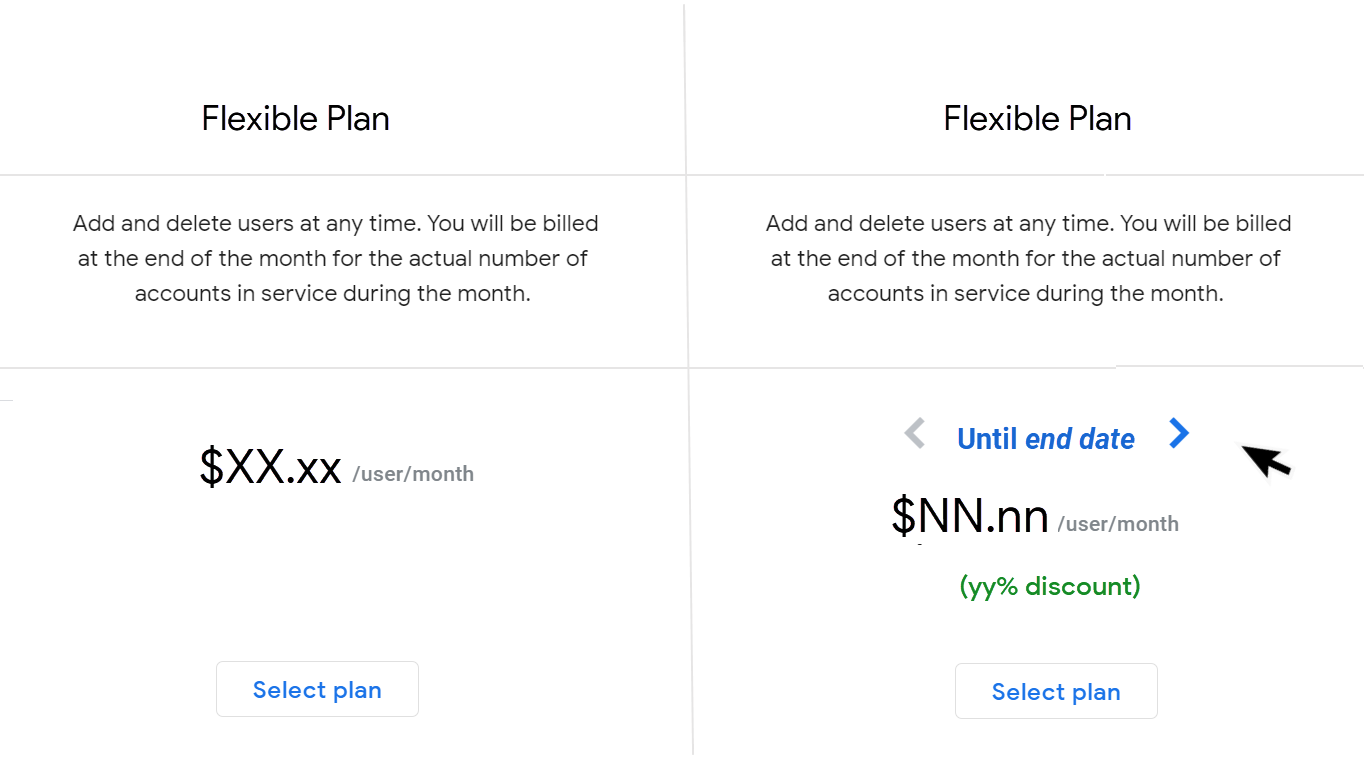
- Bekijk de abonnementen en klik op 'Abonnement selecteren' .
Om de prijzen na de kortingsperiode te bekijken, klikt u op de einddatum.
Hoe u meerdere G Suite-abonnementen tegelijk kunt overzetten in de Partner Sales Console
Wat je moet weten over bulktransities
- U kunt klanten met de volgende abonnementstypen niet in één keer overzetten:
- Offline abonnementen: neem contact op met het Google-verkoopteam om deze abonnementen over te zetten.
- Jaarabonnementen (jaarlijkse betaling)
- Gearchiveerde gebruikersabonnementen
- G Suite Lite-abonnementen
- Meerdere G Suite- of Google Workspace-abonnementen
- Je kunt maximaal 300 abonnementen tegelijk overzetten.
- Als het G Suite-abonnement van een klant een licentielimiet heeft van meer dan 300, maar het aantal toegewezen licenties minder dan 300 is, passen we de licentielimiet aan naar 300 wanneer we het abonnement overzetten naar de aanbevolen Google Workspace Business-editie.
- U komt in aanmerking voor overstapkortingen als u klanten in bulk upgradet naar een hogere abonnementsvorm. Google past deze kortingen automatisch voor u toe.
Bulkmigratie van G Suite-abonnementen
- Meld u aan bij de Partner Sales Console .
- Klik in het linkerpaneel op G Suite overzetten .
Je krijgt een lijst met G Suite Basic- en G Suite Business-abonnementen die momenteel in aanmerking komen voor bulkmigratie.
- Selecteer de abonnementen die u wilt overzetten.
Door te kiezen voor een bulkovergang, gaat u ermee akkoord dat de klant overstapt naar het door Google aanbevolen abonnements- en betalingsplan. Als u het niet eens bent met deze aanbevelingen, klikt u op de knop 'Aangepaste overgang ' en zet u het abonnement individueel over.
- Klik rechtsboven op 'Overgang geselecteerd' .
- Klik op 'Start overgang' .
Opmerkingen:
- Het kan even duren voordat het bulktransitieproces is voltooid. Zodra het proces is gestart, kan het niet worden onderbroken totdat alle transities zijn verwerkt.
- Gedurende deze tijd kunt u geen extra bulktransacties initiëren.
- Na voltooiing van het transitieproces kunt u een logboek met successen en mislukkingen bekijken.
- Abonnementen die niet zijn overgezet, blijven in de lijst met G Suite-abonnementen staan. U kunt deze overzettingen opnieuw proberen.
Gebruik de Reseller API om G Suite-abonnementen over te zetten.
Let op : de Channel Services API ondersteunt geen dealcodes. Om G Suite-abonnementen over te zetten, gebruikt u de Reseller API of selecteert u de juiste aanbieding via de Channel Services API.
Wanneer u het G Suite-abonnement van een klant upgradet naar een Google Workspace-abonnement:
- Alle gebruikers in het klantaccount krijgen hetzelfde abonnement. Je kunt bijvoorbeeld niet sommige gebruikers overzetten naar Business Plus terwijl anderen de Business Standard-editie behouden.
- Eventuele kortingen op G Suite-abonnementen die u momenteel ontvangt, zijn niet meer van toepassing nadat de klant overstapt naar een ander abonnement.
- G Suite-abonnementen voor gearchiveerde gebruikers worden overgezet naar Google Workspace-abonnementen voor gearchiveerde gebruikers (zelfde functionaliteit). Geen actie vereist.
Ga naar het Partner Advantage-portaal voor informatie over kortingen voor resellers.
Hoe migreer je een G Suite-abonnement met de Reseller API?
De Reseller API gebruikt een dealcode om korting toe te passen op G Suite-abonnementen die worden overgezet naar Google Workspace.
Voor meer informatie over dealcodes kunt u zich aanmelden bij de Google Cloud Partner Portal om het Google Workspace-webinar 'Overstappen van G Suite naar Google Workspace' te bekijken.
Met de dealcode ( dealCode ) kunt u de speciale aanbieding activeren door de dealcode als tekenreeks mee te sturen met de subscriptions.insert-aanroep .
Bijvoorbeeld om het abonnement van een klant over te zetten naar Google Workspace Enterprise Standard:
abonnement = Abonnementen.Invoegen(
klant-ID='nnnnnn',
lichaam={
klant-ID: 'nnnnnn',
skuId: '1010020026',
Plan: {
planName: 'FLEXIBLE',
},
stoelen: {
maximumNumberOfSeats: 10,
}
dealCode: 'XXXXXXXXXX '
})
Google Workspace product-ID's
| Product-ID | Product |
| 1010020028 | Google Workspace Business Standard |
| 1010020025 | Google Workspace Business Plus |
| 1010020026 | Google Workspace Enterprise Standard |
| 1010020020 | Google Workspace Enterprise Plus |
Probleemoplossing
Als u een foutmelding krijgt bij het uitvoeren van uw subscriptions.insert -aanroep, controleer dan of u de dealcode op het juiste transitiepad toepast.
De overstapaanbiedingen zijn alleen beschikbaar bij een upgrade naar een hoger abonnement. De korting geldt bijvoorbeeld niet voor G Suite Basic-abonnementen die worden overgezet naar Google Workspace Business Starter.
Veelgestelde vragen over de overgang
Welke gevolgen heeft de overgang voor bestaande G Suite-abonnementen?
De huidige G Suite-abonnementen en bijbehorende services blijven tot aan de overgang gewoon functioneren zoals ze dat nu doen.
We raden aan over te stappen naar een Google Workspace-aanbod dat aansluit bij de behoeften van de klant. Of, als u dat liever hebt, kunnen we de abonnementen van uw klanten automatisch overzetten zodra ze daarvoor in aanmerking komen. We zullen u minimaal 30 dagen van tevoren op de hoogte stellen wanneer de automatische overstap plaatsvindt.
Klanten met een jaarabonnement of een abonnement met een vaste looptijd komen in aanmerking voor automatische overstap op hun verlengingsdatum.
Wanneer moet ik mijn klanten overzetten naar Google Workspace?
Voor de klanten die u nog niet hebt overgezet, start u de overstap zo snel mogelijk. Vanaf 1 februari 2023 zet Google uw klanten automatisch over zodra ze hiervoor in aanmerking komen.
Herinneringen :
- De korting voor zelfoverstap is 5% hoger dan de korting voor automatische overstap. Deze korting geldt alleen voor klanten die overstappen naar een hoger abonnement (bijvoorbeeld van G Suite Basic naar Google Workspace Business Plus).
- U kunt de tool voor bulkovergangen in de Partner Sales Console gebruiken om tot 300 klanten tegelijk over te zetten.
Hoe werken automatische overgangen?
Als u ervoor kiest een klant niet over te zetten, zet Google de abonnementen van uw klanten automatisch over zodra de klant daarvoor in aanmerking komt. De mogelijkheid tot automatische overzetting wordt doorlopend vastgesteld, te beginnen op 1 februari 2023.
- We zullen u en uw klant ten minste 30 dagen voordat uw klant aan de beurt is voor de automatische overstap, hiervan op de hoogte stellen. U ontvangt een e-mail met een CSV-bestand met de lijst van klanten die voor de automatische overstap zijn ingepland.
- Totdat we uw klanten automatisch overzetten, kunt u ze zelf overzetten, rechtstreeks in de console, via de API of met behulp van de tool voor bulkoverzettingen.
- Op de dag van de automatische overstappen worden in aanmerking komende klanten binnen 24 tot 48 uur overgezet.
- Je ontvangt elke 24 uur een CSV-bestand met een lijst van klanten die in de voorgaande 24 uur succesvol automatisch zijn overgezet.
- U kunt geen van de volgende zaken van tevoren aanvragen:
- De exacte datum waarop de automatische overgangen moeten beginnen.
- Een lijst met klanten die wel of niet in automatische overgangen moeten worden opgenomen.
- Aangepaste transitiepaden voor uw klanten. We begeleiden klanten bij de transitie op basis van de functies die ze momenteel gebruiken.
Voor de meeste klanten heeft de overgang geen invloed op de prijs. In sommige gevallen kan de prijs echter variëren, afhankelijk van het specifieke productgebruik. Ga naar het Partner Advantage-portaal voor informatie over kortingen die van toepassing zijn op abonnementen die automatisch worden overgezet (hiervoor is een Partner Advantage-account vere vereist).
Wanneer worden klanten met een jaarabonnement of een abonnement met een vaste looptijd automatisch overgezet naar een ander abonnement?
Klanten met een jaarabonnement of een abonnement met een vaste looptijd komen in aanmerking voor automatische overstap op hun verlengingsdatum. Voor klanten die hun abonnement hebben doorverkocht en nu een jaarabonnement met jaarlijkse betaling hebben, raden we aan om deze klanten over te zetten naar een flexibel abonnement. Als u geen actie onderneemt, wordt de klant automatisch overgezet op de verlengingsdatum van zijn of haar jaarabonnement.
Als het bestemmingsartikel (SKU) duurder is dan het bronartikel (SKU), wordt de klant automatisch overgezet naar een Flexibel Abonnement. Anders wordt de klant automatisch overgezet naar een Jaarabonnement met Jaarlijkse Betaling. Ter herinnering: u kunt een abonnement op een Jaarabonnement met Jaarlijkse Betaling pas bij verlenging upgraden of downgraden.
Welke klanten zijn opgenomen in het meegeleverde CSV-bestand?
De G Suite-abonnementen die gepland stonden voor automatische overstap vanaf 1 februari 2023 zijn in november 2022 per e-mail verzonden in een bijgevoegd CSV-bestand. We sturen u en uw klanten (conform uw notificatie-instellingen) ten minste 30 dagen voordat uw klant aan de beurt is voor de automatische overstap een e-mail om u hiervan op de hoogte te stellen.
Waarom staan niet al mijn klanten met een G Suite-abonnement in het CSV-bestand?
Een klant staat mogelijk niet in een CSV-bijlage vermeld omdat de overstap nog niet is ingepland, of omdat de overstap pas over 30 dagen plaatsvindt. Sommige klanten stappen op verschillende data over. Abonnementen met extra opties kunnen bijvoorbeeld iets later overstappen.
Waarom is mijn klant overgezet naar een ander abonnement dan het abonnement dat in het CSV-bestand werd voorgesteld?
Uw klant kan automatisch worden overgezet naar een ander abonnement dan het abonnement dat in het CSV-bestand wordt voorgesteld, als hij of zij een functie gebruikt die de aanbevolen SKU wijzigt. We zetten de klant over naar een Google Workspace-editie die aansluit bij zijn of haar behoeften, op basis van de functies die hij of zij momenteel gebruikt.
Anders bestaat de mogelijkheid dat de klant door zijn partner wordt overgezet tussen de notificatiedatum en de datum van automatische overzetting.
Worden al mijn G Suite-klanten automatisch overgezet?
De meeste G Suite-klanten worden automatisch overgezet zodra ze daarvoor in aanmerking komen. Klanten met de volgende abonnementsvormen worden niet op dezelfde datum automatisch overgezet:
- Offline abonnementen
- G Suite Lite-abonnementen
- G Suite-abonnementen met gedeeltelijke domeinlicenties
Neem contact op met de verkoopafdeling van Google om deze abonnementen over te zetten.
Naar welke editie wordt de klant automatisch overgezet?
We migreren de klant naar een Google Workspace-editie die aansluit bij zijn of haar behoeften, gebaseerd op de functies die momenteel worden gebruikt.
Als een G Suite Business-klant bijvoorbeeld Google Vault gebruikt, zetten we die klant over naar Google Workspace Business Plus, zodat hij of zij die functie kan blijven gebruiken.
Let op: het kan een paar dagen duren voordat wijzigingen in functies in onze systemen zijn verwerkt. Als een klant kort voor de automatische overstap stopt met het gebruik van een functie, is het mogelijk dat we pas na de overstap op de hoogte zijn van de wijziging.
Als een klant een G Suite Archived User-abonnement heeft met een flexibel abonnement, zetten we deze automatisch over naar een Archived User-abonnement dat overeenkomt met hun nieuwe Google Workspace-abonnement. Voor klanten met een G Suite Archived User-abonnement met een jaarabonnement of een abonnement voor een vaste termijn, dient u samen met de klant de abonnementen over te zetten.
Wat gebeurt er met de aanvullende abonnementen van een klant bij een overstap?
Sommige Google Workspace-edities bevatten dezelfde mogelijkheden als de add-on-abonnementen. Zo is Vault bijvoorbeeld inbegrepen in Business Plus. Als een klant automatische licenties heeft ingeschakeld en automatisch overstapt naar een Google Workspace-editie met dezelfde functionaliteit als het add-on-abonnement, annuleren we het add-on-abonnement tijdens de overstap naar Google Workspace.
Als automatische licenties voor de klant zijn uitgeschakeld om gegevensverlies te voorkomen, annuleren we geen add-on-abonnementen. Voor deze klanten geldt dat als u geen apart add-on-abonnement wilt, u de add-on-gebruikerslicenties kunt koppelen aan uw hoofdabonnement op Google Workspace en het add-on-abonnement vervolgens 24 uur na het opnieuw toewijzen van de licenties kunt annuleren.
Worden G Suite-abonnementen met gearchiveerde gebruikers automatisch overgezet?
Als een klant een G Suite Archived User-abonnement heeft met een flexibel abonnement, zetten we deze automatisch over naar een Archived User-abonnement dat overeenkomt met hun nieuwe Google Workspace-abonnement. Voor klanten met een G Suite Archived User-abonnement met een jaarabonnement of een abonnement voor een vaste termijn, dient u samen met de klant de abonnementen handmatig over te zetten.
Kunnen klanten na een automatische overstap hun abonnement nog downgraden of upgraden?
Ja. We zetten de klant over naar een Google Workspace-editie met de functies die de klant momenteel gebruikt en behouden zijn of haar gegevens. Als een klant met een jaarabonnement (maandelijkse betaling) wil overstappen naar een andere Google Workspace-editie, kan dat tot 180 dagen na de overstap. Klanten met een flexibel abonnement kunnen op elk moment van editie wisselen.
Klanten met meer dan 300 gebruikers kunnen alleen overstappen naar een Google Workspace Enterprise-editie.
Wat gebeurt er als een klant automatisch overstapt naar een Google Workspace-editie die ik niet verkoop?
We migreren de klant naar een Google Workspace-editie die aansluit bij zijn of haar behoeften, gebaseerd op de functionaliteit die momenteel wordt gebruikt. Als u het bestemmingsabonnement momenteel niet verkoopt, kunt u het volgende doen:
- Zorg ervoor dat de klant vóór 1 februari 2023 wordt overgezet naar de gewenste bestemmingsversie.
- Wijzig het abonnement van de klant na de automatische overgang. U kunt het jaarabonnement (maandelijks betalen) van een klant tot 180 dagen na de overgang wijzigen en het flexibele abonnement van een klant op elk gewenst moment.
Kies een Google Workspace-editie
Vergelijk de functies van Google Workspace
Wanneer u de Google Workspace-editie kiest waarnaar u wilt overstappen, raden we u aan rekening te houden met het volgende:
- Aantal gebruikers — Uw klant mag maximaal 300 licenties hebben voor zijn G Suite Basic- en G Suite Business-abonnementen om over te stappen naar een Google Workspace Business-editie. Als de klant meer dan 300 gebruikers heeft, moet hij upgraden naar een Google Workspace Enterprise-editie.
- Functies die de klant momenteel gebruikt — Zorg ervoor dat u een editie kiest die de functies bevat waar uw klant vandaag de dag op vertrouwt.
- Functies die de klant in de toekomst graag zou willen gebruiken — Zijn er functies die de klant wil of nodig heeft, maar die momenteel niet beschikbaar zijn?
Controleer welke functies in gebruik zijn.
Als je toegang hebt tot de Google Admin-console van je klant, kun je controleren welke functies in gebruik zijn.
Stap 1: Open de beheerdersconsole.
- Open een nieuw incognito browservenster en meld u aan bij de Partner Sales Console.
- Ga naar de pagina Klanten en klik op de klantnaam.
- Klik onder 'Snelle links' op 'Beheerconsole' .
Stap 2: Controleer of een functie in gebruik is.
- Ga in de bovenstaande tabellen naar de kolom ' Gebruikt? ' voor de functie waarin u geïnteresseerd bent.
- Klik op de link 'Verifiëren ' om het helpartikel te openen.
- Volg de stappen in het helpartikel om een functie te controleren. Controleer bijvoorbeeld hoeveel opslagruimte er wordt gebruikt of of live streaming is ingeschakeld (alleen beschikbaar in Enterprise-edities).
Het is nu het moment om de G Suite Basic- en G Suite Business-abonnementen van uw klanten over te zetten naar Google Workspace. Vanaf 1 februari 2023 zet Google uw klanten automatisch over zodra ze hiervoor in aanmerking komen.
In dit artikel:
- Beheer meldingen aan uw klanten
- Gebruik de Partner Sales Console om G Suite-abonnementen over te zetten.
- Gebruik de Reseller API om G Suite-abonnementen over te zetten.
- Veelgestelde vragen over de overgang
- Kies een Google Workspace-editie
Beheer meldingen aan uw klanten
Uw klanten ontvangen e-mail- en Google Admin-consolemeldingen vóór en na de automatische overstap van Google naar Google Workspace. Als u niet wilt dat uw klanten deze meldingen ontvangen:
- Meld u aan bij de Partner Sales Console .
- Klik bovenaan op Menu. Instellingen .
- Schakel op de pagina met accountgegevens het selectievakje 'Google toestaan klanten te informeren over hun automatische overstap van G Suite naar Google Workspace' uit.
- Klik op Bijwerken .
Gebruik de Partner Sales Console om G Suite-abonnementen over te zetten.
Om een klant over te zetten, kunt u hun G Suite-abonnement omzetten naar een Google Workspace-abonnement in de Partner Sales Console.
Wat je moet weten over transities
- De G Suite Basic- en G Suite Business-abonnementen van uw klant mogen maximaal 300 licenties bevatten om te kunnen overstappen naar een Google Workspace Business-editie. Als de klant meer dan 300 gebruikers heeft, moet hij of zij upgraden naar een Google Workspace Enterprise-editie.
- Alle gebruikers in het klantaccount krijgen hetzelfde abonnement. U kunt bijvoorbeeld niet sommige gebruikers overzetten naar Business Plus terwijl anderen de Business Standard-editie behouden. Als een klant meerdere edities van G Suite (gedeeltelijke domeinlicenties) heeft, neem dan contact op met Google Partner Sales voor hulp.
- Eventuele kortingen op G Suite-abonnementen die u momenteel ontvangt, zijn niet meer van toepassing nadat de klant is overgestapt naar een Google Workspace-abonnement.
- Uw klanten met een G Suite Archived User-abonnement moeten bij de overstap overschakelen naar het Archived User-abonnement dat overeenkomt met hun Google Workspace-abonnement. Lees hoe u uw Archived User-editie kunt wijzigen .
Tip : Ga naar de Partner Sales Console voor een lijst van uw G Suite-klanten. Klik op de pagina Klanten op Klanten downloaden. Om een CSV-bestand te verkrijgen met alle klanten en hun abonnementen, filtert u vervolgens op actieve G Suite Basic- en G Suite Business-abonnementen.
Hoe u een individueel G Suite-abonnement kunt overzetten in de Partner Sales Console
Een G Suite-abonnement overzetten
- Meld u aan bij de Partner Sales Console .
- Klik op de pagina Klanten op de naam van de klant.
- Kies het G Suite Basic- of G Suite Business-abonnement.
- Klik op Downgraden (alleen weergegeven voor G Suite Business-abonnementen) of Upgraden .
Let op : selecteer 'Abonnement wijzigen' niet. Kortingen gelden alleen voor nieuwe Google Workspace-bestellingen.
- Selecteer een Google Workspace Business- of Enterprise-editie.
- Bekijk de abonnementen en klik op 'Abonnement selecteren' .
Om de prijzen na de kortingsperiode te bekijken, klikt u op de einddatum.
Hoe u meerdere G Suite-abonnementen tegelijk kunt overzetten in de Partner Sales Console
Wat je moet weten over bulktransities
- U kunt klanten met de volgende abonnementstypen niet in één keer overzetten:
- Offline abonnementen: neem contact op met het Google-verkoopteam om deze abonnementen over te zetten.
- Jaarabonnementen (jaarlijkse betaling)
- Gearchiveerde gebruikersabonnementen
- G Suite Lite-abonnementen
- Meerdere G Suite- of Google Workspace-abonnementen
- Je kunt maximaal 300 abonnementen tegelijk overzetten.
- Als het G Suite-abonnement van een klant een licentielimiet heeft van meer dan 300, maar het aantal toegewezen licenties minder dan 300 is, passen we de licentielimiet aan naar 300 wanneer we het abonnement overzetten naar de aanbevolen Google Workspace Business-editie.
- U komt in aanmerking voor overstapkortingen als u klanten in bulk upgradet naar een hogere abonnementsvorm. Google past deze kortingen automatisch voor u toe.
Bulkmigratie van G Suite-abonnementen
- Meld u aan bij de Partner Sales Console .
- Klik in het linkerpaneel op G Suite overzetten .
Je krijgt een lijst met G Suite Basic- en G Suite Business-abonnementen die momenteel in aanmerking komen voor bulkmigratie.
- Selecteer de abonnementen die u wilt overzetten.
Door te kiezen voor een bulkovergang, gaat u ermee akkoord dat de klant overstapt naar het door Google aanbevolen abonnements- en betalingsplan. Als u het niet eens bent met deze aanbevelingen, klikt u op de knop 'Aangepaste overgang ' en zet u het abonnement individueel over.
- Klik rechtsboven op 'Overgang geselecteerd' .
- Klik op 'Start overgang' .
Opmerkingen:
- Het kan even duren voordat het bulktransitieproces is voltooid. Zodra het proces is gestart, kan het niet worden onderbroken totdat alle transities zijn verwerkt.
- Gedurende deze tijd kunt u geen extra bulktransacties initiëren.
- Na voltooiing van het transitieproces kunt u een logboek met successen en mislukkingen bekijken.
- Abonnementen die niet zijn overgezet, blijven in de lijst met G Suite-abonnementen staan. U kunt deze overzettingen opnieuw proberen.
Gebruik de Reseller API om G Suite-abonnementen over te zetten.
Let op : de Channel Services API ondersteunt geen dealcodes. Om G Suite-abonnementen over te zetten, gebruikt u de Reseller API of selecteert u de juiste aanbieding via de Channel Services API.
Wanneer u het G Suite-abonnement van een klant upgradet naar een Google Workspace-abonnement:
- Alle gebruikers in het klantaccount krijgen hetzelfde abonnement. Je kunt bijvoorbeeld niet sommige gebruikers overzetten naar Business Plus terwijl anderen de Business Standard-editie behouden.
- Eventuele kortingen op G Suite-abonnementen die u momenteel ontvangt, zijn niet meer van toepassing nadat de klant overstapt naar een ander abonnement.
- G Suite-abonnementen voor gearchiveerde gebruikers worden overgezet naar Google Workspace-abonnementen voor gearchiveerde gebruikers (zelfde functionaliteit). Geen actie vereist.
Ga naar het Partner Advantage-portaal voor informatie over kortingen voor resellers.
Hoe migreer je een G Suite-abonnement met de Reseller API?
De Reseller API gebruikt een dealcode om korting toe te passen op G Suite-abonnementen die worden overgezet naar Google Workspace.
Voor meer informatie over dealcodes kunt u zich aanmelden bij de Google Cloud Partner Portal om het Google Workspace-webinar 'Overstappen van G Suite naar Google Workspace' te bekijken.
Met de dealcode ( dealCode ) kunt u de speciale aanbieding activeren door de dealcode als tekenreeks mee te sturen met de subscriptions.insert-aanroep .
Bijvoorbeeld om het abonnement van een klant over te zetten naar Google Workspace Enterprise Standard:
abonnement = Abonnementen.Invoegen(
klant-ID='nnnnnn',
lichaam={
klant-ID: 'nnnnnn',
skuId: '1010020026',
Plan: {
planName: 'FLEXIBLE',
},
stoelen: {
maximumNumberOfSeats: 10,
}
dealCode: 'XXXXXXXXXX '
})
Google Workspace product-ID's
| Product-ID | Product |
| 1010020028 | Google Workspace Business Standard |
| 1010020025 | Google Workspace Business Plus |
| 1010020026 | Google Workspace Enterprise Standard |
| 1010020020 | Google Workspace Enterprise Plus |
Probleemoplossing
Als u een foutmelding krijgt bij het uitvoeren van uw subscriptions.insert -aanroep, controleer dan of u de dealcode op het juiste transitiepad toepast.
De overstapaanbiedingen zijn alleen beschikbaar bij een upgrade naar een hoger abonnement. De korting geldt bijvoorbeeld niet voor G Suite Basic-abonnementen die worden overgezet naar Google Workspace Business Starter.
Veelgestelde vragen over de overgang
Welke gevolgen heeft de overgang voor bestaande G Suite-abonnementen?
De huidige G Suite-abonnementen en bijbehorende services blijven tot aan de overgang gewoon functioneren zoals ze dat nu doen.
We raden aan over te stappen naar een Google Workspace-aanbod dat aansluit bij de behoeften van de klant. Of, als u dat liever hebt, kunnen we de abonnementen van uw klanten automatisch overzetten zodra ze daarvoor in aanmerking komen. We zullen u minimaal 30 dagen van tevoren op de hoogte stellen wanneer de automatische overstap plaatsvindt.
Klanten met een jaarabonnement of een abonnement met een vaste looptijd komen in aanmerking voor automatische overstap op hun verlengingsdatum.
Wanneer moet ik mijn klanten overzetten naar Google Workspace?
Voor de klanten die u nog niet hebt overgezet, start u de overstap zo snel mogelijk. Vanaf 1 februari 2023 zet Google uw klanten automatisch over zodra ze hiervoor in aanmerking komen.
Herinneringen :
- De korting voor zelfoverstap is 5% hoger dan de korting voor automatische overstap. Deze korting geldt alleen voor klanten die overstappen naar een hoger abonnement (bijvoorbeeld van G Suite Basic naar Google Workspace Business Plus).
- U kunt de tool voor bulkovergangen in de Partner Sales Console gebruiken om tot 300 klanten tegelijk over te zetten.
Hoe werken automatische overgangen?
Als u ervoor kiest een klant niet over te zetten, zet Google de abonnementen van uw klanten automatisch over zodra de klant daarvoor in aanmerking komt. De mogelijkheid tot automatische overzetting wordt doorlopend vastgesteld, te beginnen op 1 februari 2023.
- We zullen u en uw klant ten minste 30 dagen voordat uw klant aan de beurt is voor de automatische overstap, hiervan op de hoogte stellen. U ontvangt een e-mail met een CSV-bestand met de lijst van klanten die voor de automatische overstap zijn ingepland.
- Totdat we uw klanten automatisch overzetten, kunt u ze zelf overzetten, rechtstreeks in de console, via de API of met behulp van de tool voor bulkoverzettingen.
- Op de dag van de automatische overstappen worden in aanmerking komende klanten binnen 24 tot 48 uur overgezet.
- Je ontvangt elke 24 uur een CSV-bestand met een lijst van klanten die in de voorgaande 24 uur succesvol automatisch zijn overgezet.
- U kunt geen van de volgende zaken van tevoren aanvragen:
- De exacte datum waarop de automatische overgangen moeten beginnen.
- Een lijst met klanten die wel of niet in automatische overgangen moeten worden opgenomen.
- Aangepaste transitiepaden voor uw klanten. We begeleiden klanten bij de transitie op basis van de functies die ze momenteel gebruiken.
Voor de meeste klanten heeft de overgang geen invloed op de prijs. In sommige gevallen kan de prijs echter variëren, afhankelijk van het specifieke productgebruik. Ga naar het Partner Advantage-portaal voor informatie over kortingen die van toepassing zijn op abonnementen die automatisch worden overgezet (hiervoor is een Partner Advantage-account vere vereist).
Wanneer worden klanten met een jaarabonnement of een abonnement met een vaste looptijd automatisch overgezet naar een ander abonnement?
Klanten met een jaarabonnement of een abonnement met een vaste looptijd komen in aanmerking voor automatische overstap op hun verlengingsdatum. Voor klanten die hun abonnement hebben doorverkocht en nu een jaarabonnement met jaarlijkse betaling hebben, raden we aan om deze klanten over te zetten naar een flexibel abonnement. Als u geen actie onderneemt, wordt de klant automatisch overgezet op de verlengingsdatum van zijn of haar jaarabonnement.
Als het bestemmingsartikel (SKU) duurder is dan het bronartikel (SKU), wordt de klant automatisch overgezet naar een Flexibel Abonnement. Anders wordt de klant automatisch overgezet naar een Jaarabonnement met Jaarlijkse Betaling. Ter herinnering: u kunt een abonnement op een Jaarabonnement met Jaarlijkse Betaling pas bij verlenging upgraden of downgraden.
Welke klanten zijn opgenomen in het meegeleverde CSV-bestand?
De G Suite-abonnementen die gepland stonden voor automatische overstap vanaf 1 februari 2023 zijn in november 2022 per e-mail verzonden in een bijgevoegd CSV-bestand. We sturen u en uw klanten (conform uw notificatie-instellingen) ten minste 30 dagen voordat uw klant aan de beurt is voor de automatische overstap een e-mail om u hiervan op de hoogte te stellen.
Waarom staan niet al mijn klanten met een G Suite-abonnement in het CSV-bestand?
Een klant staat mogelijk niet in een CSV-bijlage vermeld omdat de overstap nog niet is ingepland, of omdat de overstap pas over 30 dagen plaatsvindt. Sommige klanten stappen op verschillende data over. Abonnementen met extra opties kunnen bijvoorbeeld iets later overstappen.
Waarom is mijn klant overgezet naar een ander abonnement dan het abonnement dat in het CSV-bestand werd voorgesteld?
Uw klant kan automatisch worden overgezet naar een ander abonnement dan het abonnement dat in het CSV-bestand wordt voorgesteld, als hij of zij een functie gebruikt die de aanbevolen SKU wijzigt. We zetten de klant over naar een Google Workspace-editie die aansluit bij zijn of haar behoeften, op basis van de functies die hij of zij momenteel gebruikt.
Anders bestaat de mogelijkheid dat de klant door zijn partner wordt overgezet tussen de notificatiedatum en de datum van automatische overzetting.
Worden al mijn G Suite-klanten automatisch overgezet?
De meeste G Suite-klanten worden automatisch overgezet zodra ze daarvoor in aanmerking komen. Klanten met de volgende abonnementsvormen worden niet op dezelfde datum automatisch overgezet:
- Offline abonnementen
- G Suite Lite-abonnementen
- G Suite-abonnementen met gedeeltelijke domeinlicenties
Neem contact op met de verkoopafdeling van Google om deze abonnementen over te zetten.
Naar welke editie wordt de klant automatisch overgezet?
We migreren de klant naar een Google Workspace-editie die aansluit bij zijn of haar behoeften, gebaseerd op de functies die momenteel worden gebruikt.
Als een G Suite Business-klant bijvoorbeeld Google Vault gebruikt, zetten we die klant over naar Google Workspace Business Plus, zodat hij of zij die functie kan blijven gebruiken.
Let op: het kan een paar dagen duren voordat wijzigingen in functies in onze systemen zijn verwerkt. Als een klant kort voor de automatische overstap stopt met het gebruik van een functie, is het mogelijk dat we pas na de overstap op de hoogte zijn van de wijziging.
Als een klant een G Suite Archived User-abonnement heeft met een flexibel abonnement, zetten we deze automatisch over naar een Archived User-abonnement dat overeenkomt met hun nieuwe Google Workspace-abonnement. Voor klanten met een G Suite Archived User-abonnement met een jaarabonnement of een abonnement voor een vaste termijn, dient u samen met de klant de abonnementen over te zetten.
Wat gebeurt er met de aanvullende abonnementen van een klant bij een overstap?
Sommige Google Workspace-edities bevatten dezelfde mogelijkheden als de add-on-abonnementen. Zo is Vault bijvoorbeeld inbegrepen in Business Plus. Als een klant automatische licenties heeft ingeschakeld en automatisch overstapt naar een Google Workspace-editie met dezelfde functionaliteit als het add-on-abonnement, annuleren we het add-on-abonnement tijdens de overstap naar Google Workspace.
If automatic licensing is turned off for the customer, to avoid any data loss, we do not cancel add-on subscriptions. For these customers, if you do not want a separate add-on subscription, assign the add-on user licenses to your core Google Workspace subscription, and then cancel the add-on subscription 24 hours after you reassign the licenses.
Are G Suite Archived User subscriptions automatically transitioned?
If a customer has a G Suite Archived User subscription on a Flexible plan, we automatically transition them to an Archived User subscription that corresponds to their new Google Workspace subscription. For a customer with a G Suite Archived User subscription on an Annual/Fixed-Term plan, work with your customer to manually transition their subscriptions.
After an automatic transition, can customers downgrade or upgrade their subscription?
Yes. We transition the customer to a Google Workspace edition that has the features the customer currently uses and keeps their data. If a customer on an Annual Plan (Monthly Payment) wants to switch to a different Google Workspace edition, you can switch their subscription up to 180 days after the transition. Customers on Flexible Plans can switch editions at any time.
Customers with more than 300 users can only switch to a Google Workspace Enterprise edition.
What if a customer automatically transitions to a Google Workspace edition I don't sell?
We transition the customer to a Google Workspace edition that suits their needs, based on the feature they're currently using. If you do not currently sell the destination subscription, you can either:
- Transition the customer before February 1, 2023 to the desired destination edition.
- Change the customer's subscription after the automatic transition. You can change a customer's Annual Plan (Monthly Payment) subscription up to 180 days after the transition and a customer's Flexible Plan subscription at any time.
Choose a Google Workspace edition
Compare Google Workspace features
When you select the Google Workspace edition to transition to, we recommend you consider:
- Number of users —Your customer's G Suite Basic and G Suite Business subscriptions must have 300 or fewer licenses to transition to a Google Workspace Business edition. If the customer has more than 300 users, they need to upgrade to a Google Workspace Enterprise edition.
- Features the customer currently uses —Make sure you choose an edition that includes the features your customer relies on today.
- Features the customer would like to use in the future —Are there features that the customer wants or needs, but currently doesn't have?
Check which features are in use
If you have access to your customer's Google Admin console, you can check which features are in use.
Step 1: Open the Admin console.
- Open a new Incognito browser window and sign in to the Partner Sales Console.
- Go to the Customers page, and click the customer name.
- Below Quick links , click Admin console .
Step 2: Check whether a feature is in use.
- In the tables above, go to the Using? column for the feature you're interested in.
- Click the Verify link to open the help article.
- Follow the steps in the help article to check a feature. For example, check the amount of storage used or or whether live streaming is turned on (available only with Enterprise editions).
Now is the time to transition your customers' G Suite Basic and G Suite Business subscriptions to Google Workspace. Beginning February 1, 2023, Google automatically transitions your customers once they are eligible.
In dit artikel:
- Control notifications to your customers
- Use the Partner Sales Console to transition G Suite subscriptions
- Use the Reseller API to transition G Suite subscriptions
- Review transition FAQs
- Choose a Google Workspace edition
Control notifications to your customers
Your customers receive email and Google Admin console notifications before and after Google automatically transitions them to Google Workspace. If you don't want your customers to get these notifications:
- Meld u aan bij de Partner Sales Console .
- At the top, click Menu Instellingen .
- On the Account information page, uncheck the Allow Google to notify customers about their G Suite to Google Workspace auto transition box.
- Click Update .
Use the Partner Sales Console to transition G Suite subscriptions
To transition a customer, you can switch their G Suite subscription to a Google Workspace subscription in the Partner Sales Console.
What you need to know about transitions
- Your customer's G Suite Basic and G Suite Business subscriptions must have 300 or fewer licenses to transition to a Google Workspace Business edition. If the customer has more than 300 users, they need to upgrade to a Google Workspace Enterprise edition.
- All users in the customer's account get the same subscription. For example, you can't transition some users to Business Plus while keeping others on Business Standard edition. If a customer has multiple editions of G Suite (Partial Domain Licensing), contact Google Partner Sales for assistance.
- Any G Suite pricing discounts you currently receive are not applicable after the customer transitions to a Google Workspace subscription.
- Your customers with G Suite Archived User subscriptions need to switch to the Archived User subscription that corresponds to their Google Workspace subscription when they transition. Learn how to Switch your Archived User edition .
Tip : For a list of your G Suite customers, go to the Partner Sales Console. On the Customers page, click Download customers for a CSV file of all customers and their subscriptions. Then, filter for active G Suite Basic and G Suite Business subscriptions.
How to transition an individual G Suite subscription in the Partner Sales Console
Transition a G Suite subscription
- Meld u aan bij de Partner Sales Console .
- Klik op de pagina Klanten op de naam van de klant.
- Select the G Suite Basic or G Suite Business subscription.
- Click Downgrade (only shown for G Suite Business subscriptions) or Upgrade .
Note : Do not select Change plan . Discounts apply only to new Google Workspace orders.
- Select a Google Workspace Business or Enterprise edition.
- Bekijk de abonnementen en klik op 'Abonnement selecteren' .
To view the pricing after the discount period, click the end date.
How to bulk transition multiple G Suite subscriptions in the Partner Sales Console
What to know about bulk transitions
- You can't bulk transition customers with the following types of subscriptions:
- Offline subscriptions—Contact Google Sales team to transition these subscriptions.
- Annual Plan (Yearly Payment) subscriptions
- Archived User subscriptions
- G Suite Lite subscriptions
- Multiple G Suite or Google Workspace subscriptions
- You can transition up to 300 subscriptions at a time.
- If a customer's G Suite subscription has a license cap of more than 300, but the number of assigned licenses is fewer than 300, we adjust the license cap to 300 when transitioning the subscription to the recommended Google Workspace Business edition.
- You're eligible to receive transition discounts if you upgrade customers to higher-tier editions when you initiate bulk transitions. Google automatically applies these discounts on your behalf.
Bulk transition G Suite subscriptions
- Meld u aan bij de Partner Sales Console .
- In the left panel, click Transition G Suite .
You get a list of G Suite Basic and G Suite Business subscriptions that are currently eligible for bulk transition.
- Select the subscriptions you want to transition.
By choosing to transition in bulk, you agree to transition the customer to Google's recommended subscription and payment plan. If you don't agree with these recommendations, click the Custom Transition button and transition the subscription individually.
- In the top right, click Transition selected .
- Click Start transition .
Opmerkingen:
- It might take some time for the bulk transition process to complete. After the process has started, it can't be interrupted until all the transitions are processed.
- During this time you can't initiate any additional bulk transitions.
- You can view a log of successes and failures after the transition process is complete.
- Subscriptions that didn't transition continue to appear in the list of G Suite subscriptions. You're able to retry these transitions again.
Use the Reseller API to transition G Suite subscriptions
Note : The Channel Services API doesn't support deal codes. To transition G Suite subscriptions, either use the Reseller API or select the appropriate offer using the Channel Services API.
When you upgrade a customer's G Suite subscription to a Google Workspace subscription:
- All users in the customer's account get the same subscription. For example, you can't transition some users to Business Plus while keeping others on Business Standard edition.
- Any G Suite pricing discounts you currently receive are not applicable after the customer switches subscriptions.
- G Suite Archived User subscriptions transition to Google Workspace Archived User subscriptions (same functionality). No action required.
For information on Reseller transition discounts, visit the Partner Advantage portal.
How to transition a G Suite subscription with the Reseller API
The Reseller API uses a deal code to apply a discount to G Suite subscriptions transitioning to Google Workspace.
For more information about deal codes, sign in to the Google Cloud Partner Portal to view the Google Workspace webinar, "Transitioning from G Suite to Google Workspace."
The deal code ( dealCode ) allows you to unlock the special offer by passing the deal code string along with the subscriptions.insert call .
For example, to transition a customer's subscription to Google Workspace Enterprise Standard:
subscription = Subscriptions.Insert(
customerId='nnnnnn',
body={
customerId: 'nnnnnn',
skuId: '1010020026',
Plan: {
planName: 'FLEXIBLE',
},
seats: {
maximumNumberOfSeats: 10,
}
dealCode: 'XXXXXXXXXX '
})
Google Workspace product IDs
| Product ID | Product |
| 1010020028 | Google Workspace Business Standard |
| 1010020025 | Google Workspace Business Plus |
| 1010020026 | Google Workspace Enterprise Standard |
| 1010020020 | Google Workspace Enterprise Plus |
Probleemoplossing
If you receive an error in response to your subscriptions.insert call, confirm that you are applying the deal code to the correct transition path
The transition offers are only available when moving to a higher-tier SKU. For example, the discount won't apply to G Suite Basic subscriptions moving to Google Workspace Business Starter.
Review transition FAQs
How does the transition affect current G Suite subscriptions?
Current G Suite subscriptions and related services will continue to function as they do today until the transition.
We recommend transitioning to a Google Workspace offering that meets the customer's needs. Or, if you prefer, we can automatically transition your customers' subscriptions when they become eligible. We'll notify you at least 30 days before it's their turn to automatically transition.
Customers on an Annual/Fixed-Term Plan are eligible to automatically transition on their renewal date.
When should I transition my customers to Google Workspace?
For the customers that you have not already transitioned, start the transition at your earliest convenience. Beginning February 1, 2023, Google automatically transitions your customers once they are eligible.
Reminders :
- Self-transition discounts are 5% higher than autotransition discounts. These discounts apply only to customers moving to a higher-tier SKU (for example, G Suite Basic to Google Workspace Business Plus).
- You can use the bulk transitions tool in the Partner Sales Console to transition up to 300 customers at a time.
How do automatic transitions work?
If you choose not to transition a customer, Google automatically transitions your customers' subscriptions when the customer is eligible. Eligibility to automatically transition is on a rolling basis, starting February 1, 2023.
- We will notify you and your customer at least 30 days before it's your customer's turn to automatically transition. You'll receive an email with a CSV file containing the list of customers scheduled to autotransition.
- Up until the day we automatically transition your customers, you can transition them, either directly in the console, through the API, or by using the bulk transition tool.
- On the day of the automatic transitions, eligible customers are transitioned over a 24-48 hour period.
- You'll receive a CSV file every 24 hours that shows the list of customers that were successfully autotransitioned over the previous 24-hour period.
- You are not able to request any of the following in advance:
- The specific date to begin autotransitions.
- A list of customers to include or not include in autotransitions.
- Customized transition paths for your customers. We will transition customers based on the features they're currently using.
For most customers, the transition does not change pricing. However in some cases, pricing may vary based on specific product use. For information about discounts applied to subscriptions that are automatically transitioned, go to the Partner Advantage portal (requires a Partner Advantage account).
When do customers on Annual/Fixed-Term Plans automatically transition?
Customers on Annual/Fixed-Term Plans are eligible for automatic transition on their renewal date. For resold customers on an Annual Plan with Yearly Payment, we recommend you transition these customers to a Flexible Plan. If you take no action, the customer is automatically transitioned on the renewal date of their Annual Plan.
If the destination SKU is higher and more expensive than the source SKU, the customer automatically transitions to a Flexible Plan. Otherwise, customers automatically transition to an Annual Plan with Yearly Payment. As a reminder, you can't upgrade or downgrade a subscription on an Annual Plan with Yearly Payment until renewal.
What customers are included in the CSV file provided?
G Suite subscriptions that were scheduled for autotransition starting February 1, 2023 were sent by email in an attached CSV file in November 2022. We'll send an email to notify you and your customers (according to your notification settings) at least 30 days before it's your customer's turn to automatically transition.
Why aren't all my customers with a G Suite subscription listed in the CSV file?
A customer might not be listed in a CSV attachment because they might not be scheduled to transition yet, or might not be scheduled to transition in 30 days. Some customers transition on separate dates. For example, subscriptions with add-ons might transition at a slightly later date.
Why was my customer transitioned to a different subscription than the one suggested in the CSV file?
Your customer might be automatically transitioned to a different subscription than the one suggested in the CSV file if they use a feature that changes the recommended SKU. We transition the customer to a Google Workspace edition that suits their needs, based on the features they're currently using.
Otherwise, it is possible that the customer might be transitioned by their Partner between the notification date and the autotransition date.
Will all of my G Suite customers be automatically transitioned?
The majority of G Suite customers will be automatically transitioned when eligible. Customers with the following types of subscriptions will not be automatically transitioned on the same date:
- Offline subscriptions
- G Suite Lite subscriptions
- G Suite subscriptions with Partial Domain Licensing
Contact Google Sales to transition these subscriptions.
What edition will the customer automatically transition to?
We transition the customer to a Google Workspace edition that suits their needs, based on the features they're currently using.
For example, if a G Suite Business customer uses Google Vault, we'll transition the customer to Google Workspace Business Plus so they can continue to use that feature.
Note: It can take a few days for feature changes to register in our systems. If the customer stops using a feature shortly before their account is eligible to automatically transition, we might not know about the change before we transition the customer.
If a customer has a G Suite Archived User subscription on a Flexible plan, we'll automatically transition them to an Archived User subscription that corresponds to their new Google Workspace subscription. For a customer with a G Suite Archived User subscription on an Annual/Fixed-Term plan, work with your customer to transition their subscriptions.
What happens to a customer's add-on subscriptions when transitioning?
Some Google Workspace editions include the same capabilities available with add-on subscriptions. For example, Vault is included in Business Plus. If a customer has automatic licensing turned on and is autotransitioning to a Google Workspace edition that includes the same functionality as their add-on subscription, we cancel the add-on subscription when we transition them to Google Workspace.
If automatic licensing is turned off for the customer, to avoid any data loss, we do not cancel add-on subscriptions. For these customers, if you do not want a separate add-on subscription, assign the add-on user licenses to your core Google Workspace subscription, and then cancel the add-on subscription 24 hours after you reassign the licenses.
Are G Suite Archived User subscriptions automatically transitioned?
If a customer has a G Suite Archived User subscription on a Flexible plan, we automatically transition them to an Archived User subscription that corresponds to their new Google Workspace subscription. For a customer with a G Suite Archived User subscription on an Annual/Fixed-Term plan, work with your customer to manually transition their subscriptions.
After an automatic transition, can customers downgrade or upgrade their subscription?
Yes. We transition the customer to a Google Workspace edition that has the features the customer currently uses and keeps their data. If a customer on an Annual Plan (Monthly Payment) wants to switch to a different Google Workspace edition, you can switch their subscription up to 180 days after the transition. Customers on Flexible Plans can switch editions at any time.
Customers with more than 300 users can only switch to a Google Workspace Enterprise edition.
What if a customer automatically transitions to a Google Workspace edition I don't sell?
We transition the customer to a Google Workspace edition that suits their needs, based on the feature they're currently using. If you do not currently sell the destination subscription, you can either:
- Transition the customer before February 1, 2023 to the desired destination edition.
- Change the customer's subscription after the automatic transition. You can change a customer's Annual Plan (Monthly Payment) subscription up to 180 days after the transition and a customer's Flexible Plan subscription at any time.
Choose a Google Workspace edition
Compare Google Workspace features
When you select the Google Workspace edition to transition to, we recommend you consider:
- Number of users —Your customer's G Suite Basic and G Suite Business subscriptions must have 300 or fewer licenses to transition to a Google Workspace Business edition. If the customer has more than 300 users, they need to upgrade to a Google Workspace Enterprise edition.
- Features the customer currently uses —Make sure you choose an edition that includes the features your customer relies on today.
- Features the customer would like to use in the future —Are there features that the customer wants or needs, but currently doesn't have?
Check which features are in use
If you have access to your customer's Google Admin console, you can check which features are in use.
Step 1: Open the Admin console.
- Open a new Incognito browser window and sign in to the Partner Sales Console.
- Go to the Customers page, and click the customer name.
- Below Quick links , click Admin console .
Step 2: Check whether a feature is in use.
- In the tables above, go to the Using? column for the feature you're interested in.
- Click the Verify link to open the help article.
- Follow the steps in the help article to check a feature. For example, check the amount of storage used or or whether live streaming is turned on (available only with Enterprise editions).
Now is the time to transition your customers' G Suite Basic and G Suite Business subscriptions to Google Workspace. Beginning February 1, 2023, Google automatically transitions your customers once they are eligible.
In dit artikel:
- Control notifications to your customers
- Use the Partner Sales Console to transition G Suite subscriptions
- Use the Reseller API to transition G Suite subscriptions
- Review transition FAQs
- Choose a Google Workspace edition
Control notifications to your customers
Your customers receive email and Google Admin console notifications before and after Google automatically transitions them to Google Workspace. If you don't want your customers to get these notifications:
- Meld u aan bij de Partner Sales Console .
- At the top, click Menu Instellingen .
- On the Account information page, uncheck the Allow Google to notify customers about their G Suite to Google Workspace auto transition box.
- Click Update .
Use the Partner Sales Console to transition G Suite subscriptions
To transition a customer, you can switch their G Suite subscription to a Google Workspace subscription in the Partner Sales Console.
What you need to know about transitions
- Your customer's G Suite Basic and G Suite Business subscriptions must have 300 or fewer licenses to transition to a Google Workspace Business edition. If the customer has more than 300 users, they need to upgrade to a Google Workspace Enterprise edition.
- All users in the customer's account get the same subscription. For example, you can't transition some users to Business Plus while keeping others on Business Standard edition. If a customer has multiple editions of G Suite (Partial Domain Licensing), contact Google Partner Sales for assistance.
- Any G Suite pricing discounts you currently receive are not applicable after the customer transitions to a Google Workspace subscription.
- Your customers with G Suite Archived User subscriptions need to switch to the Archived User subscription that corresponds to their Google Workspace subscription when they transition. Learn how to Switch your Archived User edition .
Tip : For a list of your G Suite customers, go to the Partner Sales Console. On the Customers page, click Download customers for a CSV file of all customers and their subscriptions. Then, filter for active G Suite Basic and G Suite Business subscriptions.
How to transition an individual G Suite subscription in the Partner Sales Console
Transition a G Suite subscription
- Meld u aan bij de Partner Sales Console .
- Klik op de pagina Klanten op de naam van de klant.
- Select the G Suite Basic or G Suite Business subscription.
- Click Downgrade (only shown for G Suite Business subscriptions) or Upgrade .
Note : Do not select Change plan . Discounts apply only to new Google Workspace orders.
- Select a Google Workspace Business or Enterprise edition.
- Bekijk de abonnementen en klik op 'Abonnement selecteren' .
To view the pricing after the discount period, click the end date.
How to bulk transition multiple G Suite subscriptions in the Partner Sales Console
What to know about bulk transitions
- You can't bulk transition customers with the following types of subscriptions:
- Offline subscriptions—Contact Google Sales team to transition these subscriptions.
- Annual Plan (Yearly Payment) subscriptions
- Archived User subscriptions
- G Suite Lite subscriptions
- Multiple G Suite or Google Workspace subscriptions
- You can transition up to 300 subscriptions at a time.
- If a customer's G Suite subscription has a license cap of more than 300, but the number of assigned licenses is fewer than 300, we adjust the license cap to 300 when transitioning the subscription to the recommended Google Workspace Business edition.
- You're eligible to receive transition discounts if you upgrade customers to higher-tier editions when you initiate bulk transitions. Google automatically applies these discounts on your behalf.
Bulk transition G Suite subscriptions
- Meld u aan bij de Partner Sales Console .
- In the left panel, click Transition G Suite .
You get a list of G Suite Basic and G Suite Business subscriptions that are currently eligible for bulk transition.
- Select the subscriptions you want to transition.
By choosing to transition in bulk, you agree to transition the customer to Google's recommended subscription and payment plan. If you don't agree with these recommendations, click the Custom Transition button and transition the subscription individually.
- In the top right, click Transition selected .
- Click Start transition .
Opmerkingen:
- It might take some time for the bulk transition process to complete. After the process has started, it can't be interrupted until all the transitions are processed.
- During this time you can't initiate any additional bulk transitions.
- You can view a log of successes and failures after the transition process is complete.
- Subscriptions that didn't transition continue to appear in the list of G Suite subscriptions. You're able to retry these transitions again.
Use the Reseller API to transition G Suite subscriptions
Note : The Channel Services API doesn't support deal codes. To transition G Suite subscriptions, either use the Reseller API or select the appropriate offer using the Channel Services API.
When you upgrade a customer's G Suite subscription to a Google Workspace subscription:
- All users in the customer's account get the same subscription. For example, you can't transition some users to Business Plus while keeping others on Business Standard edition.
- Any G Suite pricing discounts you currently receive are not applicable after the customer switches subscriptions.
- G Suite Archived User subscriptions transition to Google Workspace Archived User subscriptions (same functionality). No action required.
For information on Reseller transition discounts, visit the Partner Advantage portal.
How to transition a G Suite subscription with the Reseller API
The Reseller API uses a deal code to apply a discount to G Suite subscriptions transitioning to Google Workspace.
For more information about deal codes, sign in to the Google Cloud Partner Portal to view the Google Workspace webinar, "Transitioning from G Suite to Google Workspace."
The deal code ( dealCode ) allows you to unlock the special offer by passing the deal code string along with the subscriptions.insert call .
For example, to transition a customer's subscription to Google Workspace Enterprise Standard:
subscription = Subscriptions.Insert(
customerId='nnnnnn',
body={
customerId: 'nnnnnn',
skuId: '1010020026',
Plan: {
planName: 'FLEXIBLE',
},
seats: {
maximumNumberOfSeats: 10,
}
dealCode: 'XXXXXXXXXX '
})
Google Workspace product IDs
| Product ID | Product |
| 1010020028 | Google Workspace Business Standard |
| 1010020025 | Google Workspace Business Plus |
| 1010020026 | Google Workspace Enterprise Standard |
| 1010020020 | Google Workspace Enterprise Plus |
Probleemoplossing
If you receive an error in response to your subscriptions.insert call, confirm that you are applying the deal code to the correct transition path
The transition offers are only available when moving to a higher-tier SKU. For example, the discount won't apply to G Suite Basic subscriptions moving to Google Workspace Business Starter.
Review transition FAQs
How does the transition affect current G Suite subscriptions?
Current G Suite subscriptions and related services will continue to function as they do today until the transition.
We recommend transitioning to a Google Workspace offering that meets the customer's needs. Or, if you prefer, we can automatically transition your customers' subscriptions when they become eligible. We'll notify you at least 30 days before it's their turn to automatically transition.
Customers on an Annual/Fixed-Term Plan are eligible to automatically transition on their renewal date.
When should I transition my customers to Google Workspace?
For the customers that you have not already transitioned, start the transition at your earliest convenience. Beginning February 1, 2023, Google automatically transitions your customers once they are eligible.
Reminders :
- Self-transition discounts are 5% higher than autotransition discounts. These discounts apply only to customers moving to a higher-tier SKU (for example, G Suite Basic to Google Workspace Business Plus).
- You can use the bulk transitions tool in the Partner Sales Console to transition up to 300 customers at a time.
How do automatic transitions work?
If you choose not to transition a customer, Google automatically transitions your customers' subscriptions when the customer is eligible. Eligibility to automatically transition is on a rolling basis, starting February 1, 2023.
- We will notify you and your customer at least 30 days before it's your customer's turn to automatically transition. You'll receive an email with a CSV file containing the list of customers scheduled to autotransition.
- Up until the day we automatically transition your customers, you can transition them, either directly in the console, through the API, or by using the bulk transition tool.
- On the day of the automatic transitions, eligible customers are transitioned over a 24-48 hour period.
- You'll receive a CSV file every 24 hours that shows the list of customers that were successfully autotransitioned over the previous 24-hour period.
- You are not able to request any of the following in advance:
- The specific date to begin autotransitions.
- A list of customers to include or not include in autotransitions.
- Customized transition paths for your customers. We will transition customers based on the features they're currently using.
For most customers, the transition does not change pricing. However in some cases, pricing may vary based on specific product use. For information about discounts applied to subscriptions that are automatically transitioned, go to the Partner Advantage portal (requires a Partner Advantage account).
When do customers on Annual/Fixed-Term Plans automatically transition?
Customers on Annual/Fixed-Term Plans are eligible for automatic transition on their renewal date. For resold customers on an Annual Plan with Yearly Payment, we recommend you transition these customers to a Flexible Plan. If you take no action, the customer is automatically transitioned on the renewal date of their Annual Plan.
If the destination SKU is higher and more expensive than the source SKU, the customer automatically transitions to a Flexible Plan. Otherwise, customers automatically transition to an Annual Plan with Yearly Payment. As a reminder, you can't upgrade or downgrade a subscription on an Annual Plan with Yearly Payment until renewal.
What customers are included in the CSV file provided?
G Suite subscriptions that were scheduled for autotransition starting February 1, 2023 were sent by email in an attached CSV file in November 2022. We'll send an email to notify you and your customers (according to your notification settings) at least 30 days before it's your customer's turn to automatically transition.
Why aren't all my customers with a G Suite subscription listed in the CSV file?
A customer might not be listed in a CSV attachment because they might not be scheduled to transition yet, or might not be scheduled to transition in 30 days. Some customers transition on separate dates. For example, subscriptions with add-ons might transition at a slightly later date.
Why was my customer transitioned to a different subscription than the one suggested in the CSV file?
Your customer might be automatically transitioned to a different subscription than the one suggested in the CSV file if they use a feature that changes the recommended SKU. We transition the customer to a Google Workspace edition that suits their needs, based on the features they're currently using.
Otherwise, it is possible that the customer might be transitioned by their Partner between the notification date and the autotransition date.
Will all of my G Suite customers be automatically transitioned?
The majority of G Suite customers will be automatically transitioned when eligible. Customers with the following types of subscriptions will not be automatically transitioned on the same date:
- Offline subscriptions
- G Suite Lite subscriptions
- G Suite subscriptions with Partial Domain Licensing
Contact Google Sales to transition these subscriptions.
What edition will the customer automatically transition to?
We transition the customer to a Google Workspace edition that suits their needs, based on the features they're currently using.
For example, if a G Suite Business customer uses Google Vault, we'll transition the customer to Google Workspace Business Plus so they can continue to use that feature.
Note: It can take a few days for feature changes to register in our systems. If the customer stops using a feature shortly before their account is eligible to automatically transition, we might not know about the change before we transition the customer.
If a customer has a G Suite Archived User subscription on a Flexible plan, we'll automatically transition them to an Archived User subscription that corresponds to their new Google Workspace subscription. For a customer with a G Suite Archived User subscription on an Annual/Fixed-Term plan, work with your customer to transition their subscriptions.
What happens to a customer's add-on subscriptions when transitioning?
Some Google Workspace editions include the same capabilities available with add-on subscriptions. For example, Vault is included in Business Plus. If a customer has automatic licensing turned on and is autotransitioning to a Google Workspace edition that includes the same functionality as their add-on subscription, we cancel the add-on subscription when we transition them to Google Workspace.
If automatic licensing is turned off for the customer, to avoid any data loss, we do not cancel add-on subscriptions. For these customers, if you do not want a separate add-on subscription, assign the add-on user licenses to your core Google Workspace subscription, and then cancel the add-on subscription 24 hours after you reassign the licenses.
Are G Suite Archived User subscriptions automatically transitioned?
If a customer has a G Suite Archived User subscription on a Flexible plan, we automatically transition them to an Archived User subscription that corresponds to their new Google Workspace subscription. For a customer with a G Suite Archived User subscription on an Annual/Fixed-Term plan, work with your customer to manually transition their subscriptions.
After an automatic transition, can customers downgrade or upgrade their subscription?
Yes. We transition the customer to a Google Workspace edition that has the features the customer currently uses and keeps their data. If a customer on an Annual Plan (Monthly Payment) wants to switch to a different Google Workspace edition, you can switch their subscription up to 180 days after the transition. Customers on Flexible Plans can switch editions at any time.
Customers with more than 300 users can only switch to a Google Workspace Enterprise edition.
What if a customer automatically transitions to a Google Workspace edition I don't sell?
We transition the customer to a Google Workspace edition that suits their needs, based on the feature they're currently using. If you do not currently sell the destination subscription, you can either:
- Transition the customer before February 1, 2023 to the desired destination edition.
- Change the customer's subscription after the automatic transition. You can change a customer's Annual Plan (Monthly Payment) subscription up to 180 days after the transition and a customer's Flexible Plan subscription at any time.
Choose a Google Workspace edition
Compare Google Workspace features
When you select the Google Workspace edition to transition to, we recommend you consider:
- Number of users —Your customer's G Suite Basic and G Suite Business subscriptions must have 300 or fewer licenses to transition to a Google Workspace Business edition. If the customer has more than 300 users, they need to upgrade to a Google Workspace Enterprise edition.
- Features the customer currently uses —Make sure you choose an edition that includes the features your customer relies on today.
- Features the customer would like to use in the future —Are there features that the customer wants or needs, but currently doesn't have?
Check which features are in use
If you have access to your customer's Google Admin console, you can check which features are in use.
Step 1: Open the Admin console.
- Open a new Incognito browser window and sign in to the Partner Sales Console.
- Go to the Customers page, and click the customer name.
- Below Quick links , click Admin console .
Step 2: Check whether a feature is in use.
- In the tables above, go to the Using? column for the feature you're interested in.
- Click the Verify link to open the help article.
- Follow the steps in the help article to check a feature. For example, check the amount of storage used or or whether live streaming is turned on (available only with Enterprise editions).