
Enrolling HP Dimension devices in the Google Admin console requires a Google Workspace account with administrator privileges, because signing in is part of the enrollment flow after installation.
As an IT administrator, you can either be present alongside the A/V integrator (AVI) to sign in, or you can give the integrator an account that they can use to enroll the device. In either case, the account used to sign in must have at least the following privileges:
- Enroll Meet hardware (Google Beam for Meet)
- Enroll Google Beam hardware (Google Beam for Zoom)
This guide helps navigate the security concerns involved in setting up an admin account for the AVI if you choose to have them enroll the device.
Third-party identity providers and security policies
Device enrollment is an authentication scenario that can conflict with enterprise security policies. Unlike a managed laptop, the HP Dimension is "unknown" and "untrusted" until the enrollment process is complete. Also, because the integrator login must begin from the device as the service provider, authentication flows that require login beginning at a non-Google identity provider won't work unless the integrator's admin account has a policy exception.
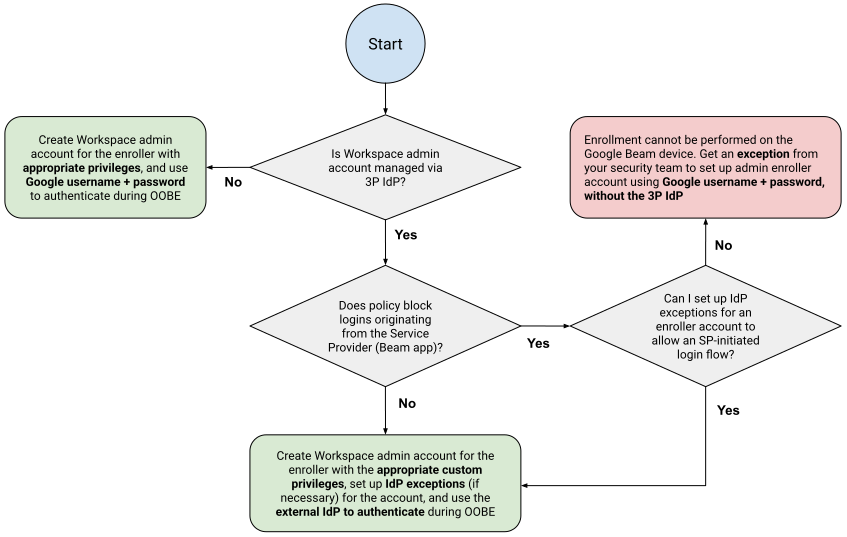
Setting up this admin account therefore has different dependencies based on your organization's security policies:
- Whether Google Workspace sign in is through a third-party (3P) identity provider (IdP) like Okta
- Whether your organization's policies require 3P IdP login to originate at the IdP instead of the Beam enrollment app (the service provider)
- If so, whether it's possible to create an exception for the account
The following flowchart illustrates the dependencies between these factors.
Google Workspace prerequisites
You must have a Google Workspace edition with a verified domain. To create a custom role, you will need at least the Enterprise Standard edition. Go to HP Dimension with Google Beam requirements for more information.
Your corporate security policy may require Workspace user
accounts to be set up with SAML SSO. If this is the case, in the Google Admin
console under Security  Authentication
SSO with third-party IdP, you need to enter your IdP's Sign-in page URL,
Entity ID, and upload their Verification Certificate. Go to Set up SSO with a
third-party IdP for reference.
Authentication
SSO with third-party IdP, you need to enter your IdP's Sign-in page URL,
Entity ID, and upload their Verification Certificate. Go to Set up SSO with a
third-party IdP for reference.
Create a dedicated enrollment account
If you choose to have the AVI enroll the device, we recommend creating a
dedicated enroller account such as enrollment@<yourdomain>.com rather than a
personal administrator account tied to an individual integrator.
- Direct option: Create a user account from the Google Admin console.
- IdP option: Create a user account in your IdP and use Directory Sync or SCIM provisioning (available in Okta/Azure) to automatically sync with Google so it's ready for SSO. Go to Directory Sync vs. GCDS for more information.
Either way, you'll need to collect the credentials from the original source of the account (the Google Admin console or an IdP) to give to the integrator. Next, you need to give the enroller account the necessary administrator privileges to enroll your HP Dimension devices.
Click the tab that corresponds to your license.
Google Beam for Meet
To assign privileges, you should create a custom administrator role:
- Follow the instructions in Create, edit, and delete custom admin roles.
- During the Privilege Name list selection step, check the Enroll Google Meet Hardware box.
Google Beam for Zoom
To assign privileges, you should create a custom administrator role:
- Follow the instructions in Create, edit, and delete custom admin roles.
- During the Privilege Name list selection step, check the Enroll Beam devices box.
Configure security exceptions
Your identity provider may have security policies that block the specific behavior required for enrollment. If so, configure or request the following exceptions scoped only to the enroller account:
Allow "SP-initiated" logins
- Issue: Device enrollment starts at the physical device (service provider), not your IdP dashboard. Some IdPs block "unsolicited" login requests that don't originate from their portal.
- Fix: In your IdP's Google Workspace app settings, ensure that the policy allows Service Provider-Initiated (SP-Initiated) SAML requests for the enroller user.
Bypass "Device Trust" and "Compliance" checks
- Issue: A new HP Dimension device doesn't yet have a management certificate or MDM profile. If your policy requires "Compliant" or "Hybrid Joined" devices, enrollment will fail.
- Fix: Add an exclusion or exception to your Conditional Access or
Authentication Policy:
- Exclude the enroller account from "Device Compliance" or "Managed Device" requirements.
- Allow the enroller to sign in from "Any" device or "Unknown" devices.
Disable "Signed Request" validation
- Issue: By default, Google Workspace doesn't digitally sign the initial SAML authentication request. If your IdP expects a signed request (common in custom SAML configs and ADFS), it will drop the connection.
- Fix: In your IdP's Advanced SAML Settings for the Google Workspace app, ensure that "Validate Signed AuthnRequest" (or "Require Signed Requests") is disabled or unchecked.
Your IdP should allow you to apply these settings to just the enroller account without affecting the security policies for the rest of your organization.
Verify the account
Before scheduling the integrator, verify the account:
- Open an incognito or private browser window.
- Go to the Google Admin console.
- Enter the enroller email address when prompted to login.
- Success: You should be redirected to your IdP, allowed to sign in, and successfully land back in the Google Admin console.
- Failure: If an "Access Denied" or "403" error from your IdP appears, the Device Trust or Policy exclusion is not active or not working correctly.