
This document only applies to Google Beam for Meet licenses.
If your organization uses Google Beam for Meet and Microsoft Outlook, when you book meetings, you can streamline the booking process for Beam-enabled rooms by enabling Calendar Interop. This creates a seamless reservation experience for your users who work in Microsoft 365.
This integration enables users to view the availability of Google Beam for Meet rooms directly within their Outlook calendar and book them. Complete both of the following workflows to set up interop for Beam rooms.
Set up basic interoperability
To enable Microsoft Exchange and Google Calendar to work together, complete the Calendar Interop setup workflow. This allows users to view availability in both systems.
Configuring additional availability credentials
In addition to configuring the availability address space for your organization's Google Workspace account, you need to generate a set of credentials for the resource.calendar.google.com domain in step 3 of the Calendar Interop setup and add its availability address space in step 4.
When creating the second credential, the Google role account and its credential file should be the same as the ones used in your initial setup, and you should set the Google availability address you want to add to resource.calendar.google.com:
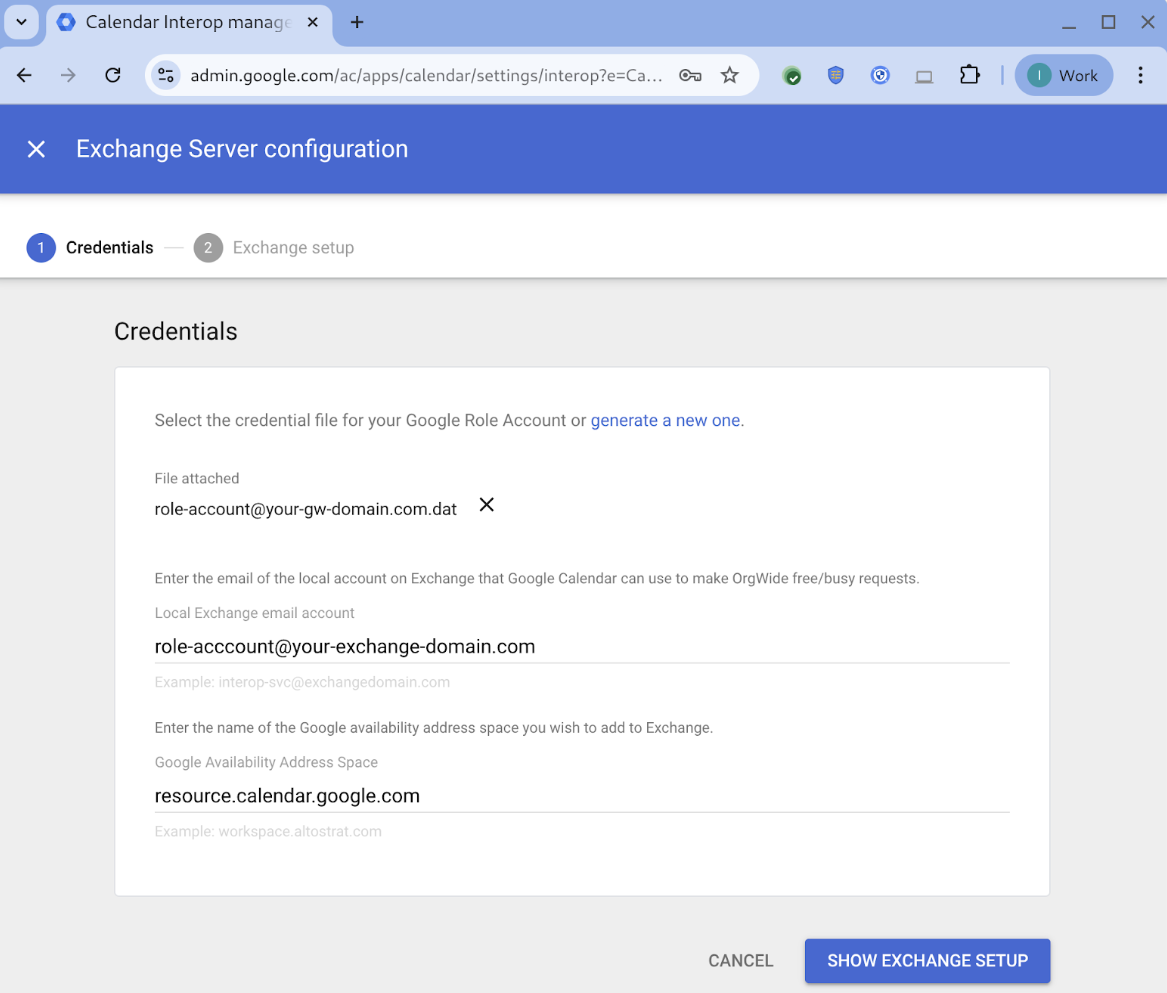
This extra step is needed because Google Workspace resources always have an @resource.calendar.google.com email address (unlike regular users who have addresses on your domain), and from Exchange's point of view these are two different domains. This configuration step allows Exchange to correctly route calendar availability requests for Google Workspace resources to Google Calendar.
Set up Beam rooms as Google Calendar resources
Each room with a Beam-enabled device should exist as a resource within the Google Admin console. Once the resource exists, you can tag the room with "Google Beam" as a feature so that it can be searched and filtered on.
To set up Beam rooms as resources:
- If the rooms don't exist yet as resources in the Google Admin console, first follow the steps in the Add resources section of Create buildings, features & Calendar resources to add them.
- Once room resources exist for all of the rooms where you want to have Beam-enabled devices, follow the steps in Add Google Beam as a resource feature to create a tag for Google Beam and add it to the rooms. This will make them easier to find when scheduling meetings.
- For each room, record the resource email address that's automatically
assigned—you'll need this in the next section to create a user for each room
on the Outlook side. You can view the email in the room details by going to
Menu


 Directory
Buildings and resources and clicking the room name.
Directory
Buildings and resources and clicking the room name.
Set up Beam-enabled rooms as Outlook users
Because of differences in the way Google Calendar and Outlook handle room resources, Beam rooms need to be set up as Outlook users to make them addressable by both systems. They should be set up as company-wide contacts so that the Microsoft Scheduling Assistant shows them to all users.
Note: By default, every user can also add a Contact with the room email ID, so it's a best practice to ensure that rooms are added at the admin level. In addition, if you don't add company-wide contacts, Scheduling Assistant won't show the room's availability.
To add the rooms as users:
- Open Outlook Admin and add external contacts for your entire organization.
Refer to Microsoft documentation about how to:
- Manage mail contacts in Exchange Online.
- Bulk import external contacts.
- Configure rooms and workspaces for Room Finder in Outlook.
- Update each room user's contact name to help users find it quickly.
- Set the First Name, Last Name, and Display Name.
- Include "Google Beam", room name, and coordinates in the naming convention.
- When prompted, set the room's email address to the same one used for the room in the Google Admin console.
Verify interoperability by booking a meeting
To verify interoperability between Outlook and Google Calendar, test the following workflows in Outlook:
- Direct booking: The organizer adds Beam rooms and Meet details to a new meeting.
- Add room later: The organizer adds a Beam room to an existing invite.
- Guest initiated edits: An attendee adds a Beam room to an existing invite.
You can verify that they worked if both rooms and the Meet details show up on the touchscreen in the room or on the room's calendar in the Google Admin console. Changes should take effect immediately.
To view the calendar in the Admin console:
-
In the Google Admin console, go to Menu
 Devices
Google Meet hardware
Devices.
Devices
Google Meet hardware
Devices.Some features may require having the Meet hardware View devices or Manage calendar assignment privilege or both.
Click the Video calling and calendar panel, then click through to see your event on the room's calendar.
Install the Google Meet Add-in
To generate Meet details for their events, users need the Google Meet Add-in in Outlook. If your organization supports centralized deployment, we recommend using that method—see the Microsoft documentation for instructions. If centralized deployment isn't an option, you can have your users install it directly. Provide them the following instructions:
- Sign into your Outlook user account.
- Go to the Microsoft AppSource store.
- Click Get it now.
- Sign in to Microsoft Marketplace and follow the instructions to install and enable the Google Meet Add-in.