
You can factory reset an HP Dimension device and its associated touchscreen to troubleshoot issues or wipe the device data before re-enrolling. You should reset the touchscreen when you reset the HP Dimension. This guide describes how to factory reset both devices.
When to factory reset
A factory reset removes your device settings and returns the device to the initial setup steps. You must factory reset the HP Dimension and the touchscreen to re-enroll the device. Re-enrollment is required before you can perform the following operations:
- Enroll the device with a different Google Workspace domain.
- Change your Beam license to a different video conferencing provider such as from Zoom to Meet or the other way around. You also need to buy the appropriate new license.
- Change the language on the device.
- Change the network configuration from DHCP to static IP or the other way around.
- Troubleshoot a device that isn't starting correctly.
Prerequisites
Before you begin the factory reset process, ensure you have the following items:
- Deprovisioned device: Before a reset, the device must be deprovisioned in the Google Admin console (and removed from the Zoom Room in the Zoom web portal if you have a Google Beam for Zoom license). This revokes its license and prepares it for re-enrollment.
- Stable web connection: Required for downloading any necessary recovery components and for the subsequent re-enrollment.
- A USB-A flash drive (at least 16GB of available space)
- A USB keyboard
- Another computer with Chrome installed and a USB-A port that you can use to create the recovery drive
- A paperclip
Prepare a recovery image
You'll use the Chromebook Recovery Utility extension to create a recovery image on the USB drive.
- On the other computer, open Chrome and install the extension.
- Open the recovery extension:
- In your browser window, click Extensions
 .
. - Select the Chromebook Recovery Utility extension. If the extension dialog doesn't automatically open on your screen, make sure it's turned on.
- In your browser window, click Extensions
- Click Get started.
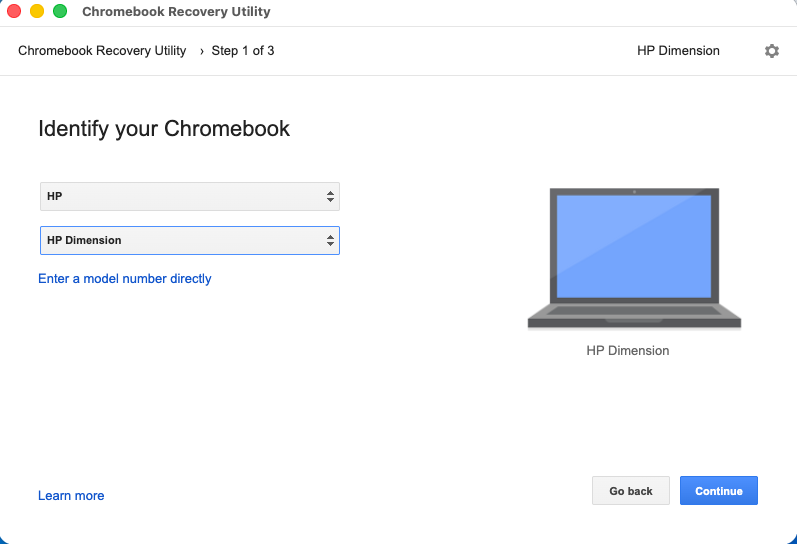
- Click Select a model from a list, then click Select a manufacturer and select HP.
- Click Select a product, then select HP Dimension.
Click Continue.
Insert your USB flash drive into the computer.
In the drop-down menu, choose your USB flash drive.
Click Continue
 Create now.
When you get a message that your recovery media is ready, remove your USB flash drive from the computer.
Wipe the HP Dimension
This process wipes all data from an HP Dimension and replaces it with a production image, restoring the device to its factory default state.
- Prepare the device: Ensure that the device is turned on with the main screen showing the existing UI.
Enter recovery mode:
- Find the power button on the compute module and the reset hole to the right of the power button. Refer to your device's hardware guide if needed.
Insert the paperclip into the reset hole and press firmly until you feel the internal button engaged. While holding the paperclip in, press and hold the power button for 2–3 seconds, then release both simultaneously.
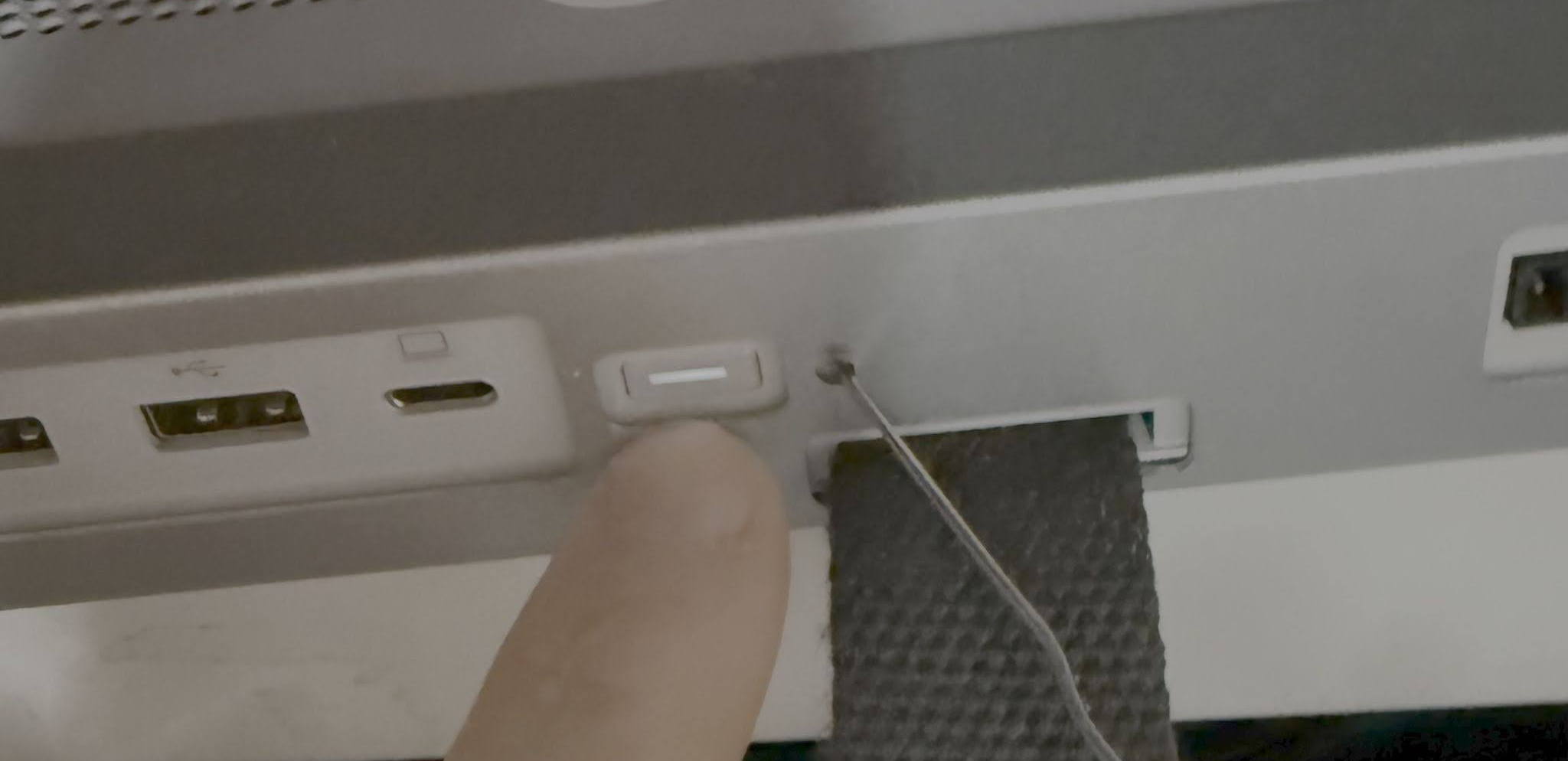
Initiate recovery: Follow the on-screen prompts to proceed. If the recovery screen doesn't open, repeat the previous step. Ensure the button combination is held for less than 4 seconds; holding them longer can result in a black screen. If this occurs, repeat step 2 until the recovery screen is visible.
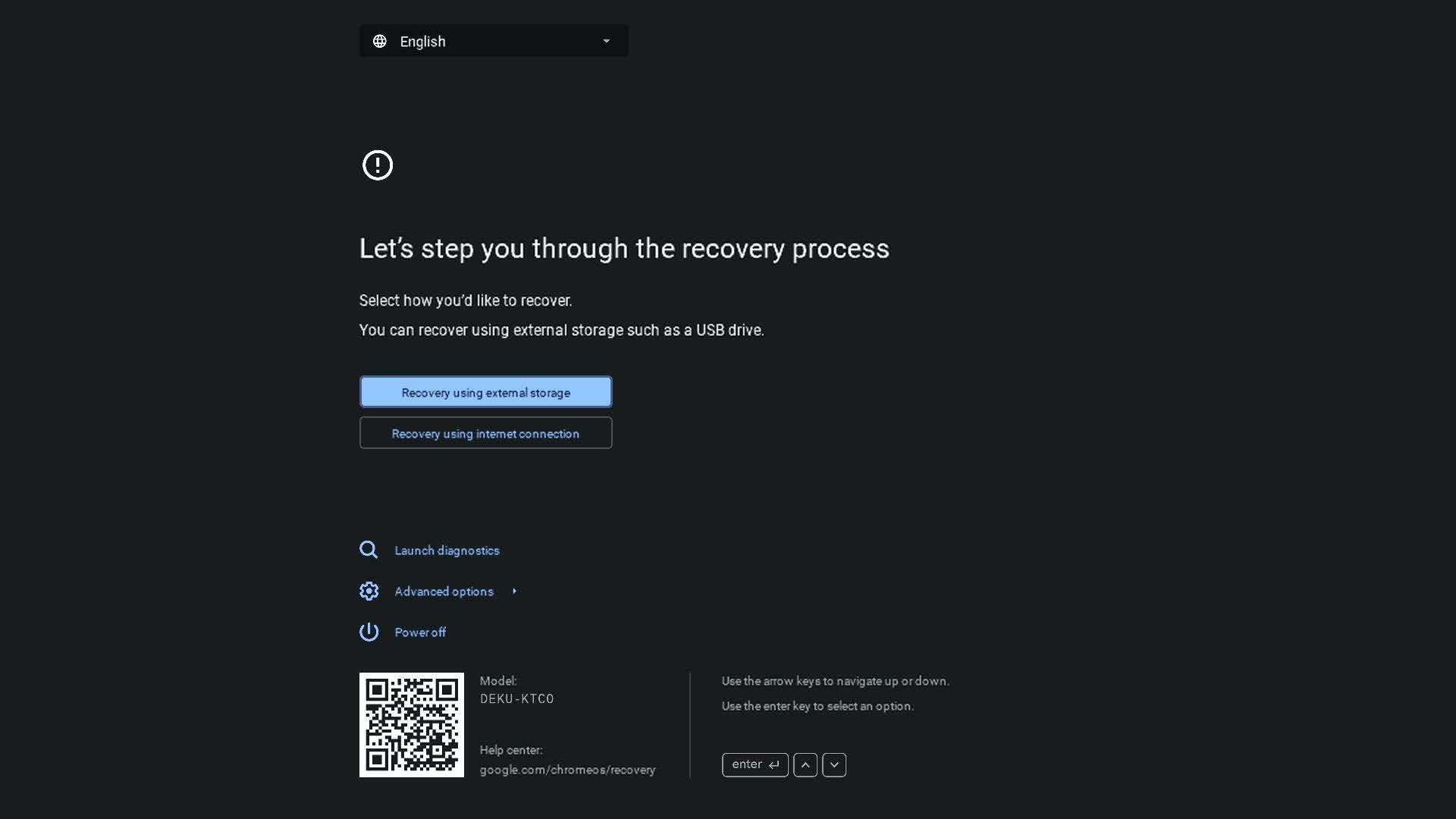
Install the recovery image: Insert the USB drive with the recovery image. This will automatically start the recovery process unless the image is invalid.
Completion: Once the installation is complete, the device restarts and is in the factory default state, with no trace of previous usage except for calibration data. It can then be re-enrolled like a new device.
Factory reset the touchscreen
You can factory reset the touchscreen directly from the device:
- From the home screen, tap the Settings gear icon.
- Write down the serial number of the device.
- Go to Admin Settings Restart and Reset. The system will ask you
to reset the password. This is temporary, as you'll change it again after
the reset, but is a security requirement.
- For the current password, enter the last 6 digits of the touchscreen's serial number, then give the device a new password.
- In the Factory Reset panel, tap Reset.
- Confirm by tapping Reset again.
Further assistance
If you encounter any issues during this process, contact your HP Amplify reseller for support.