
The HP Dimension is designed to minimize its energy consumption and carbon footprint while ensuring a responsive experience. It offers several power modes that can be controlled by admins, technicians, and users to reduce usage and power down safely for service:
Mode |
Power consumption |
Active call mode |
<600W |
Ready mode |
<400W |
Standby mode |
<10W |
For Google Meet, the HP Dimension automatically exits standby mode 10 minutes before a scheduled meeting, or when manually awakened from the touch controller.
Restart the HP Dimension
Restarting your HP Dimension hardware regularly is a good maintenance practice, and if there are issues, restarting will often resolve them. It also triggers installation of any firmware and OS updates. See Firmware/OS updates and restart scheduling for details about scheduling restarts. Restarting the device will return it to ready mode.
Note: Restarting the HP Dimension doesn't restart the touchscreen. Go to Restart the Poly TC10 touchscreen for instructions.
Restart from admin console
You can manually restart the HP Dimension hardware from your admin console as needed for troubleshooting.
Click the tab that corresponds to your license.
Google Beam for Meet
Follow the instructions in Remotely manage Meet hardware to restart the device from the Google Admin console.
Google Beam for Zoom
Follow the instructions in Remote Zoom Room management to restart the device from the Zoom web portal. You can't restart the device if it's in a meeting.
Restart at the device
If a restart from your admin console doesn't resolve the issue, you can physically restart the device and restore it to ready mode by pressing and holding the button on the right side of the main display for 5 seconds. The restart cycle takes approximately 4 minutes.
Restart the Poly TC10 touchscreen
If you need to restart the Poly TC10 touchscreen controller, you can do so using one of the following methods:
- (Recommended) Unplug the Ethernet cord from the back of the touchscreen, wait a few seconds, and plug it back in.
- Use the admin settings on the touchscreen:
- From the home screen, tap the Settings gear icon.
- Go to Admin Settings
 Restart and Reset.
 - Tap Restart.
- (Zoom only) Restart remotely using the Zoom web portal:
- In the Zoom web portal, go to Device Management
Device List, or Room Management Zoom Rooms
and click the link for the Zoom Room associated with the touchscreen.
- Click the link for the Poly TC10 touchscreen you want to restart.
- Click the Manage tab.
- Click Restart and Restart again to confirm.
- In the Zoom web portal, go to Device Management
Schedule power saving
To reduce power consumption outside of business hours, you can schedule when you want the HP Dimension to be in idle mode. This is only available for Google Beam for Zoom licenses.
Follow the instructions in Zoom Rooms device operation time to set an idle window using the Zoom web portal.
Power down for service
Service technicians should power down the HP Dimension hardware to standby mode before working on the device. Once serviced, the device should be returned to ready mode.
Enter standby mode
To enter standby mode:
- Remove the mid wall top cover to access the compute module.
Press and hold the power button on the compute module for 3 seconds and no longer than 5 seconds.
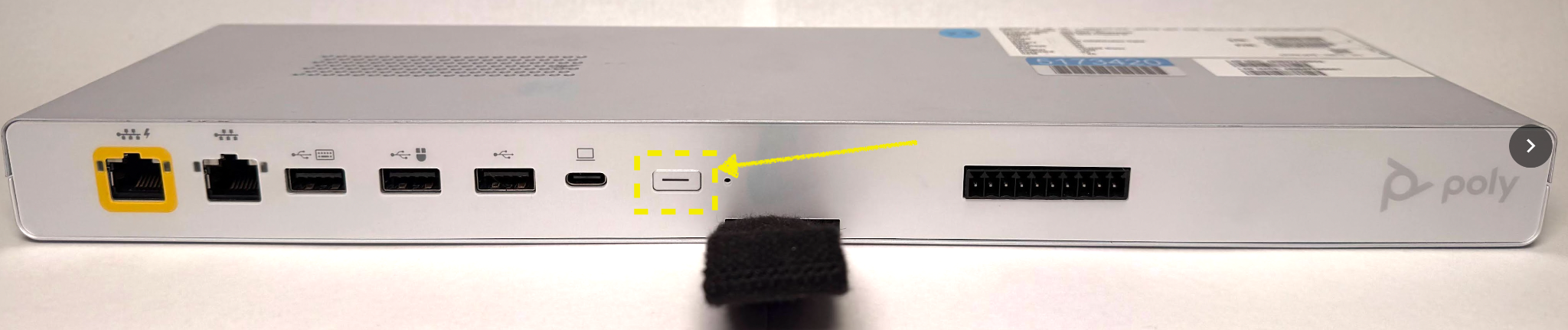
The system enters standby mode and shutdown completes within 8 seconds.
Remove the power supply unit door on the display.
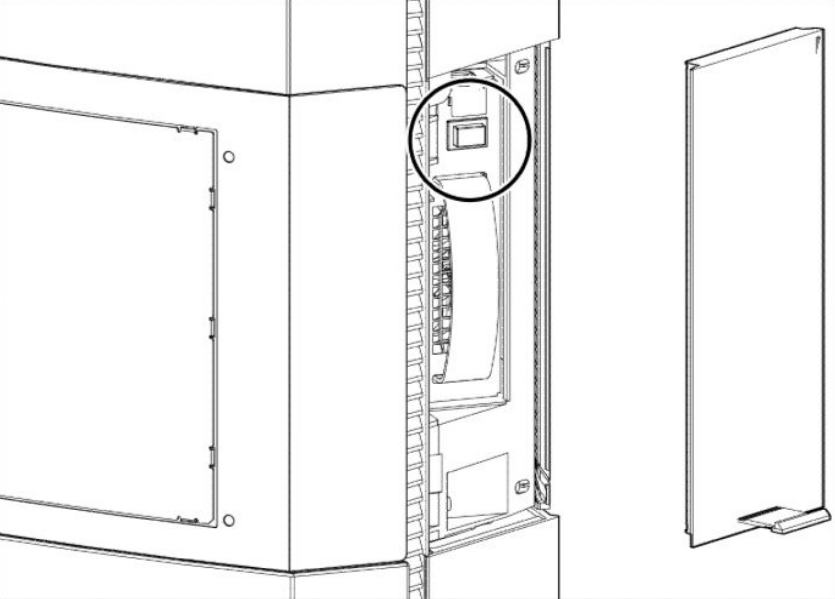
Press the power button to disconnect the AC power. The system can be safely serviced, or the power cable can be safely removed.
Exit standby mode
To return the HP Dimension to ready mode after servicing:
- Press the power button on the power supply to energize the system.
Press the power button on the compute module once. The device boots from standby mode to ready mode, which takes a few minutes.
Re-install the power supply unit door on the display and the mid wall top cover.