

Puedes restablecer la configuración de fábrica (Powerwash) de un dispositivo HP Dimension y su pantalla táctil asociada para solucionar problemas o borrar los datos del dispositivo antes de volver a inscribirlo. Debes restablecer la pantalla táctil cuando restablezcas el HP Dimension. En esta guía, se describe cómo restablecer la configuración de fábrica de ambos dispositivos.
Cuándo restablecer la configuración de fábrica
Si restableces la configuración de fábrica, se quitarán tus datos del dispositivo y se volverán a instalar el SO de ChromeOS o el TCOS de Poly predeterminados. Se requiere cuando se anula el aprovisionamiento y, luego, se vuelve a inscribir los dispositivos, lo que debes hacer para las siguientes operaciones:
- Inscribe el dispositivo con un dominio diferente de Google Workspace.
- Cambia tu licencia de Beam a otro proveedor de videoconferencias (de Zoom a Meet o viceversa). También deberás comprar la licencia nueva adecuada y restablecer la configuración de fábrica de la pantalla táctil.
- Cambia el idioma del dispositivo.
- Cambia la configuración de red de DHCP a IP estática o viceversa.
- Soluciona problemas de un dispositivo que no se inicia correctamente.
Requisitos previos
Antes de comenzar el proceso de restablecimiento de la configuración de fábrica, asegúrate de tener los siguientes elementos:
- Dispositivo desaprovisionado: Antes de restablecer el dispositivo, se debe desaprovisionar en la Consola del administrador de Google (y quitar de la sala de Zoom en el portal web de Zoom si tienes una licencia de Google Beam para Zoom). Esto revoca su licencia y lo prepara para volver a inscribirse.
- Conexión web estable: Se requiere para descargar los componentes de recuperación necesarios y para la posterior reinscripción.
- Una unidad flash USB-A (al menos 16 GB de espacio disponible)
- Un teclado USB
- Otra computadora con Chrome instalado y un puerto USB-A que puedas usar para crear la unidad de recuperación
- Un sujetapapeles
Prepara una imagen de recuperación
Usarás la extensión Utilidad de recuperación de Chromebook para crear una imagen de recuperación en la unidad USB.
- En la otra computadora, abre Chrome y instala la extensión.
- Abre la extensión de recuperación:
- En la ventana del navegador, haz clic en Extensiones
 .
. - Selecciona la extensión Utilidad de recuperación de Chromebook. Si el diálogo de la extensión no se abre automáticamente en la pantalla, asegúrate de que esté activado.
- En la ventana del navegador, haz clic en Extensiones
- Haz clic en Comenzar.
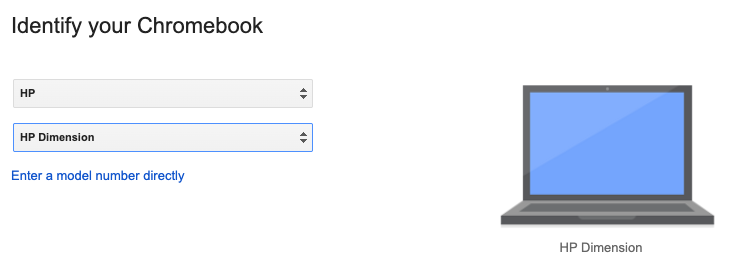
- Haz clic en Seleccionar un modelo de una lista y, luego, en Seleccionar un fabricante y HP.
- Haz clic en Seleccionar un producto y, luego, en HP Dimension.
Haz clic en Continuar.
Inserta la unidad de memoria flash USB en la computadora.
En el menú desplegable, selecciona la unidad flash USB.
Haz clic en Continuar
 Crear ahora.
Cuando aparezca el mensaje que indica que el medio de recuperación está listo, quita la unidad flash USB de la computadora.
Cómo limpiar el HP Dimension
Este proceso borra todos los datos de un HP Dimension y los reemplaza por una imagen de producción, lo que restablece el dispositivo a su estado predeterminado de fábrica.
- Prepara el dispositivo: Asegúrate de que el dispositivo esté encendido y que la pantalla principal muestre la IU existente.
Cómo ingresar al modo de recuperación:
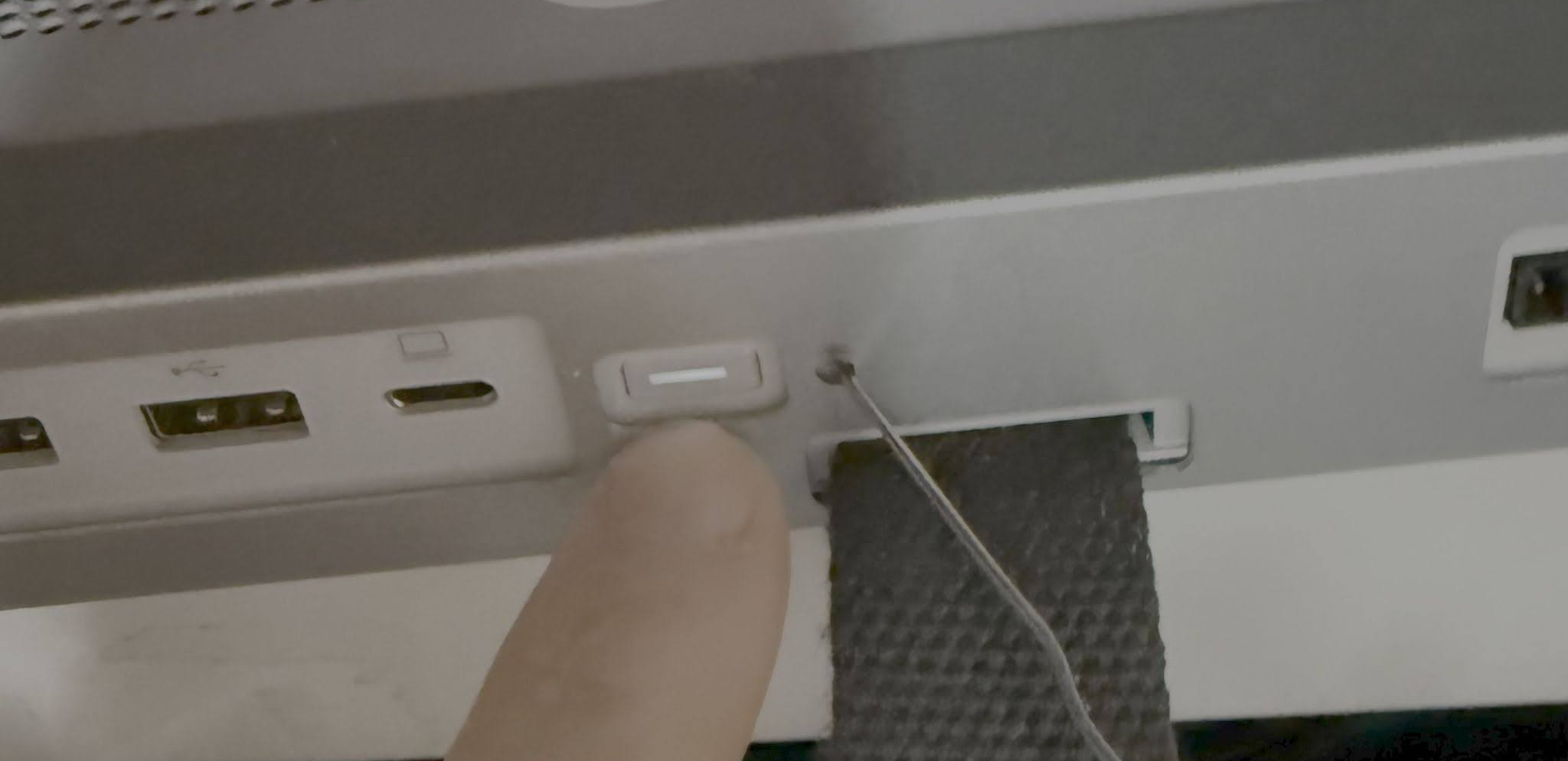
- Busca el botón de encendido en el módulo de procesamiento y el orificio de restablecimiento a la derecha del botón de encendido. Si es necesario, consulta la guía de hardware del dispositivo.
Inserta el clip en el orificio de restablecimiento y presiona con firmeza hasta que sientas que se activó el botón interno. Mientras mantienes el clip en su lugar, mantén presionado el botón de encendido durante 2 o 3 segundos y, luego, suelta ambos botones de forma simultánea.
Iniciar recuperación: Sigue las indicaciones en pantalla para continuar. Si no se abre la pantalla de recuperación, repite el paso anterior. Asegúrate de mantener presionada la combinación de botones durante menos de 4 segundos. Si los mantienes presionados durante más tiempo, es posible que la pantalla se ponga negra. Si esto ocurre, repite el paso 2 hasta que se vea la pantalla de recuperación.
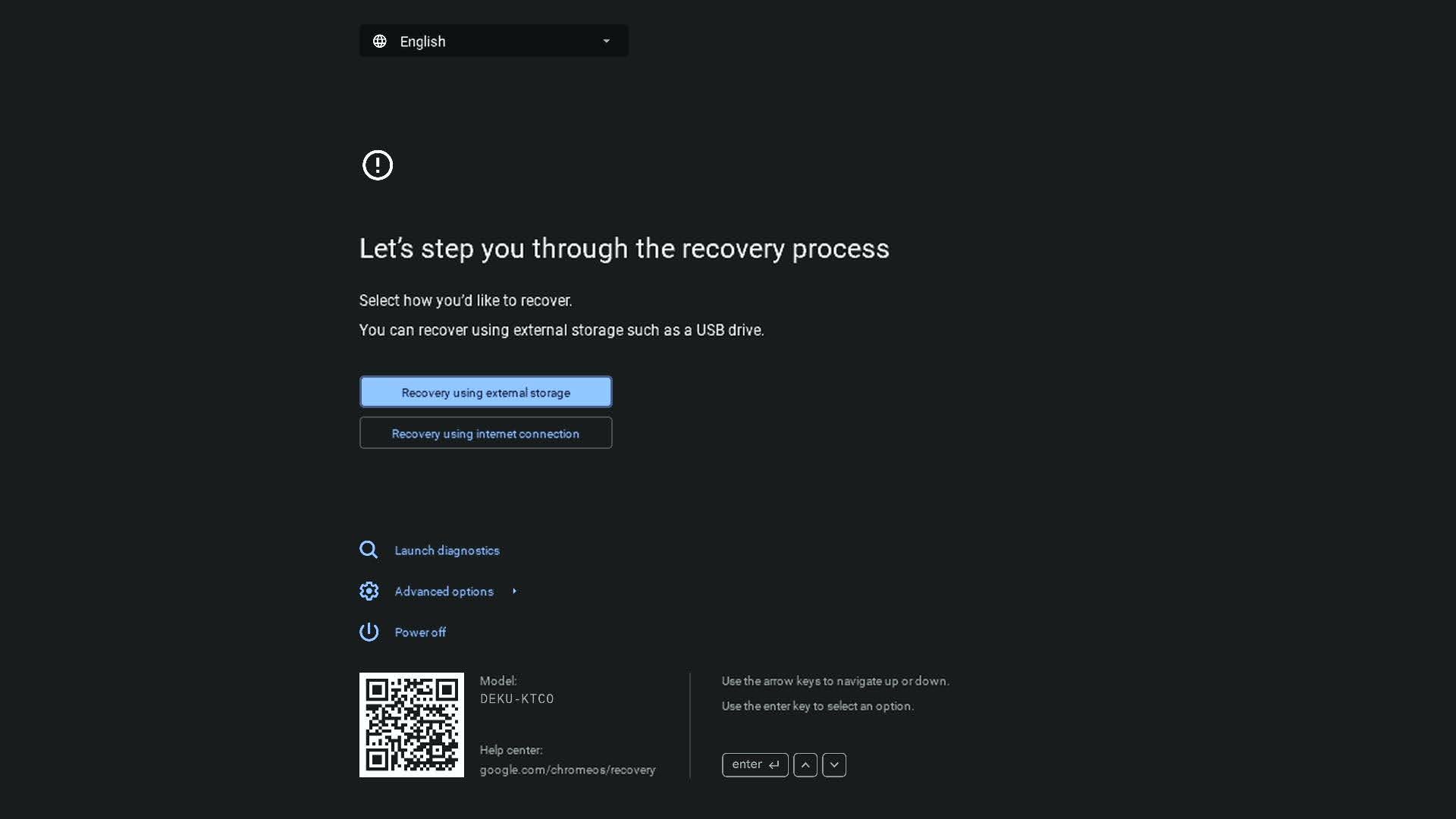
Instala la imagen de recuperación: Inserta la unidad USB con la imagen de recuperación. Esto iniciará automáticamente el proceso de recuperación, a menos que la imagen no sea válida.
Finalización: Una vez que se completa la instalación, el dispositivo se reinicia y se encuentra en el estado predeterminado de fábrica, sin rastros de uso anterior, excepto los datos de calibración. Luego, se puede volver a inscribir como un dispositivo nuevo.
Restablece la configuración de fábrica de la pantalla táctil
Puedes restablecer la configuración de fábrica de la pantalla táctil directamente desde el dispositivo:
- En la pantalla principal, presiona el ícono de ajustes de Configuración.
- Anota el número de serie del dispositivo.
- Ve a Configuración del administrador Reiniciar y restablecer. El sistema te pedirá que restablezcas la contraseña. Este paso es temporal, ya que lo cambiarás de nuevo después del restablecimiento, pero es un requisito de seguridad.
- Para la contraseña actual, ingresa los últimos 6 dígitos del número de serie de la pantalla táctil y, luego, asígnale una contraseña nueva al dispositivo.
- En el panel Restablecer configuración de fábrica, presiona Restablecer.
- Para confirmar, vuelve a presionar Restablecer.
Asistencia adicional
Si tienes algún problema durante este proceso, comunícate con tu revendedor de HP Amplify para obtener asistencia.