
As an organization administrator, you can review and control how Data Studio is used in your organization. Cloud Identity and Google Workspace administrators can manage many administrative tasks by using the Data Studio Enterprise admin panel or by utilizing Data Studio's Cloud Identity integration. Google Workspace administrators can also transfer ownership of Data Studio assets.
Enterprise admin panel
Data Studio's Enterprise admin panel provides a convenient place for Cloud Identity and Google Workspace administrators to access various settings that govern how users can interact with Data Studio.
To access the Enterprise admin panel, click Settings in Data Studio, then select Enterprise admin.
Set your company name and country
In the Google Admin console, you can change the name of the company and country that members of your organization see when interacting with Data Studio.
For more information, see the following article:
Set organization policies for sharing and scheduling
Data Studio sharing policies let you reduce the risk of data exfiltration. You can set limits to prevent users from sharing or scheduling reports outside of your organization, or you can disable link sharing to prevent users from exposing company data. You can also disable a viewer's ability to download, print, and copy Data Studio assets. By default, all users will be able to download, print, and copy any Data Studio asset.
Sharing and scheduling policies offer you the flexibility to define permissions that meet your business needs. You can give certain users the ability to share or schedule reports externally while allowing other users to share or schedule only within the organization. For more information, see the following articles:
- Set sharing permissions for Data Studio users
- Set scheduling permissions for Data Studio users
- Set downloading restrictions for Data Studio users with a Viewer role
Manage how editors set credentials for their data sources
You can determine whether users with an Editor role can set owner's credentials for a data source.
For more information, see the following article:
Set organization policies for third-party connectors and visualizations
By default, all community connectors and visualizations are allowed. However, as an additional mitigation to the risk of data exfiltration, you can restrict users' abilities to add data sources from third-party — that is, non-Google — connectors or to consent to add third-party visualizations to a report.
For more information, see the following articles:
- Set policies for how users add or create data sources from third-party connectors
- Set policies for how users grant access to new and existing third-party visualizations in reports
Data Studio Pro: Configure Data Studio Pro settings
Data Studio Pro content is linked to a Google Cloud project. In the Google Admin console, you can set a default Google Cloud project for Pro content that is created by Data Studio Pro users.
For more information, see the following article:
Enterprise audit logging
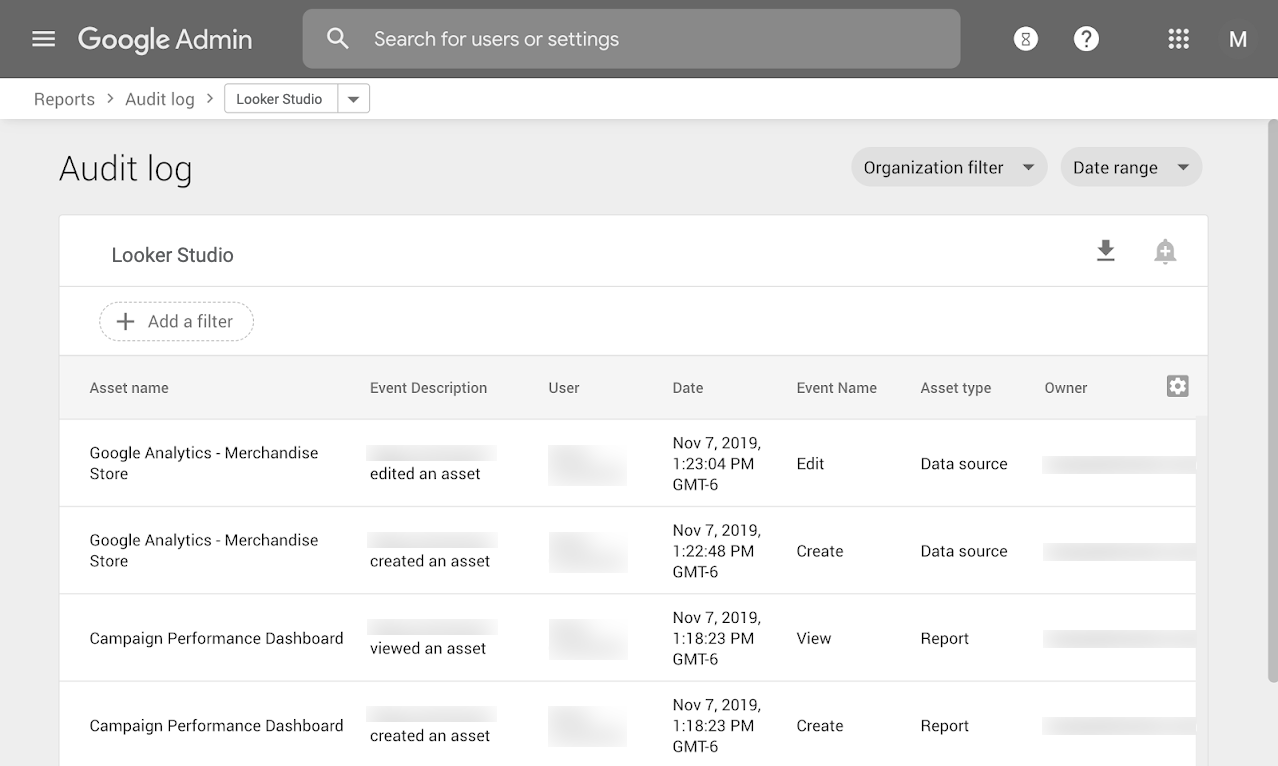
Enterprise audit logging provides IT administrators organization-wide visibility into Data Studio usage, similar to that available for apps like Drive and Calendar. For example, administrators can understand which users are creating Data Studio reports, and who they are sharing those reports with. administrators can also identify which reports have the most engagement, to scale successful reports across the organization. Custom alerts let you can monitor potentially risky activity like external sharing of data sources, and you can export audit logs to BigQuery and use Data Studio to drill into the details.
For more information, see the following article:
Agree to the Google Cloud Platform Terms of Service
Once you have agreed to have the Google Cloud Platform Terms of Service govern your use of Data Studio, users in your organization won't need to sign the terms when they start using Data Studio. Learn more about using Data Studio with the Google Cloud Platform Agreement.
Manage data protection contacts
View and manage your data protection contacts in the Google Cloud console.
Organization management through Cloud Identity integration
Data Studio integrates with Google Cloud Identity to provide organization-wide administrative capabilities. Cloud Identity and Google Workspace administrators can manage who can use Data Studio and how they can use it. If you use other identity providers, such as Active Directory, you can synchronize their users with Google Cloud Identity, so that creating, suspending, and deleting users happens in one place.
Transfer ownership of Data Studio assets
When someone leaves your organization, you can transfer their Data Studio reports and data sources to another user, ensuring you don't lose access to important information.
For more information, see the following article: