
The user interface on Google Meet Hardware touchscreens is being updated with a fresh, modern design. This refresh aligns the look and feel with the familiar Google Meet experience you use on the web and mobile, making it more intuitive to manage your meetings in conference rooms.
This document provides an overview of the changes and benefits. For detailed instructions on specific features, go to the related articles linked later on this page.
What's changing?
The updated touchscreen interface brings the consistency of Google Meet to your dedicated meeting room hardware. Main changes include:
- Updated Layout & Icons: The arrangement of controls and the icons used now closely match the Meet interface on your computer, reducing the need to learn a separate system.
- Streamlined Navigation: Controls are organized to prioritize the most common actions while keeping secondary features accessible.
What you need to do
Google highly recommends joining the Early Preview Rooms (EPR), to help your organization get ready for this change.
Enrolling devices into EPR lets you:
- Test: Experience the new UI firsthand on select devices in your environment.
- Prepare: Use the preview period (approximately 4-6 weeks) to update your internal training documents, support resources, and user communications.
How to participate
- Administrators can opt-in select devices to the Early Preview Rooms program
using the Google Admin console under Devices
 Google Meet hardware
Device Settings Feature Preview Select Early Preview.
Google Meet hardware
Device Settings Feature Preview Select Early Preview. - Detailed instructions and more information about the new UI can be found in Try features early on your devices, which explains Simplify UI & EPR.
- Google suggests that no more than 10% of your fleet is opted into Early Preview Rooms.
- We highly recommend enrolling immediately since the feature will launch soon.
Key Benefits
This refresh is designed to make your meeting room experience smoother:
- Familiar and Intuitive: If you're comfortable using Meet on the web, you'll find the touchscreen controls instantly recognizable. Jump right into your meeting without searching for buttons.
- Focus on Collaboration: Spend less time managing the technology and more time engaging in productive discussions.
- Consistent Meet Experience: Enjoy a seamless and predictable interface whether you join from your personal device or a meeting room.
A Look at the New Interface
The updated design organizes controls into two main areas for ease of use:
Simple View: This is the default view when you're in a meeting. It provides immediate access to the most frequently used core controls, such as:
- Mute or Unmute Microphone
- Turn Camera On or Off
- Adjust Volume
- Raise Hand
- Send Reactions (Emojis)
- End Call
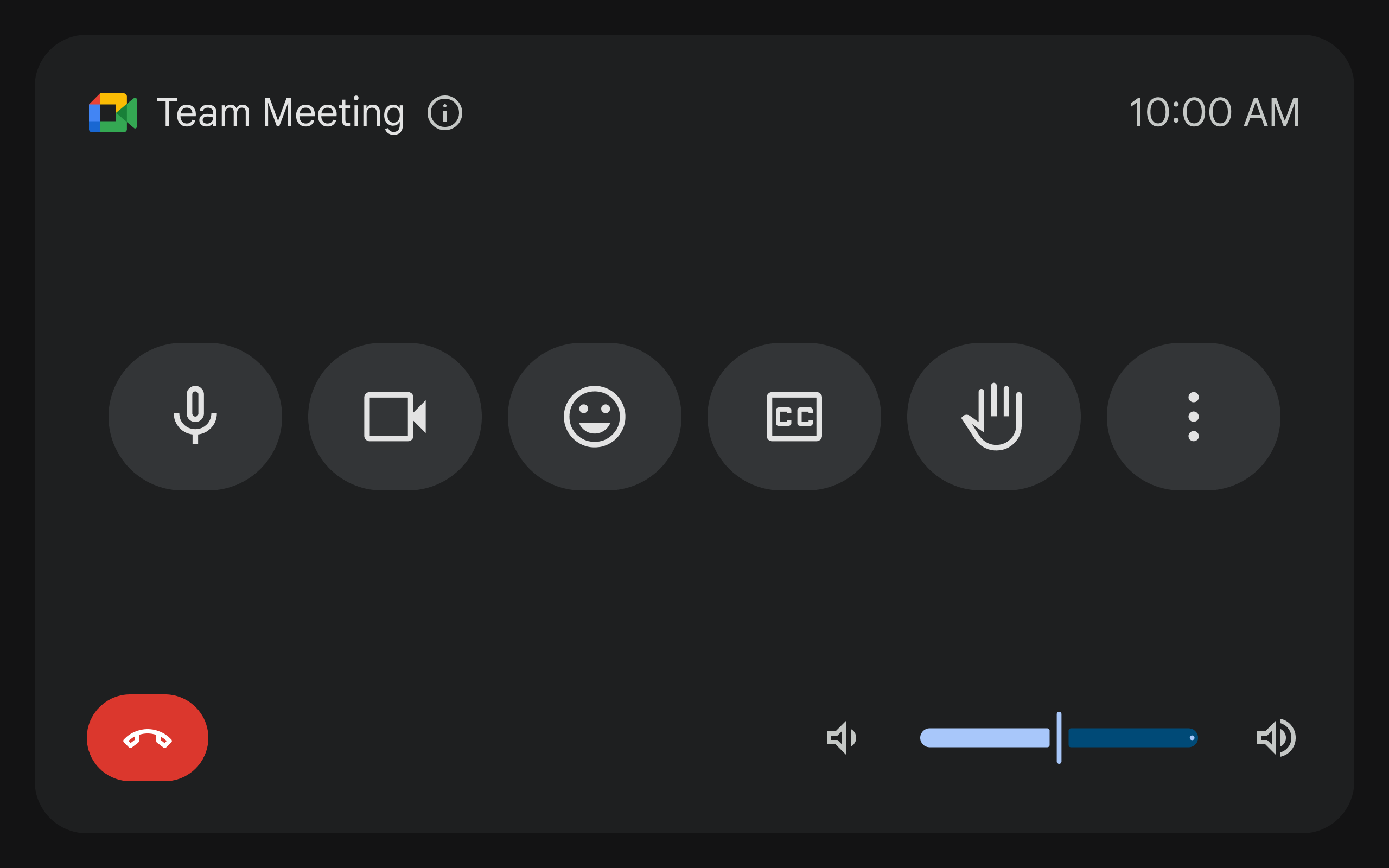
(Touch Controller UI Refresh: In-meeting Experience)
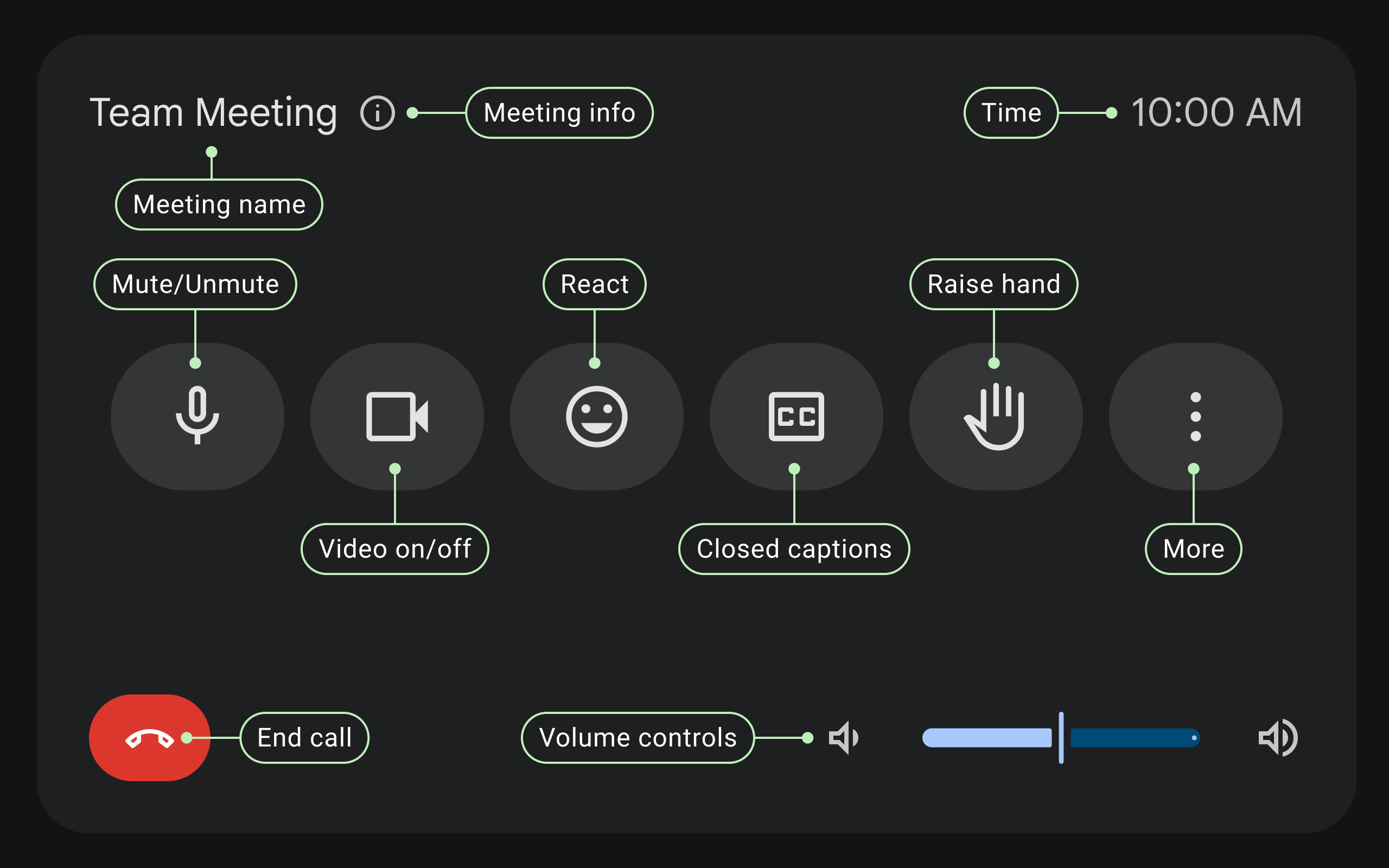
(Touch Controller UI Refresh: Annotated In-meeting Experience)
More Actions Menu: Tapping the "More actions" button reveals secondary controls used for specific situations, including:
- Presenting Content
- Managing Participants (People list)
- Changing Layouts
- Turning Captions On or Off
- Accessing Chat
- Starting or Stopping Recording
- Activities (Polls, Q&A - if applicable)
- Settings (Audio, Video, etc.)
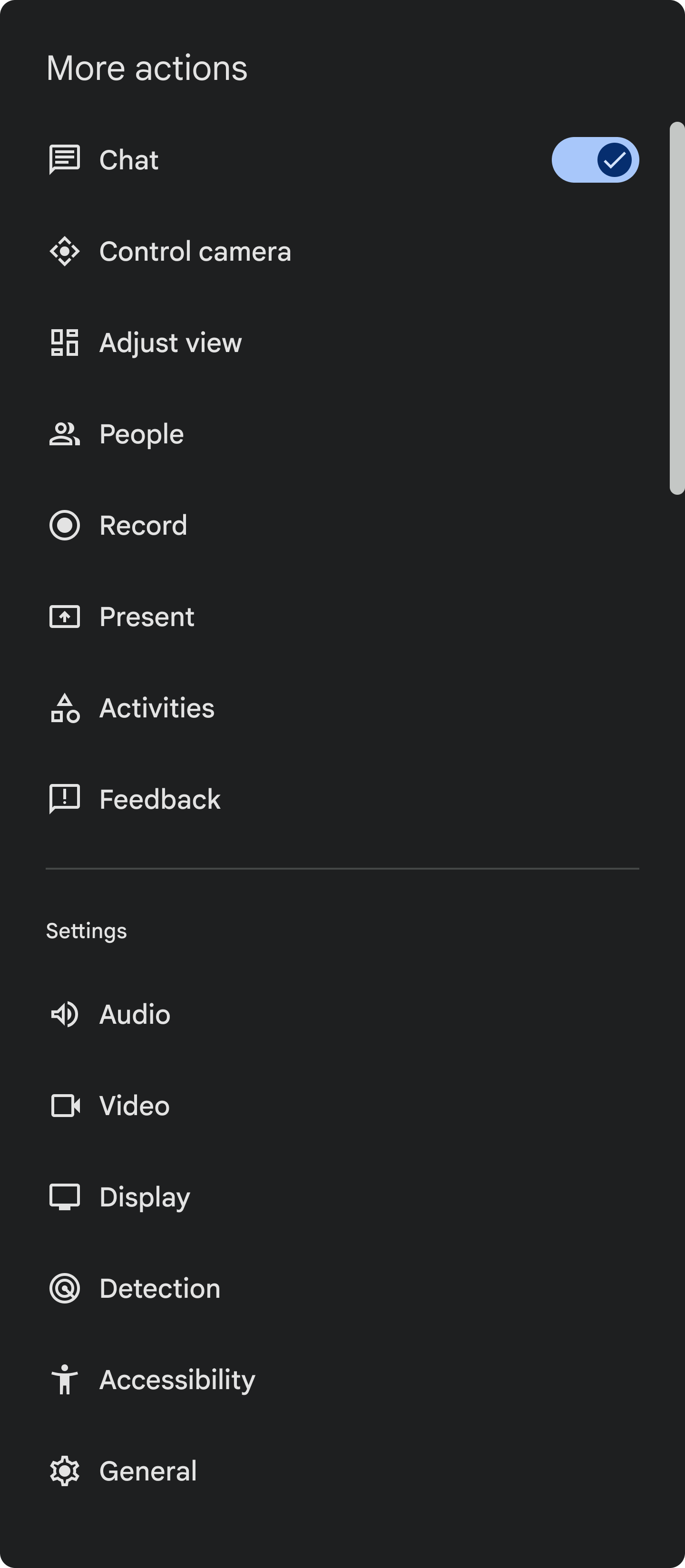
(Touch Controller UI Refresh: More actions menu)
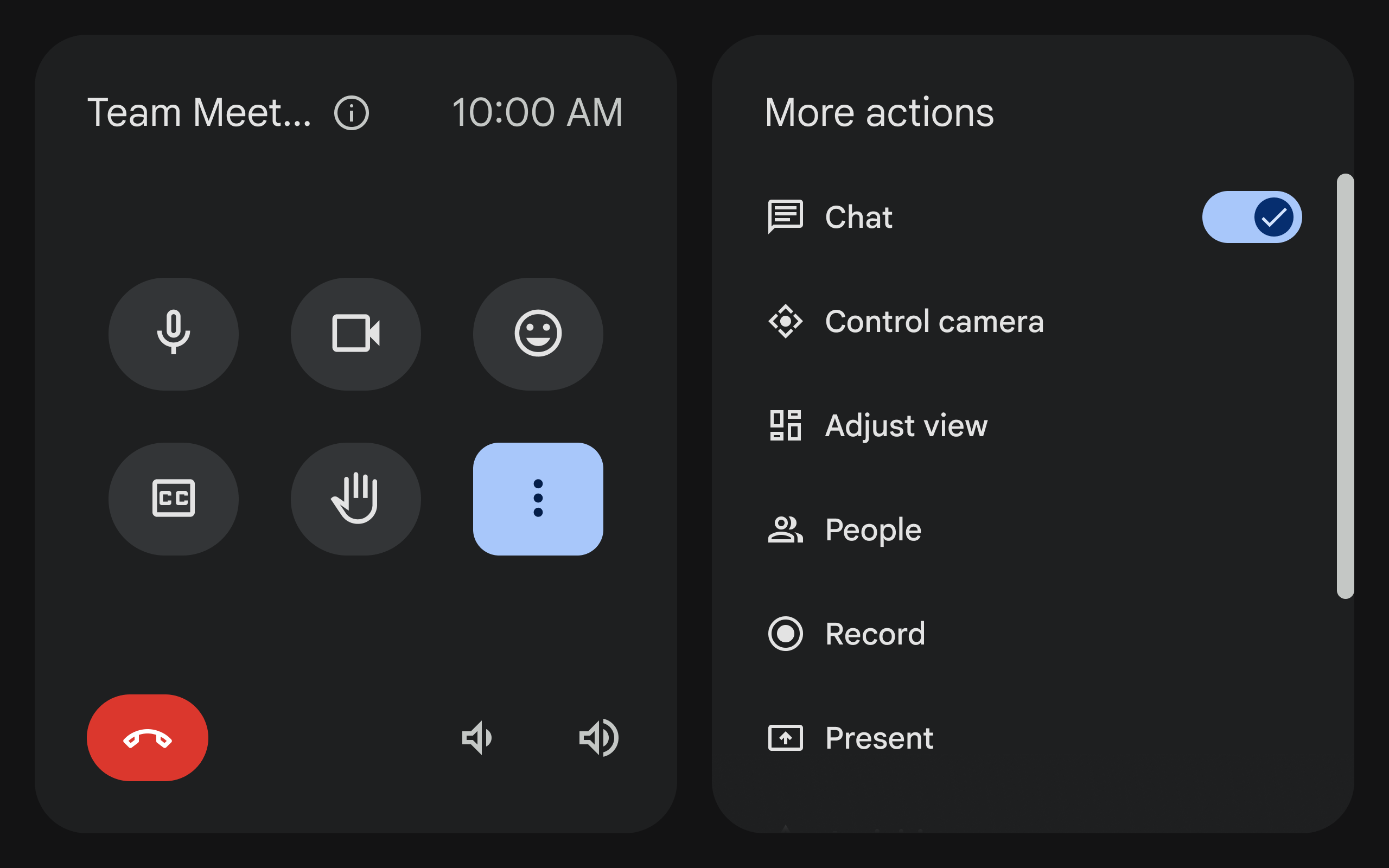
(Touch Controller UI Refresh: Advanced View)
Learn how to use the updated touchscreen
For step-by-step guidance on using the refreshed interface:
- Control Audio and Video: Manage your microphone, camera, and volume during a meeting.
- Start or Join a Meeting: Start new calls or connect to existing calls from the home screen.
- Invite guests to a meeting: Invite guests through email from Google Meet hardware or by phone.
Frequently asked questions
Note: We update this section based on user feedback.
Where can I find features like Present, Chat & Layouts in the new UI?
To create a cleaner and more streamlined experience, we moved several controls into the More actions menu. When you tap "More actions  ," you can find options like "Present," "Chat," and "Layouts."
How do I change cameras or access other camera controls?
You can find the advanced camera settings, like switching between cameras and accessing pan tilt zoom (PTZ) controls, located under More actions Camera Controls.
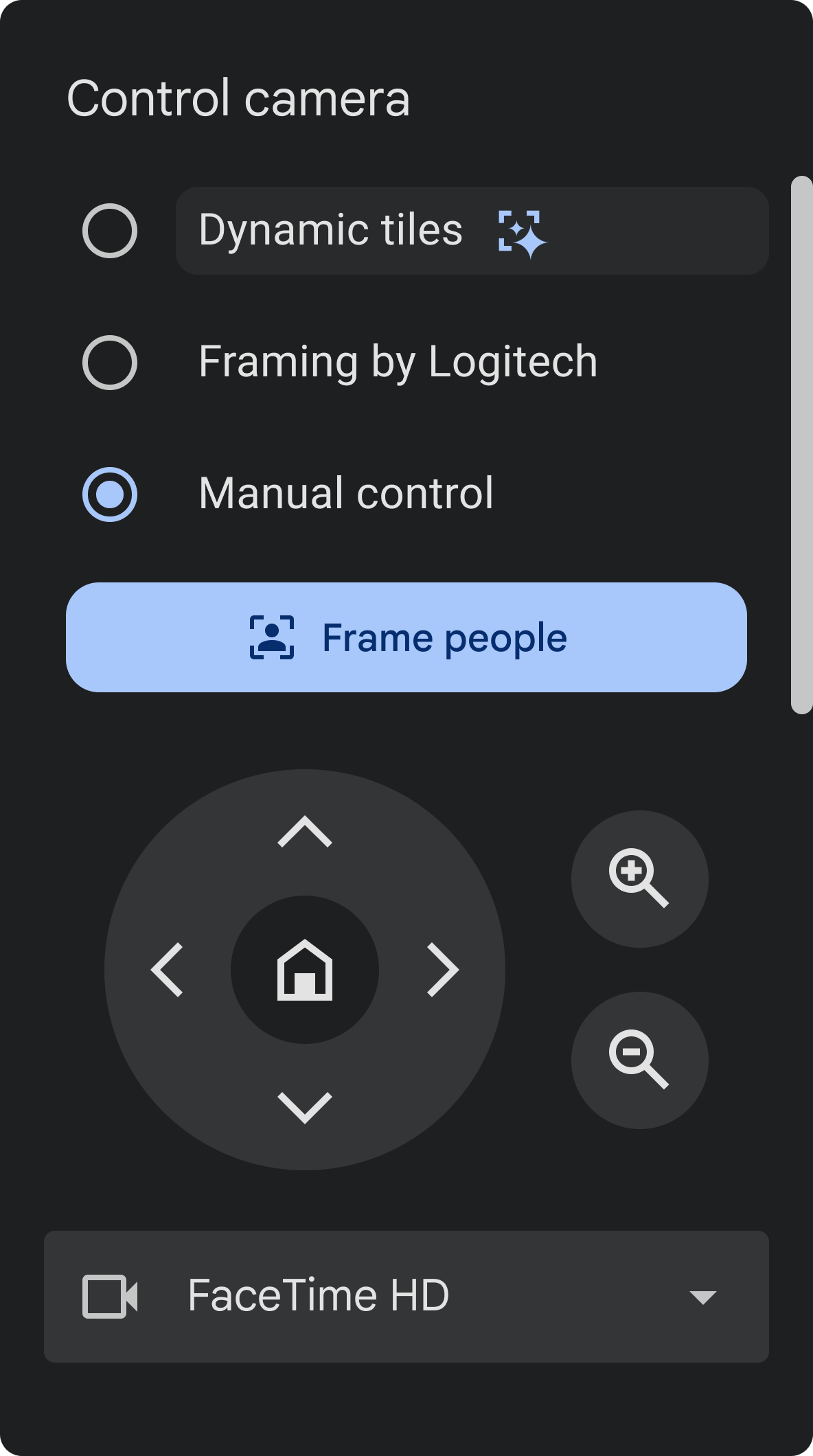
(Touch Controller UI Refresh: Camera Controls)
Is a light mode available for the new UI
The new UI is only available in dark mode. We plan to release a light mode as an option soon after the General Availability (GA) release.
Why is the volume bar smaller?
The volume bar was redesigned to be more compact. If your users can't change the volume with the slider, they can tap the volume icons.
Can we roll back the EPR experience?
Yes. To roll back the Early Preview Rooms experience, opt out the selected devices through the Google Admin console. To roll back:
-
In the Google Admin console, go to Menu

 Devices
Google Meet hardware
Settings
Device settings.
Devices
Google Meet hardware
Settings
Device settings.Some features may require having the Manage Google Meet hardware and calendars privilege.
- Scroll to and click Feature preview.
- Select General availability.
- Click Save.
What will the pre-meeting UI look like for users on Interop devices?
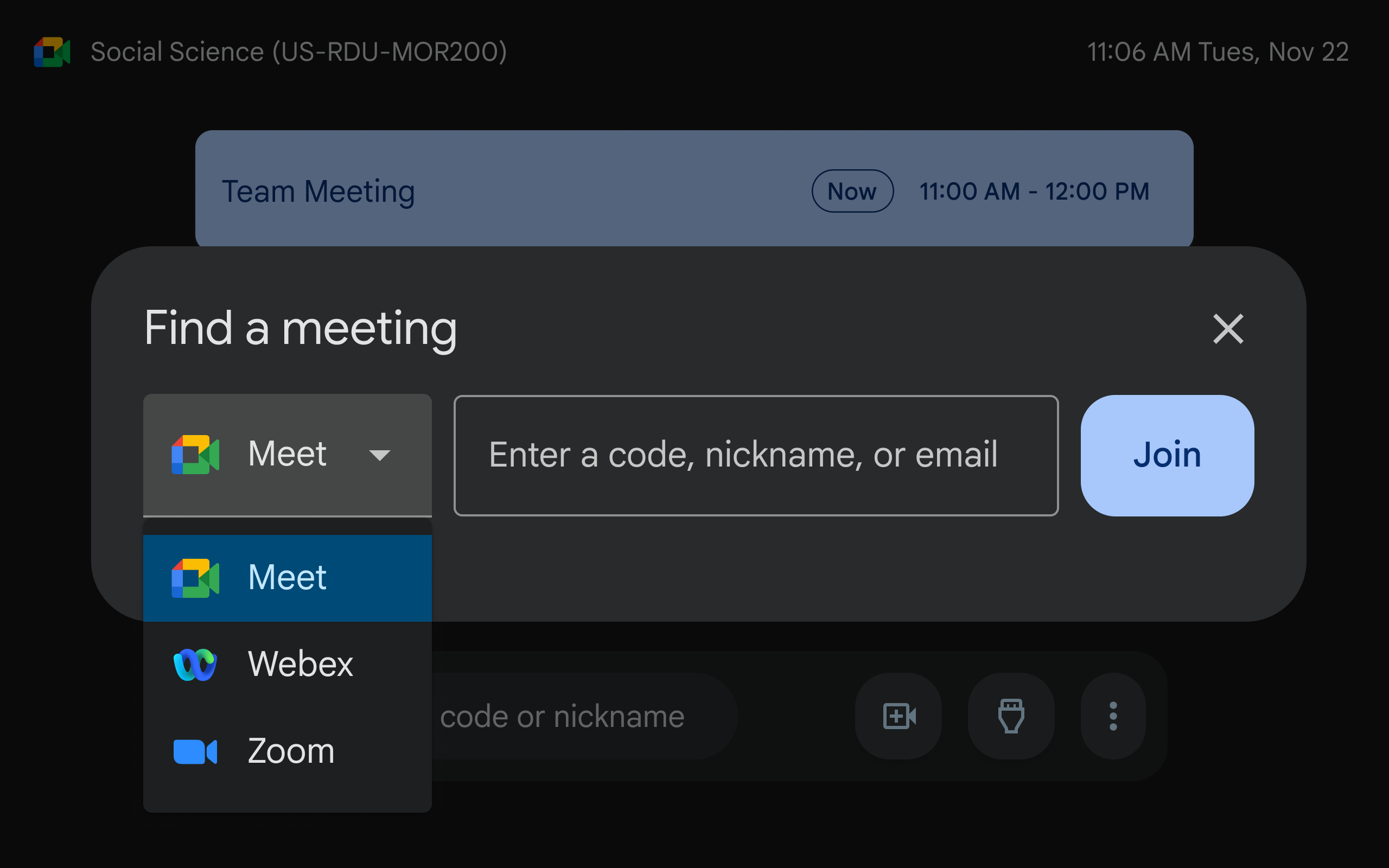
(Touch Controller UI Refresh: Interop pre-meeting experience)
What will the pre-meeting UI look like when there are multiple meetings scheduled for the same meeting room
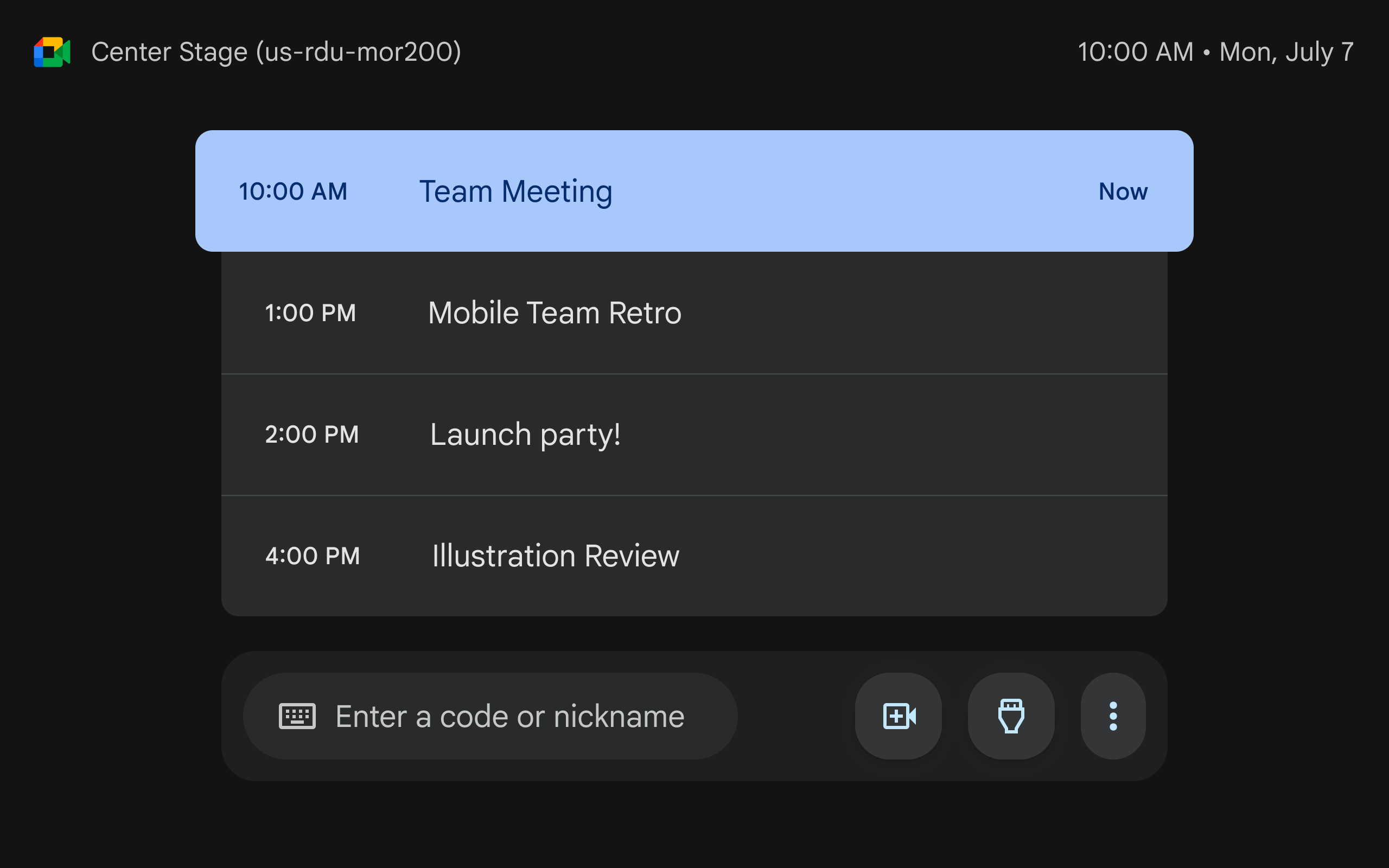
(Touch Controller UI Refresh: Pre-meeting experience)
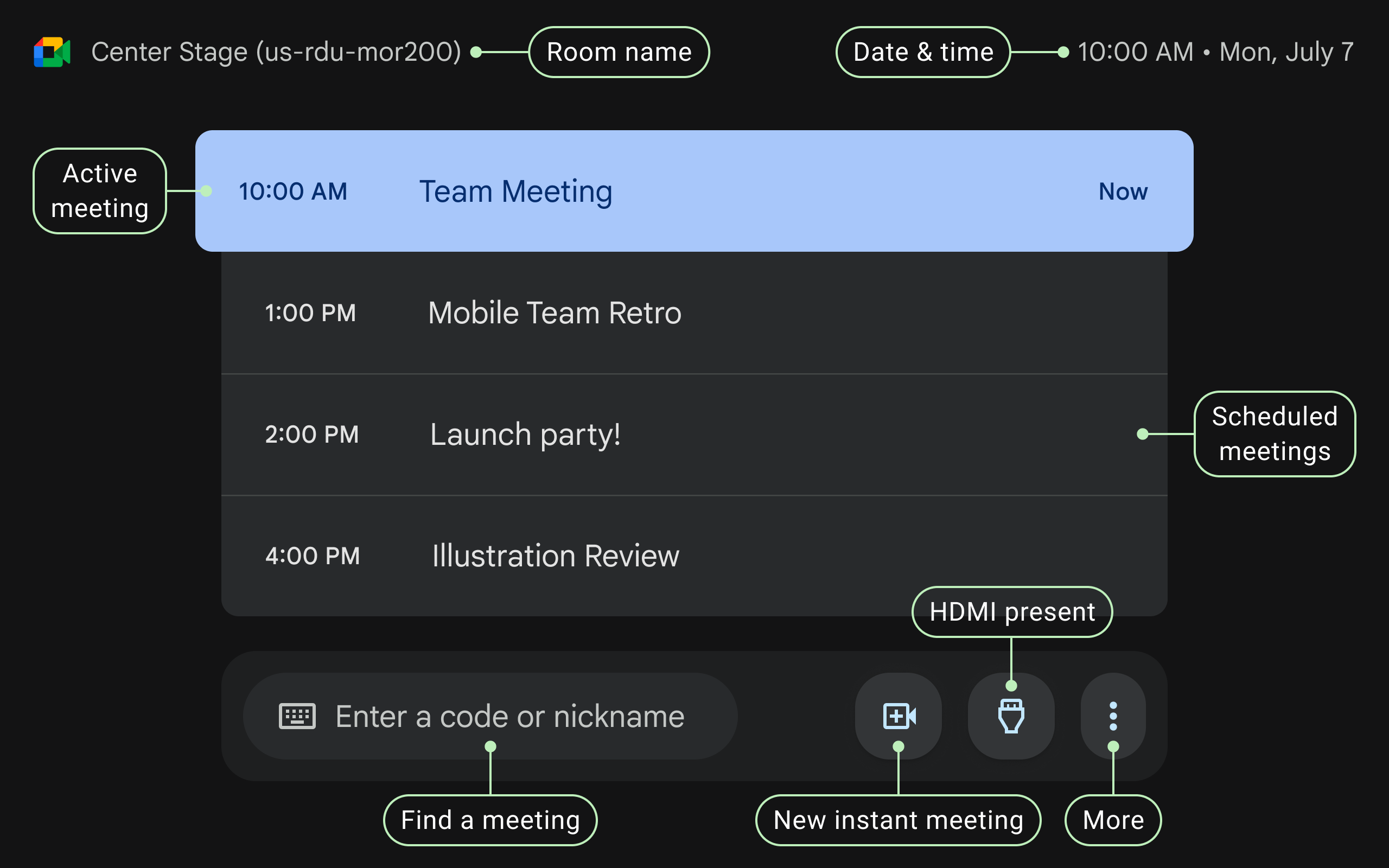
(Touch Controller UI Refresh: Annotated pre-meeting experience)