View a user's group memberships
Stay organized with collections
Save and categorize content based on your preferences.
This page is for administrators who manage groups for an organization. If you're not an admin and need help managing your own groups, go to the Learning Center.
As a Groups administrator for your organization, you can view the groups that users in your organization belong to. You can also view each user's group role.
See what groups a user belongs to
To complete these steps, you need the appropriate administrator privileges. Depending on your privileges, you might not see all the controls needed to complete these steps. Learn more about administrator privileges.
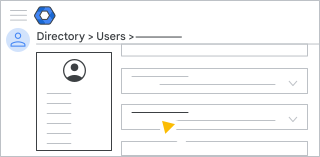
In the Google Admin console, go to Menu Directory
Users.
Requires having the appropriate User management privilege. Without the correct privilege, you won't see all the controls needed to complete these steps.
In the Users list, find the user. If you need help, see Find a user account.
Click the user's name to open their account page.
Click Groups.
The user's groups are listed along with the user's role in the group and the group's email address.
Tip: Click Add to add the user to another group. Or, point to the group and click RemoveRemove to delete the user from the group.
[[["Easy to understand","easyToUnderstand","thumb-up"],["Solved my problem","solvedMyProblem","thumb-up"],["Other","otherUp","thumb-up"]],[["Missing the information I need","missingTheInformationINeed","thumb-down"],["Too complicated / too many steps","tooComplicatedTooManySteps","thumb-down"],["Out of date","outOfDate","thumb-down"],["Samples / code issue","samplesCodeIssue","thumb-down"],["Other","otherDown","thumb-down"]],["Last updated 2026-09-10 UTC."],[],[]]


 Directory
 to add the user to another group. Or, point to the group and click Remove